

Attaching Files (Pro)
You can attach files to a Finding, an Engagement, or a Test to provide supporting context — for example a proof-of-concept screenshot, a raw scanner report, a network diagram, or a spreadsheet that backs up a result.
Each object keeps its own set of files, and you can attach up to 10 files to a single object.
Attached files are separate from images placed inside a description or a note. To show a screenshot within the text itself, paste or drop it into the markdown editor instead; see The Markdown Editor.
Supported File Types
By default the following extensions are accepted:
.txt  .pdf  .json  .xml  .csv  .yml  .png  .jpeg
.sarif  .xlsx  .doc  .html  .js  .nessus  .zip  .fpr
Administrators can change this list with the DD_FILE_UPLOAD_TYPES environment variable.
Uploading a file whose extension is not in the list is rejected.
How to Attach a File to a Finding
Open the Finding you want to attach a file to.
Click the gear (⚙) menu in the top-right of the Finding and choose Add File.
Enter a Title for the file and choose the file from your computer, then save.
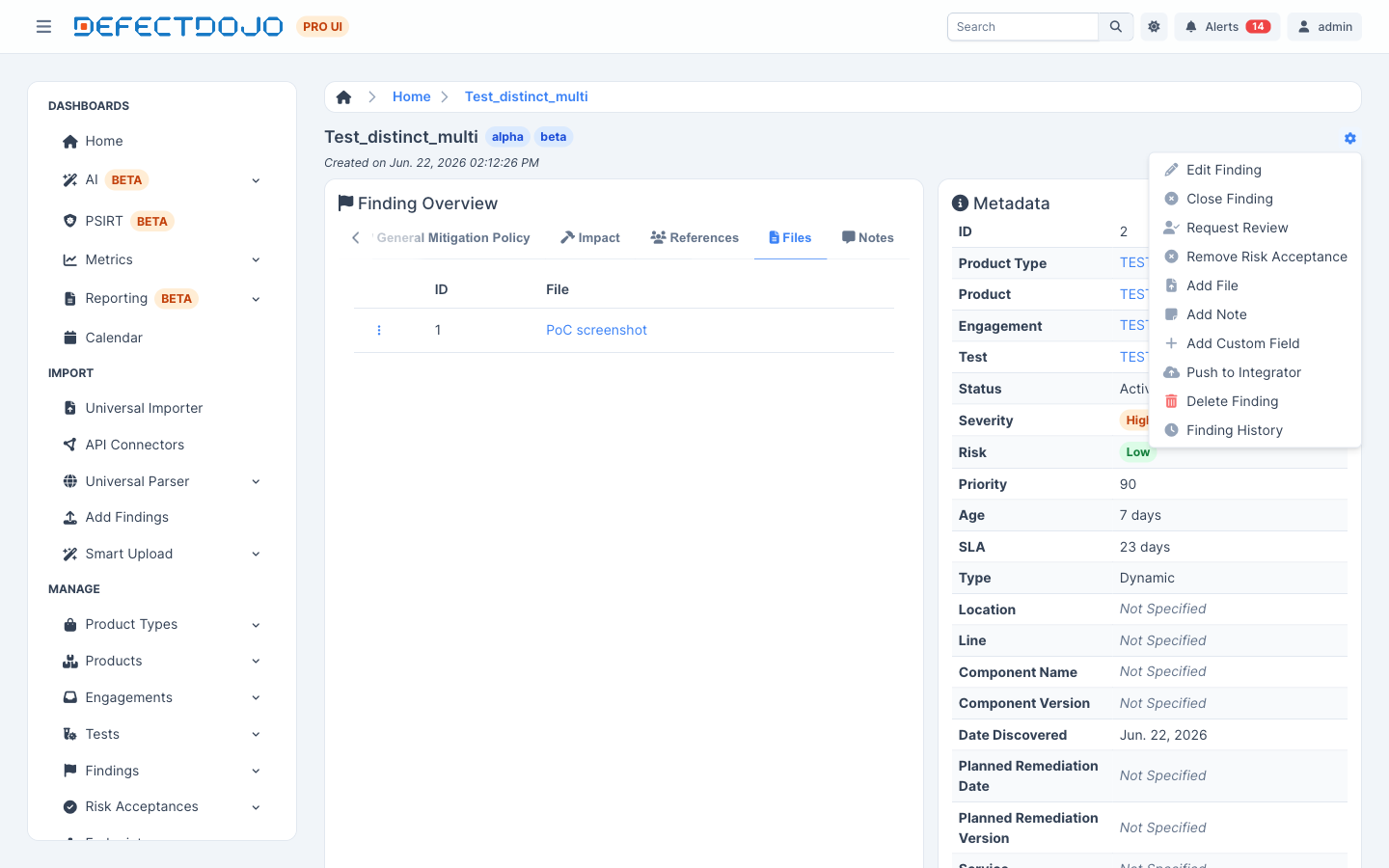
The same gear menu is available on Engagement and Test pages, so files can be attached to any of these objects the same way.
Viewing and Downloading Files
Attached files are listed under the Files tab of the Finding Overview (and the equivalent section on Engagements and Tests). Click a file’s title to download it.
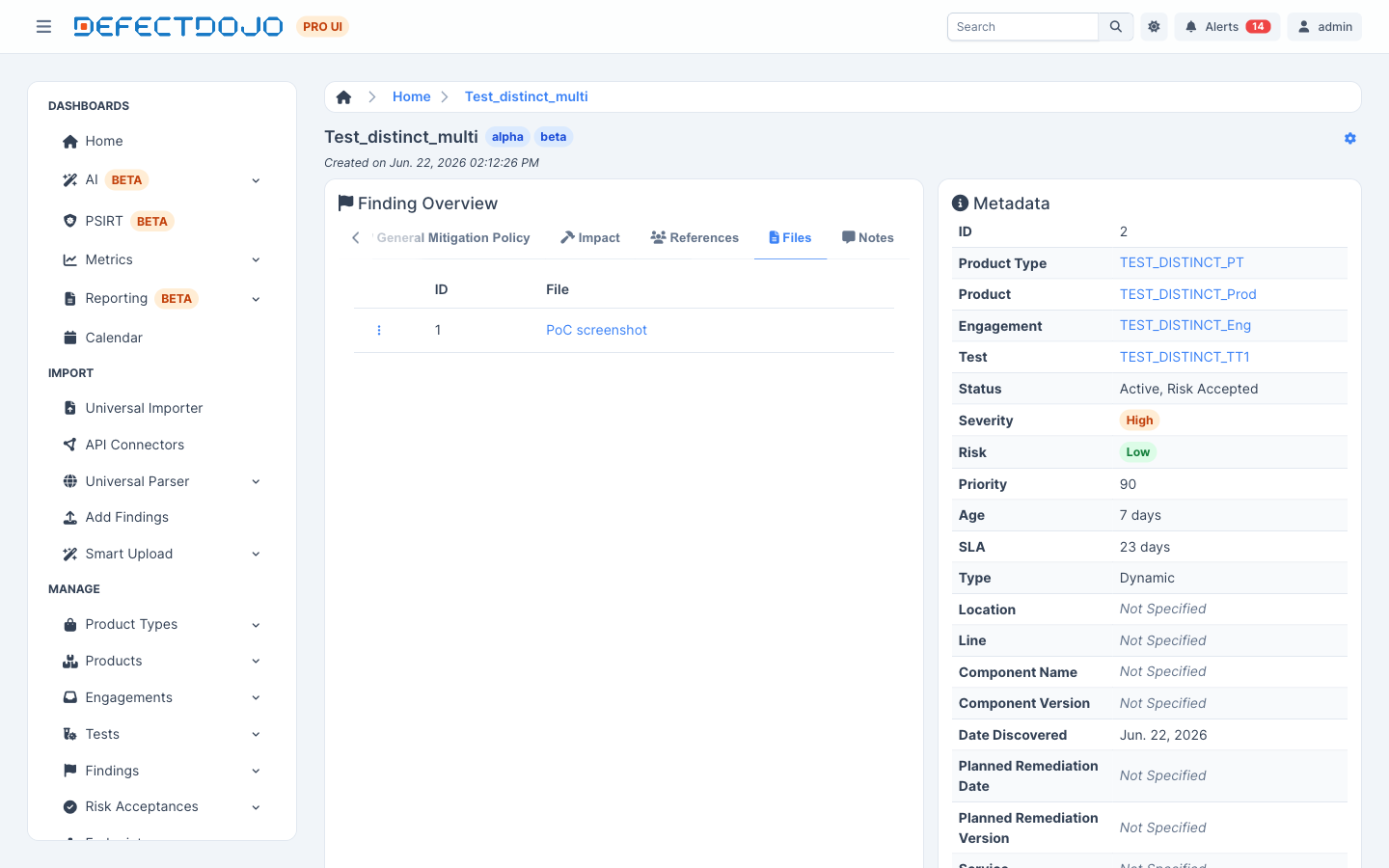
Access is permission-checked: a user must have view permission on the parent Finding, Engagement, or Test to download its files.
Deleting Files
To remove a file, open the file’s row menu (the ⋮ icon) in the Files tab and choose Delete File. The same menu also offers Edit File Name to rename an attachment.