

Attaching Files (Open Source)
You can attach files to a Finding, an Engagement, or a Test to provide supporting context — for example a proof-of-concept screenshot, a raw scanner report, a network diagram, or a spreadsheet that backs up a result.
Each object keeps its own set of files, and you can attach up to 10 files to a single object.
Supported File Types
By default the following extensions are accepted:
.txt  .pdf  .json  .xml  .csv  .yml  .png  .jpeg
.sarif  .xlsx  .doc  .html  .js  .nessus  .zip  .fpr
Administrators can change this list with the DD_FILE_UPLOAD_TYPES environment variable.
Uploading a file whose extension is not in the list is rejected by the form.
Image files (such as .png and .jpeg) are rendered as a thumbnail preview, while other
file types are shown with a generic file icon. In both cases, clicking the file downloads
it.
How to Attach a File to a Finding
Open the Finding you want to attach a file to.
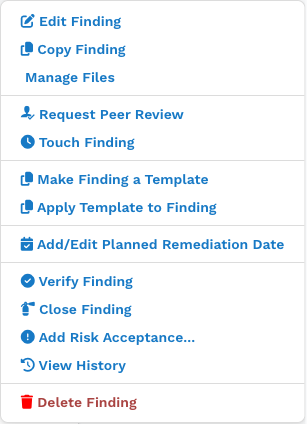
Open the actions menu (the ☰ button in the top-right of the Finding) and click Manage Files.
On the Add files page, enter a Title for the file and choose the file from your computer. You can add up to three files at a time; save and return to add more if needed.
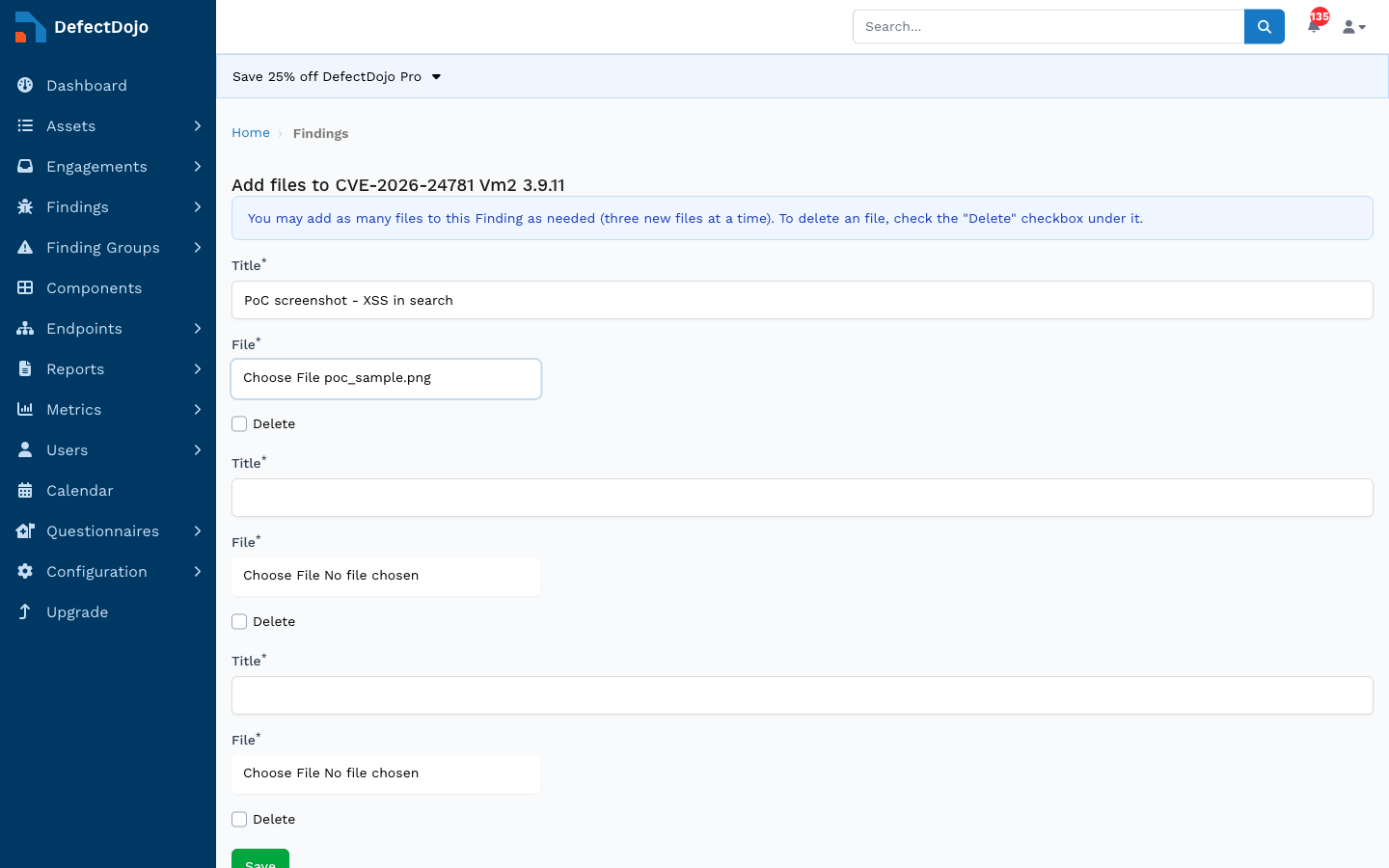
Click Save.
The file is then listed in the Files panel of the Finding. Image files appear as a thumbnail:

Attaching Files to Engagements and Tests
Engagements and Tests use the same Manage Files workflow:
- On an Engagement or Test detail page, open the Files panel and click its edit (pencil) button, then add files exactly as you would for a Finding.
As with Findings, image attachments render as a thumbnail and other file types show a generic file icon.
Viewing and Downloading Files
Attached files appear in the Files panel on the object’s detail page. Click any file to download it. Access is permission-checked: a user must have view permission on the parent Finding, Engagement, or Test to download its files.
Deleting Files
To remove a file, open Manage Files for the object, check the Delete checkbox under the file you want to remove, and click Save.