

Similar Findings (Open Source)
While Deduplication runs automatically at import time, Similar Findings is a manual, interactive tool that lives on the View Finding page. It surfaces other Findings in the same Asset that resemble the one you are looking at, and lets you link them into a duplicate cluster by hand.
Use it when automatic deduplication did not group Findings you believe belong together, or when you want to explore what else in an Asset looks like the current vulnerability.
Where to find it
Open any Finding to reach its View Finding page. Scroll down to the Similar Findings panel. The number in the heading is the count of Findings in the Asset that match the current Finding’s values.

The panel is collapsed by default. Click the panel heading (or the chevron / filter button on the right) to expand it and run the query.
How Findings are matched
When you open the panel, DefectDojo pre-fills a filter with the current Finding’s values and searches the same Asset for other Findings that match. The fields used to seed the match are:
- Vulnerability IDs (for example, CVE identifiers)
- CWE
- File path
- Line number
- Unique ID from tool
- Test type
- Asset (and Organization)
The current Finding is always excluded from its own results. Matching is scoped to the Asset, so Similar Findings never reaches across Assets. If either Engagement has Engagement-level deduplication enabled, matches that cross an Engagement boundary cannot be linked (see Actions below).
This is different from the automatic deduplication algorithm, which compares hash_code (or Unique ID from tool) to decide matches. Similar Findings deliberately casts a wider net so you can discover related Findings that strict hash matching would miss.
Refining the match
The seeded values are only a starting point. The filter panel at the top of the section lets you make matching stricter or looser: remove a field to broaden the results, or add criteria (severity, status, endpoint, dates, EPSS, and more) to narrow them.
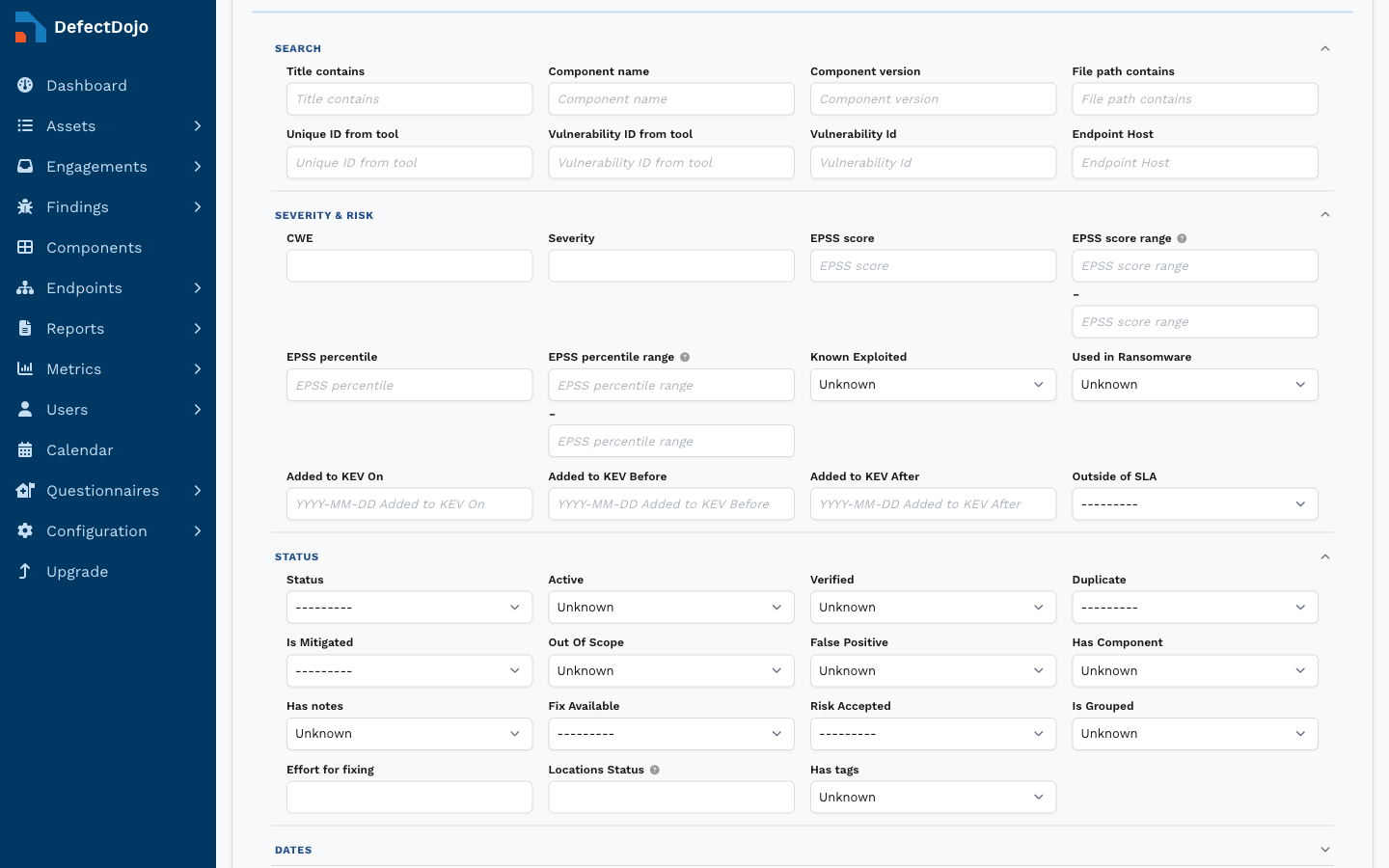
- Clear filters empties every field so you can build a query from scratch.
- Restart returns to the default match based on the current Finding’s values.
Reading the results
Each matching Finding is listed in a table. The Relationship column tells you how that Finding relates to the one you are viewing:
- Original – the root/original Finding of the current Finding’s duplicate cluster
- Duplicate – a Finding already marked as a duplicate of the current one
- Similar – a match that is not yet part of the current Finding’s cluster
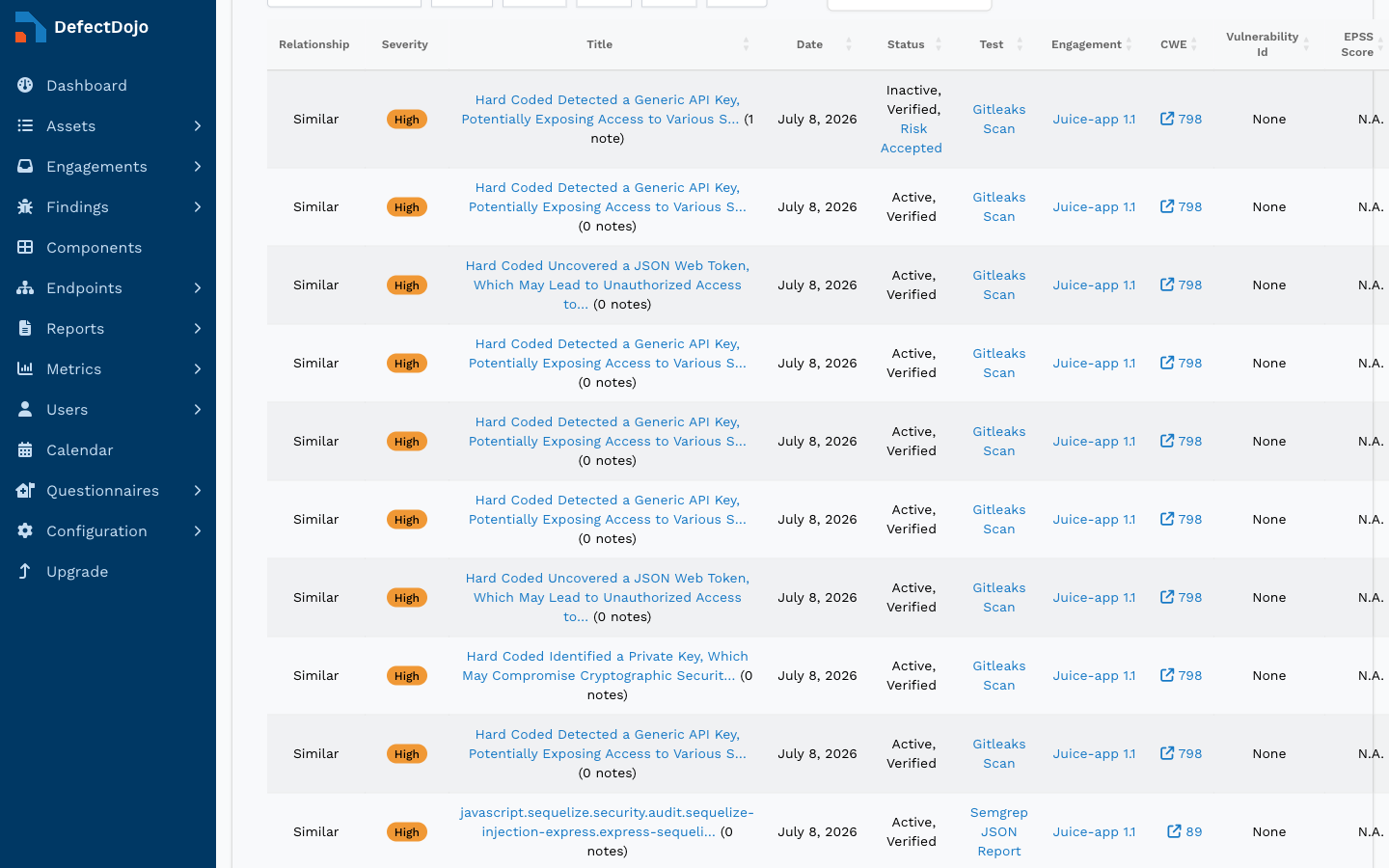
The table also shows Severity, Title, Date, Status, Test, Engagement, CWE, Vulnerability Id, EPSS score, File (with line number), and JIRA (when the JIRA integration is enabled). Every column is sortable, and the results can be exported (Copy, Excel, CSV, PDF).
Actions
If you have edit permission on a Finding, the Action column offers a dropdown to manage the duplicate cluster directly from this page:
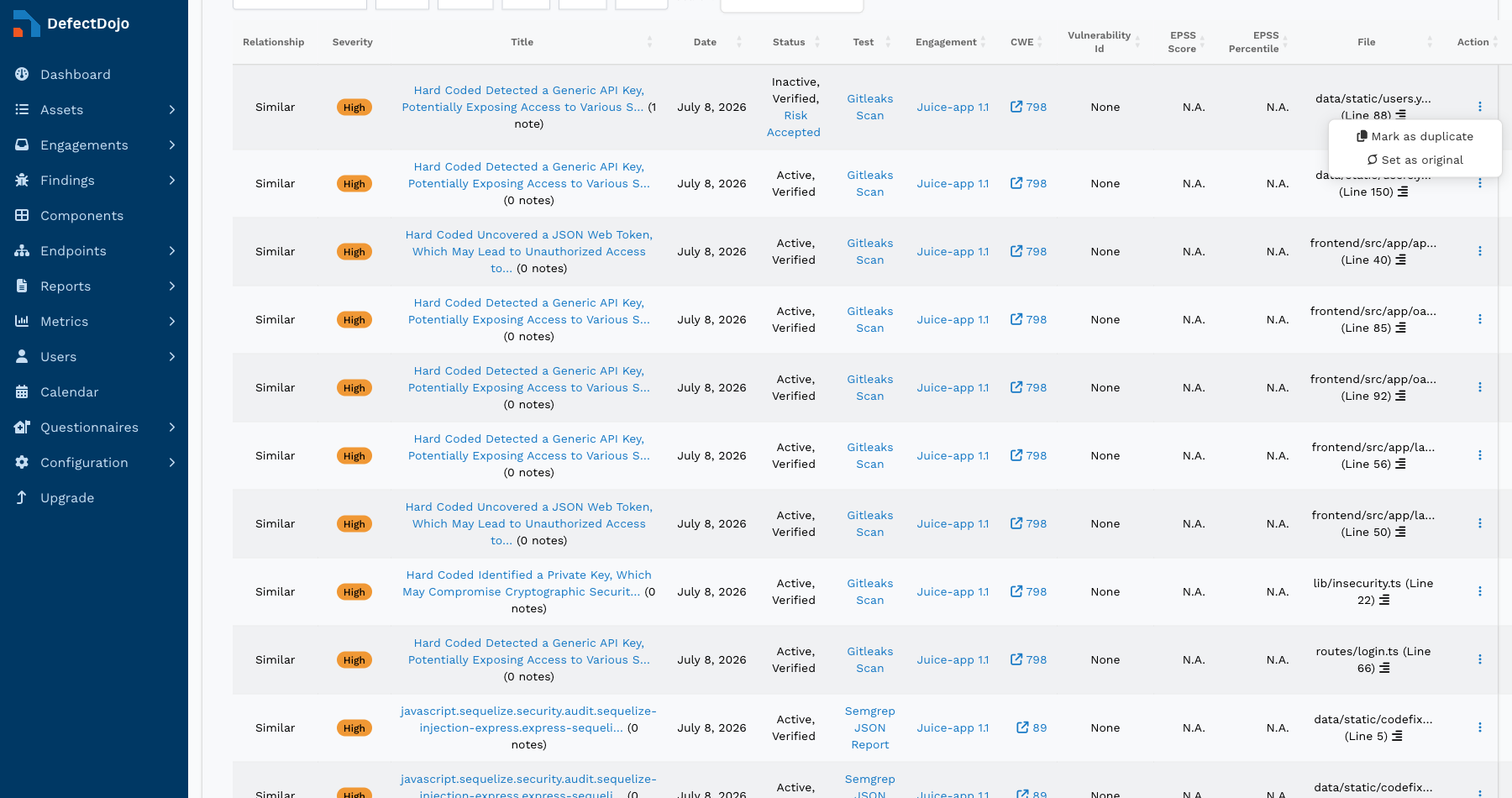
- Mark as duplicate – link the similar Finding into the current Finding’s duplicate cluster.
- Set as original – promote a Finding to be the original (cluster root).
- Reset finding duplicate status – remove a Finding from its cluster.
An action may be unavailable (shown as None) when it is not valid, for example when the similar Finding lives in a different Engagement and Engagement-level deduplication is enabled, or when it is already the original of a different cluster. These actions manipulate the same duplicate relationships that automatic deduplication uses, so a Finding you mark here behaves exactly like an automatically detected duplicate.
Enabling and disabling Similar Findings
Similar Findings is controlled by a global system setting. Go to Configuration > System Settings and toggle Enable Similar Findings. It is enabled by default.
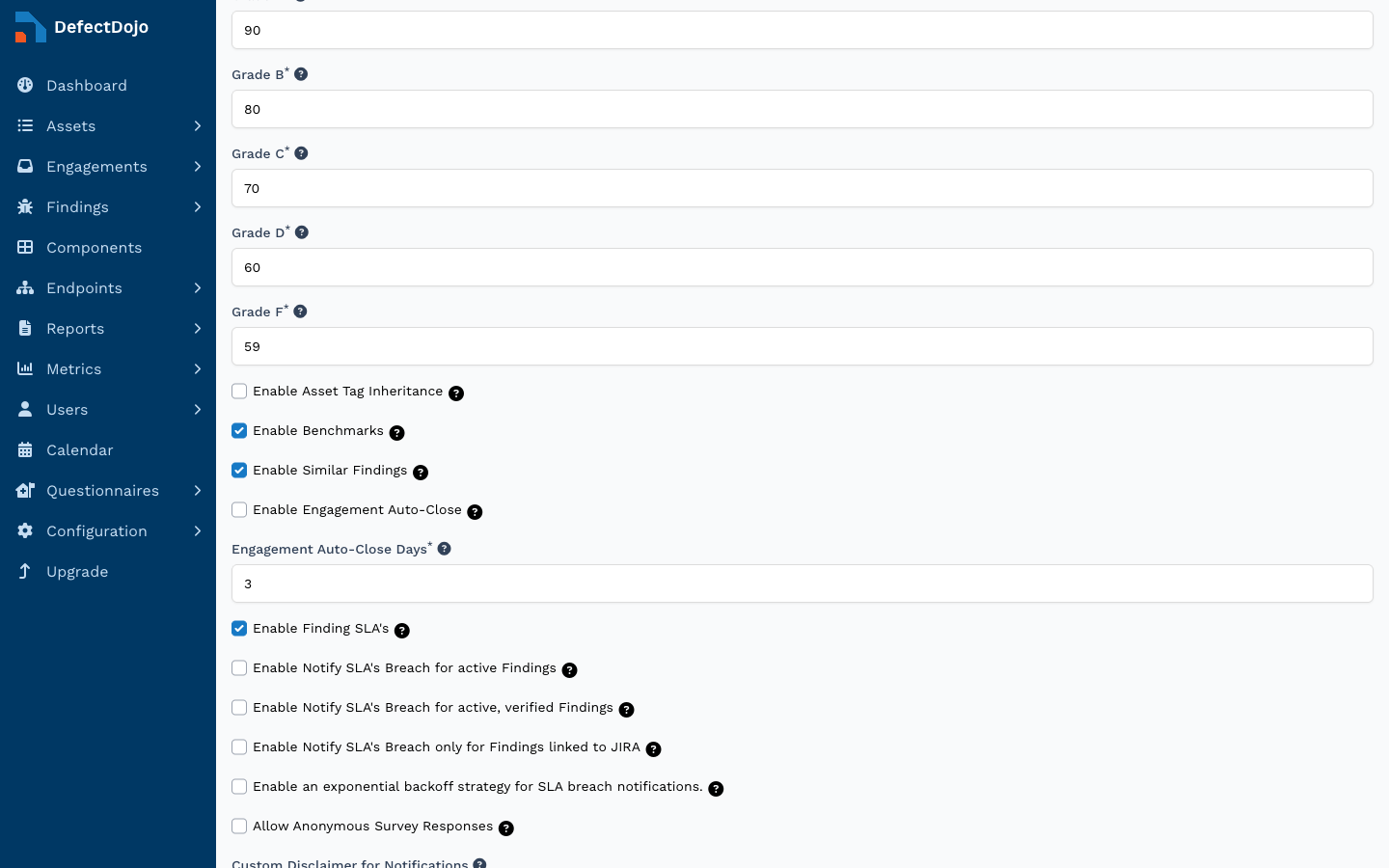
Because the query looks across an entire Asset, it can be expensive on large Assets. If you notice slow View Finding pages, you can disable the feature here, or limit the number of results returned with the DD_SIMILAR_FINDINGS_MAX_RESULTS environment variable (default 25).