

Avoiding Excess Duplicates
One of DefectDojo’s strengths is that the data model can accommodate many different use-cases and applications. You’ll likely change your approach as you master the software and discover ways to optimize your workflow.
By default, DefectDojo does not delete any duplicate Findings that are created. Each Finding is considered to be a separate instance of a vulnerability. So in this case, Duplicate Findings can be an indicator that a process change is required to your workflow.
When are Duplicate Findings acceptable?
Duplicate Findings are not always indicative of a problem. There are many cases where keeping duplicates is the preferred approach. For example:
- If your team uses and reports on Interactive Engagements. If you want to create a discrete report on a single Test specifically, you would want to know if there’s an occurrence of a Finding that was already uncovered earlier.
- If you have Engagements which are contextually separated (for example, because they cover different repositories) you would want to be able to flag Findings which are occurring in both places.
Checking for redundant imports
Step 1: Clean up your excess Duplicates
Fortunately, DefectDojo’s Deduplication settings allow you to mass-delete duplicates once a certain threshold has been crossed. This feature makes the cleanup process easier. To learn more about this process, see our article on Finding Deduplication <-link will go here.
Step 2: Evaluate your Engagements for redundancies
Once you’ve cleaned up your duplicate Findings, it’s a good practice to look at the Product which contained them to see if there’s a clear culprit. You might find that there are Engagements contained within which have a redundant context.
Duplicate or Reused Engagements
Engagements store one or more Tests for a particular testing context. That context is ultimately up to you to define for yourself, but if you see a few Engagements within your Product which should share the same context, consider combining them into a single engagement.
Questions to ask when defining Engagement context:
- If I wanted to make a report on this work, would the Engagement contain all of the relevant information I need?
- Are we proactively creating Engagements ahead of time or are they being created ‘ad-hoc’ by my import process?
- Are we using the right kind of Engagement - Interactive or CI/CD?
- What section of the codebase is being worked on by tests: is each repository a separate context or could multiple repositories make up a shared context for testing?
- Who are the stakeholders involved with the Productt, and how will I share results with them?
Step 3: Check for redundant Tests
If you discover that separate Tests have been created which capture the same testing context, this may be an indicator that these tests can be consolidated into a single Reimport.
DefectDojo has two methods for importing test data to create Findings: Import and Reimport. Both of these methods are very similar, but the key difference between the two is that Import always creates a new Test, while Reimport can add new data to an existing Test. It’s also worth noting that Reimport does not create duplicate Findings within that Test.
Each time you import new vulnerability reports into DefectDojo, those reports will be stored in a Test object. A Test object can be created by a user ahead of time to hold a future Import. If a user wants to import data without specifying a Test destination, a new Test will be created to store the incoming report.
Tests are flexible objects, and although they can only hold one kind of report, they can handle multiple instances of that same report through the Reimport method. To learn more about Reimport, see our article on this topic.
Using Reimport for continual Tests
If you have a CI/CD pipeline, a daily scan process or any kind of repeated incoming report, setting up a Reimport process in advance is key to avoiding excessive duplicates. Reimport collapses the context and Findings associated with a recurring test into a single Test page, where you can review import history and track vulnerability changes across scans.
- Create an Engagement to store the CI/CD results for the object you’re running CI/CD on. This could be a code repository where you have CI/CD actions set up to run. Generally, you want a separate Engagement set up for each pipeline so that you can quickly understand where the Finding results are coming from.
- Each CI/CD action will import data to DefectDojo in a separate step, so each of those should be mapped to a separate Test. For example, if each pipeline execution runs an NPM-audit as well as a dependency scan, each scan result will need to flow into a Test (nested under the Engagement).
- You do not need to create a new Test each time the CI/CD action runs. Instead, you can Reimport data to the same test location.
Reimport in action
DefectDojo will compare the incoming scan data with the existing scan data, and then apply changes to the Findings contained within your Test as follows:
Create Findings
Any vulnerabilities which were not contained in the previous import will be added to the Test automatically as new Findings.
Ignore existing Findings
If any incoming Findings match Findings that already exist, the incoming Findings will be discarded rather than recorded as Duplicates. These Findings have been recorded already - no need to add a new Finding object. The Test page will show these Findings as Left Untouched.
Close Findings
If there are any Findings that already exist in the Test but which are not present in the incoming report, you can choose to automatically set those Findings to Inactive and Mitigated (on the assumption that those vulnerabilities have been resolved since the previous import). The Test page will show these Findings as Closed.
If you don’t want any Findings to be closed, you can disable this behavior on Reimport:
- Uncheck the Close Old Findings checkbox if using the UI
- Set close_old_findings to False if using the API
Reopen Findings
- If there are any Closed Findings which appear again in a Reimport, they will automatically be Reopened. The assumption is that these vulnerabilities have occurred again, despite previous mitigation. The Test page will track these Findings as Reactivated.
If you’re using a triage-less scanner, or you don’t otherwise want Closed Findings to reactivate, you can disable this behavior on Reimport:
- Set do_not_reactivate to True if using the API
- Check the Do Not Reactivate checkbox if using the UI
Working with Import History
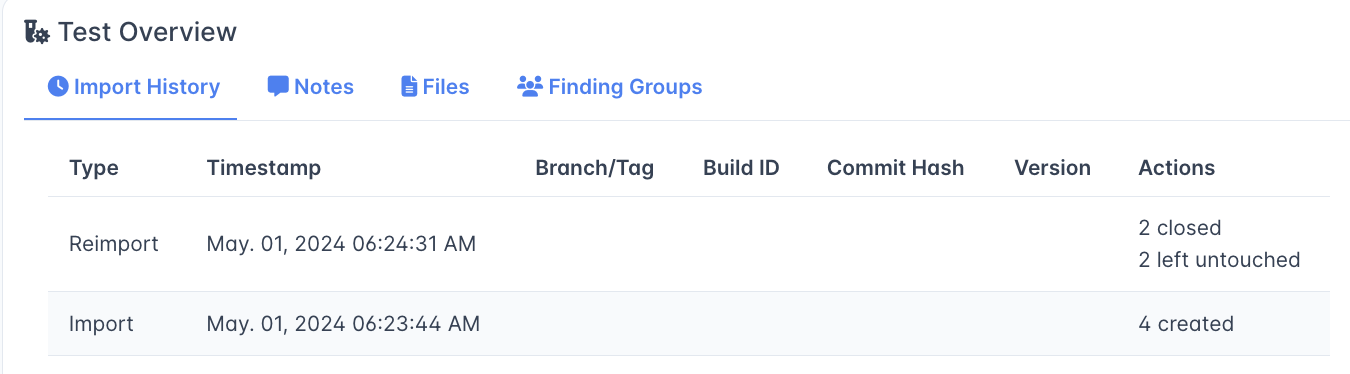
Import History for a given test is listed under the Test Overview header on the Test page.
This table shows each Import or Reimport as a single line with a Timestamp, along with Branch Tag, Build ID, Commit Hash and Version columns if those were specified.
Actions
This header indicates the actions taken by an Import/Reimport.
- # created indicates the number of new Findings created at the time of Import/Reimport
- # closed shows the number of Findings that were closed by a Reimport (due to not existing in the incoming report).
- # left untouched shows the count of Open Findings which were unchanged by a Reimport (because they also existed in the incoming report).
- # reactivated shows any Closed Findings which were reopened by an incoming Reimport.
Why not simply use Import?
Although both methods are possible, Import should be reserved for new occurrences of Findings and Data, while Reimport should be applied for further iterations of the same data.
If your CI/CD pipeline runs an Import and creates a new Test object each time, each Import will give you a collection of discrete Findings which you will then need to manage as separate objects. Using Reimport alleviates this problem and eliminates the amount of ‘cleanup’ you’ll need to do when a vulnerability is resolved.
Using Reimport allows you to store each recurring report on the same page, and maintains a continuity of each time new data was added to the Test.
However, if you’re using the same scanning tool in multiple locations or contexts, it may be more appropriate to create a separate Test for each location or context. This depends on your preferred method of organization.