

Templates and Historical Reports
Once you have created one or more Reports in DefectDojo you can take further actions, including:
Using a report as a template for subsequent reports
Re-running a report with updated data
Deleting an old or unused report
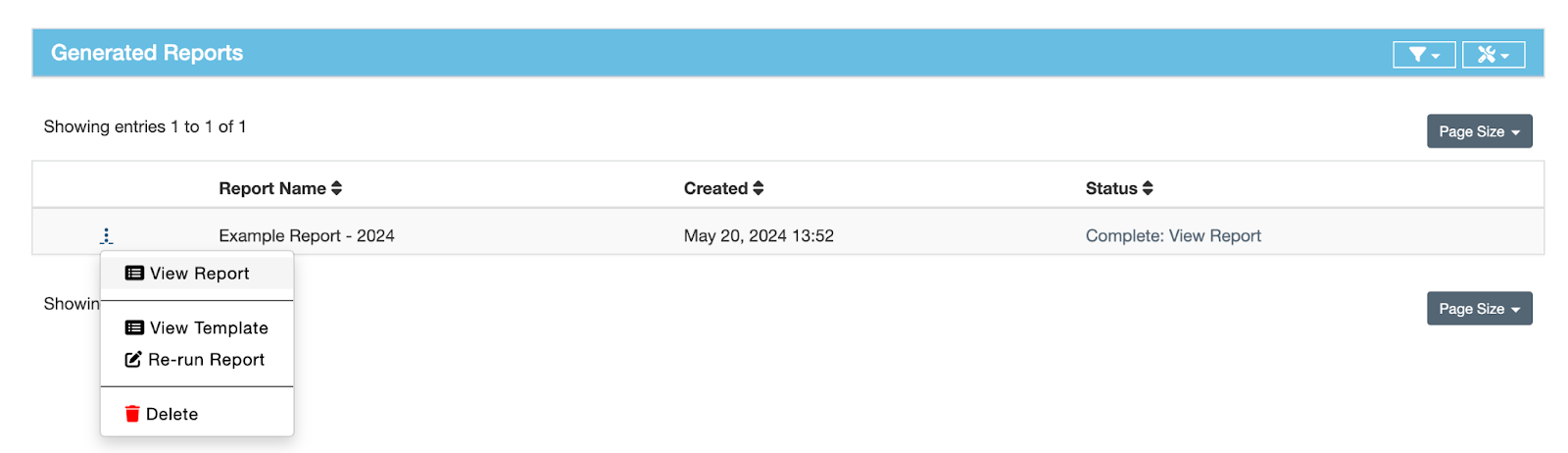
Use a report as a Template
DefectDojo allows you to easily create Report templates with your team logo, boilerplate text and a standardized content order.
If you want to change the way a report is set up, or create a new one with a similar layout, you can re-open the Report Builder by selecting View Template from the ⋮ menu next to the report you wish to use as a template.
There are two places where you can find a Report Template to use:
- From the Generated Reports page, where you can see a list of completed reports
- From the Report Templates page, where you can see a list of previously run reports, including reports which were deleted from the Generated Reports page.
Both of these pages can be found in the 📄 Reports tab on the sidebar.
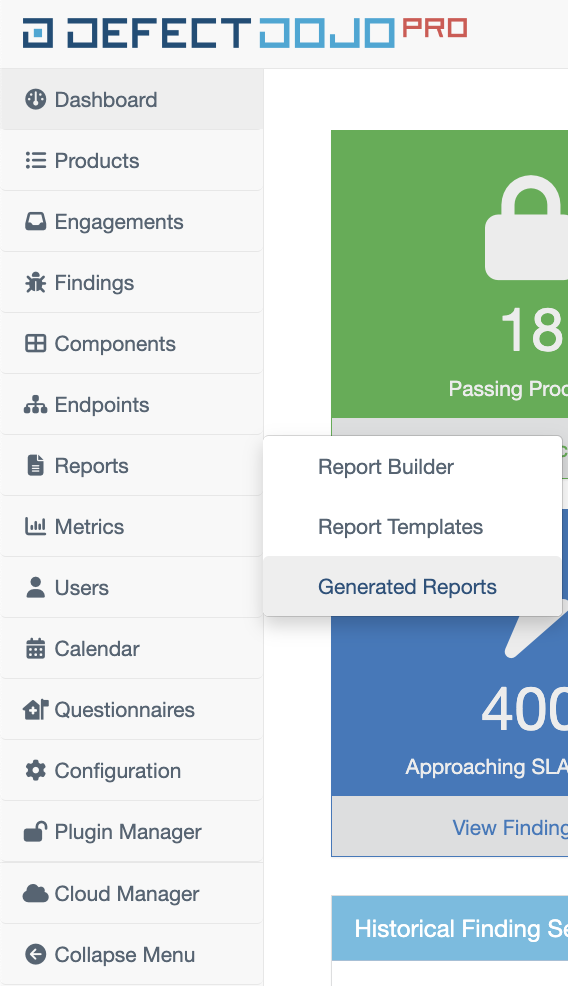
To access the Report Templates page, open 📄Reports > Report Templates from the sidebar. From that table, you can open the report builder by clicking the ⋮ menu next to the report you wish to use as a template.
Every time you make changes to a template or previous report, the result will be saved as a new report under Generated Reports so that you don’t lose the older version. If you like, the older version can be deleted.
Re-Running a Report
DefectDojo Reports are ‘frozen in time’ - to keep your records consistent, they do not update automatically when DefectDojo experiences data changes.
However, if you want to create an updated version of a previously created report, you can do so by selecting Re-run Report from the ⋮ menu next to the report you wish to generate.
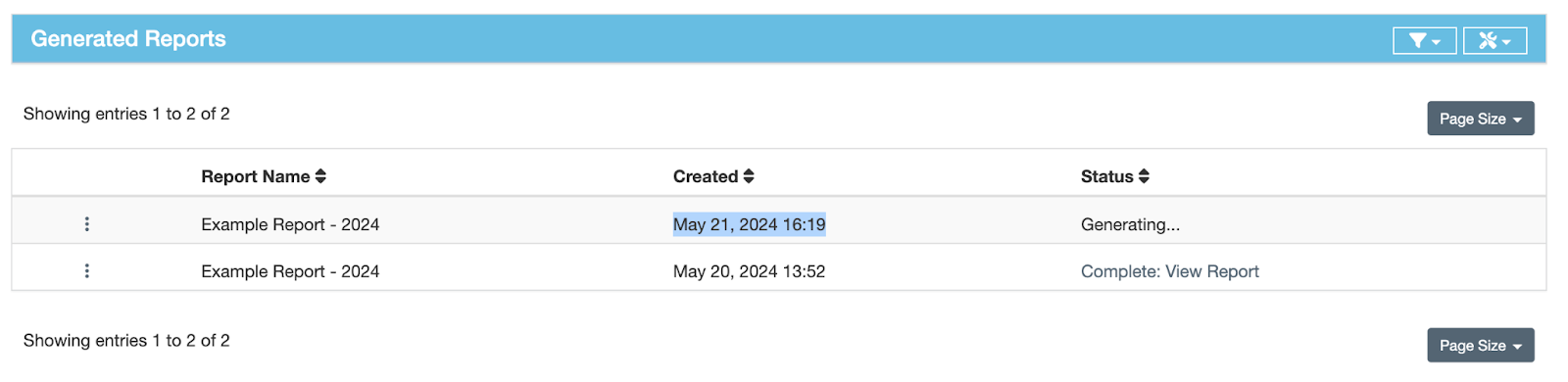
Selecting this option will create a new report in the Generated Reports list, with a different Created timestamp to indicate that the report was run at a separate time.
Deleting a Report
If you no longer need a report, you can delete it by selecting Delete Report from the ⋮ menu next to the report you wish to delete. Note that this will only remove the report from the Generated Reports list - a record of the report will still exist under Report Templates if you want to re-run it.