

Reimport
When a Test is created in DefectDojo (either in advance or by importing a scan file), the Test can be extended with new Finding data.
For example, let’s say you have a CI/CD pipeline, which is designed to send a new report to DefectDojo every day. Rather than create a new Test or Engagement for each ‘run’ of the pipeline, you could have each report flow into the same Test using Reimport.
A Reimport creates Findings that are new in the report, leaves matching Findings in place, can close Findings that are missing from the report, and reopens closed Findings that come back. Each of these outcomes, and the settings that turn closing and reopening off, is described under Reimport Logic. Whether an incoming item matches an existing Finding is decided by Reimport Deduplication. To start a Reimport from the UI, see Opening the Reimport form.
Reimport: Process Summary
Reimporting data does not replace any old data in the Test, instead, it compares the incoming scan file with the existing scan data in a test to make informed decisions:
- Based on the latest file, which vulnerabilities are still present?
- Which vulnerabilities are no longer present?
- Which vulnerabilities have been previously solved, but have since been reintroduced?
The Test will track and separate each scan version via Import History, so that you can check the Finding changes in your Test over time.
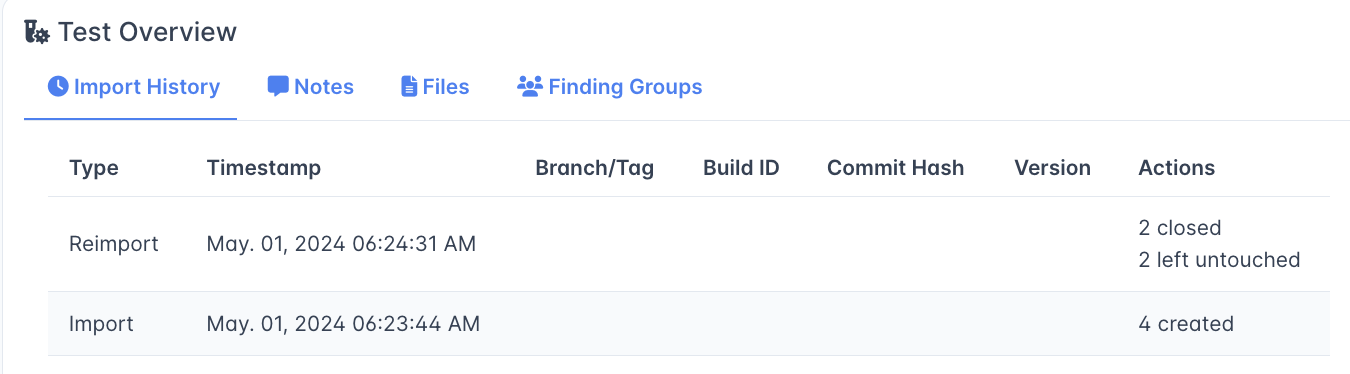
Reimport Logic: Create, Ignore, Close or Reopen
When using Reimport, DefectDojo will compare the incoming scan data with the existing scan data, and then apply changes to the Findings contained within your Test as follows:
Create Findings
Any vulnerabilities which were not contained in the previous import will be added to the Test automatically as new Findings.
Ignore existing Findings
If any incoming Findings match Findings that already exist, the incoming Findings will be discarded rather than recorded as Duplicates. These Findings have been recorded already - no need to add a new Finding object. The Test page will show these Findings as Left Untouched.
A matched Finding marked False Positive, Out of Scope or Risk Accepted keeps that status and is also Left Untouched: the report still contains it, so Close Old Findings does not close it.
Fields fix_available and fix_version
If any incoming Findings match Findings that already exist, the incoming Finding is checked if the fields fix_available and fix_version differ and are updated if yes. These Findings have been recorded already - no need to add a new Finding object. The Test page will show these Findings as Left Untouched.
Close Findings
If there are any Findings that already exist in the Test but which are not present in the incoming report, you can choose to automatically set those Findings to Inactive and Mitigated (on the assumption that those vulnerabilities have been resolved since the previous import). The Test page will show these Findings as Closed.
If you don’t want any old Findings to be closed, you can disable this behavior on Reimport:
- Uncheck the Close Old Findings checkbox if using the UI
- Set
close_old_findingstoFalseif using the API (on this endpoint,close_old_findingsisTrueby default)
Scope note: Unlike with Import, Reimport can never look at other Tests in the Engagement when considering Findings to close. The scope of Finding closure is always limited to the target Test.
The close_old_findings feature will also respect the service field: only Findings with an identical service value (or no service value, if none was specified) will be considered for closure.
Reopen Findings
- If there are any Closed Findings which appear again in a Reimport, they will automatically be Reopened. The assumption is that these vulnerabilities have occurred again, despite previous mitigation. The Test page will track these Findings as Reactivated.
If you’re using a triage-less scanner, or you don’t otherwise want Closed Findings to reactivate, you can disable this behavior on Reimport:
- Set do_not_reactivate to True if using the API
- Check the Do Not Reactivate checkbox if using the UI
With Do Not Reactivate on, a Closed Finding that appears again in the report stays Closed, and DefectDojo adds a note to it saying reactivation was skipped. New Findings are still created, and Findings that are already open are handled as usual.
Force Active and Force Verified behavior
Setting active=true (UI: Force Active) or verified=true (UI: Force Verified) on a Reimport will set the corresponding status on every matched Finding, including findings that would otherwise be Inactive because they were Mitigated. This is the same reactivation behavior described above, just made explicit on every incoming Finding.
Force Active and Force Verified do not override statuses that represent an explicit user or system decision about why a Finding should not be Active:
| Status | Does Force Active reactivate it? | Why |
|---|---|---|
| Mitigated / Closed | Yes | Same as the default reactivation behavior |
| Risk Accepted | No | The Finding is Inactive because a user explicitly accepted the risk; reimport must not silently revoke that decision |
| Duplicate | No | The Finding is Inactive because deduplication marked it as a duplicate of another Finding; the original Finding (not the duplicate) is what should be active |
| False Positive | No | Same reasoning as Risk Accepted — an explicit triage decision |
| Out of Scope | No | Same reasoning as Risk Accepted — an explicit triage decision |
If you want a Risk Accepted or Duplicate Finding to become Active again, you need to remove the Risk Acceptance or the Duplicate marker first. Force Active alone will not do it.
Scan Date
The Scan Date field on the Reimport form starts empty. Left empty, each Finding that the Reimport creates keeps the date from the report (or today’s date if the report has none). If you select a Scan Date, it is applied to every Finding the Reimport creates. Findings that already exist in the Test keep their dates either way. A selected Scan Date is also the mitigated date of the Findings that Close Old Findings closes.
Reimport Deduplication
Reimport decides whether an incoming item matches an existing Finding using Reimport Deduplication settings. This is separate from “Same Tool Deduplication” and “Cross Tool Deduplication,” which operate after Findings exist. How DefectDojo Deduplicates Findings Across Security Tools explains how the two steps fit together.
If you are seeing Reimport close old Findings and create new Findings when only a minor attribute changes (for example, a line number shift), tune Reimport Deduplication for that tool to use stable identifiers that ignore those attributes (such as Unique ID From Tool).
DefectDojo Pro can solve this directly for tools without reliable unique IDs: enabling Location Drift Matching makes Reimport recognize a Finding whose location moved (a line shift, file rename, URL move, or dependency version bump) as the same Finding, updating it in place and preserving its location history.
Why Findings Close and Reopen
A Finding that keeps closing and coming back is usually reimport doing exactly what it was asked to, on data that does not match what the user expects. The evidence is on two pages:
- the Import History on the Test page counts the Findings each Reimport closed and reactivated (see Working with Import History);
- the Finding’s Notes say which Reimport changed it: “Mitigated by scan type re-upload.” when a Reimport closed it, and “Re-activated by scan type re-upload.” when one reopened it. A Finding closed by hand has neither note.
Three causes account for most cases:
- A partial scan reimported into a Test that holds a full one. Close Old Findings is on by default for Reimport, so every Finding the partial scan did not report is closed, and reopened again when the next full scan reports it. Reimport each scope into its own Test, or turn off Close Old Findings for the partial run.
- A Finding closed by hand while the scanner still reports it. Closing a Finding does not tell the scanner anything: the next Reimport finds it in the report and reopens it. To keep a Finding closed while the scanner still reports it, mark it False Positive, Out of Scope or Risk Accepted instead. Reimport never reopens a Finding with one of those statuses.
- A Finding whose location moved. When a line number or file path is part of how Reimport matches a tool’s Findings, a Finding that moves no longer matches: the old one is closed and an identical new one is created. See Reimport Deduplication for how to match on stable fields, and Track Findings as Locations Change in DefectDojo Pro.
For a scanner that reports every Finding on every run and is triaged elsewhere, Do Not Reactivate keeps Closed Findings closed (see Reopen Findings).
Opening the Reimport form
The Re-Import Findings form can be accessed on any Test page, under the ⚙️Gear drop-down menu.
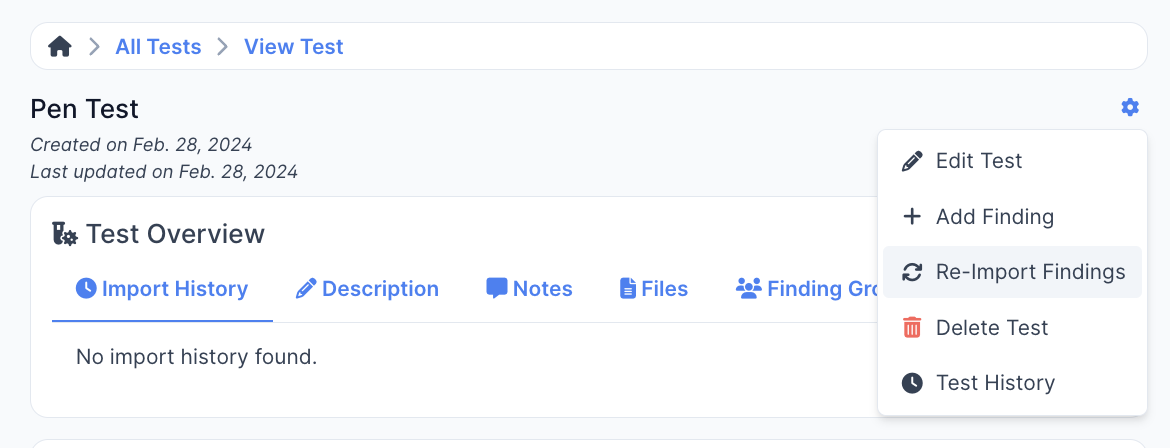
The Re-import Findings Form will not allow you to import a different scan type, or change the destination of the Findings you’re trying to upload. If you’re trying to do one of those things, you’ll need to use the Import Scan Form.
In DefectDojo Pro, a Test that has no scan type that can be reimported (for example a Test created by hand with a Test Type such as “Pen Test”) shows a required Scan Type field on the Reimport form. Choose the scan type of the report you are uploading. After a successful Reimport the Test keeps that scan type, so the next Reimport uses it without asking again. The field does not appear for a Test whose scan type is known, including a Test whose Test Type was named after its tool, such as “Semgrep Scan (GitLab SAST Report)”, which reimports as “GitLab SAST Report”.
The field lists only scan types whose parser does not name the Test Type itself. Parsers that do, such as Generic Findings Import, SARIF and GitLab SAST Report, can only be reimported into a Test of the tool their report names, so a Reimport of one of them into a hand-made Test is refused with “Test type mismatch”. To bring such a report in, use the Import Scan Form, which creates a new Test. The /reimport-scan API is unchanged: it still needs a valid scan_type.
Working with Import History
The Import History widget on a Test page lists every Import and Reimport into that Test, newest first, one row per Import.
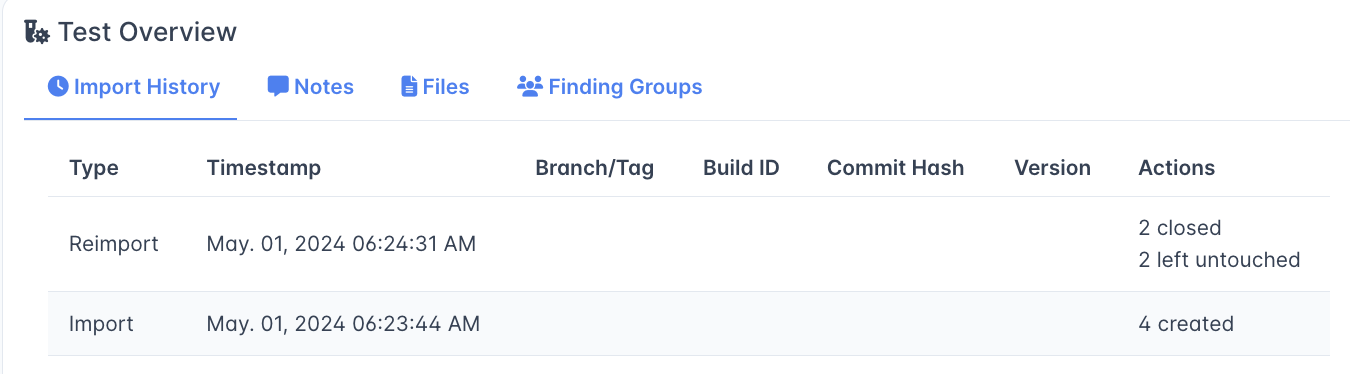
Each row shows:
When it ran, and whether it was an Import or a Reimport. Hover over or focus the time to see the full timestamp.
What it did to the Test’s Findings, as counts:
- created: new Findings created by the Import or Reimport.
- closed: Findings closed because they were missing from the incoming report: by a Reimport, or by an Import with Close Old Findings set, which can close Findings in other Tests of the same Engagement or Product.
- reactivated: Closed Findings reopened because they appeared again in the incoming report.
- untouched: Open Findings left unchanged because they also appeared in the incoming report.
A Reimport that changed nothing reads No findings changed.
The scan’s Version, Branch/Tag, Build ID and Commit Hash, when they were sent with the Import. A field that was not set is left out. A long value is shortened and the Commit Hash shows its first 12 characters: hover over or focus a value to see all of it.
On a wide widget each Import takes one line; on a narrow one it takes three short lines, and the Branch/Tag and Build ID drop out until there is room. The list scrolls inside the widget, so a Test with many Reimports does not lengthen the page.
A Reimport that closed every open Finding
A Reimport that closed Findings and matched none of the existing ones usually means the report was empty or failed to parse, rather than that every vulnerability was fixed. That row is marked Closed All Open Findings. While it is the newest Import in the list, the widget’s header reads Closed all on and its date; once another Import runs, the header goes back to Last import and that Import’s date, and the older row keeps its mark. Check the report before you triage the Findings it closed.
Only a Reimport is marked. An Import that closes Findings through Close Old Findings is doing what that option asks, so it shows its closed count without the warning.
Row menu
Each row starts with a menu:
- View Findings opens the Findings list filtered to the Findings that Import recorded an action on (created, closed, reactivated or left untouched). The filter shows in the filter bar as Import ID, where you can remove it.
- Copy Commit Hash copies the full commit hash. It appears only when the Import has one.
One Import at a time into a Test
DefectDojo runs one Import or Reimport into a Test at a time. When a Reimport arrives while another Import or Reimport into the same Test is still running, it waits for that one to finish and then runs as usual.
This matters most for a CI/CD pipeline that retries a Reimport after its HTTP client times out. The first Reimport is still running on the server, and the retry used to run alongside it and compete for the same Findings, which could end in a database deadlock or a cancelled statement. The retry now waits its turn.
A request stops waiting after 10 minutes. It then fails with 409 Conflict and a message naming the Test, and nothing from it is imported. Run it again once the other Import has finished. A Pro Reimport sent with background_import=true waits the same way in the background. If it gives up, the Test’s status shows Failed, and its error holds the same message.
Self-hosted instances can tune this with two environment variables:
DD_SERIALIZE_TEST_IMPORTS_WAIT_SECONDS(default600) sets how long a request waits.0fails at once instead of waiting. A synchronous request that waits still has to finish its own Import within your web server’s and proxy’s request timeouts, so keep this well below them.DD_SERIALIZE_TEST_IMPORTS(defaultTrue) turns the waiting on. Set it toFalseonly if DefectDojo reaches PostgreSQL through a connection pooler in transaction mode (such as PgBouncer withpool_mode = transaction), where the lock cannot be held across an Import.
If every database connection holding a Test’s lock has been idle for DD_DUPE_DELETE_ABANDONED_IMPORT_LOCK_MINUTES (default 30), no Import is running, so the next one goes ahead without waiting.
Reimport via API - special note
Note that the /reimport API endpoint can both extend an existing Test (apply the method in this article) or create a new Test with new data - an initial call to /import, or setting up a Test in advance is not required.
When a /reimport-scan call also creates the Engagement (with auto_create_context), deduplication_on_engagement sets that new Engagement’s deduplication scope. It never changes an existing Engagement, which is why the Reimport form does not offer it. To change the scope of an existing Engagement, edit Deduplication on Engagement on the Engagement itself.
To learn more about creating an automated CI/CD pipeline using DefectDojo, see our guide here.