

Upstream Connectors
Note: Upstream Connectors are a DefectDojo Pro-only feature.
DefectDojo allows users to build sophisticated API integrations, and gives users full control over how their vulnerability data is organized.
But everyone needs a starting point, and that’s where Upstream Connectors come in. Upstream Connectors (formerly known as API Connectors) are designed to get your security tools connected and importing data to DefectDojo as quickly as possible.
We currently support Upstream Connectors for the following tools, with more on the way:
- AccuKnox
- Action1
- Acunetix 360
- Akamai
- Akto
- Alert Logic
- Anchore Enterprise
- AppCheck
- Aqua Security
- Automox
- Azure DevOps
- Backstage
- Beagle Security
- BigID
- Bitbucket
- Black Duck
- Black Duck Continuous Dynamic
- Bright Security
- Bugcrowd
- Burp Suite Enterprise
- Calico Cloud
- Censys
- Checkmarx One
- Chef Automate
- CI Fuzz
- Cloudflare
- Cobalt.io
- Codacy
- Contrast
- Coverity
- CrowdStrike Falcon
- CyberArk Certificate Manager
- Cyberwatch
- CyCognito
- Datadog
- Deepfence ThreatMapper
- DeepSource
- Dependency-Track
- Detectify
- Docker Scout
- Dragos
- Edgescan
- Elastic Security
- Endor Labs
- Escape
- Fairwinds Insights
- Finite State
- Fleet
- Fortify
- FOSSA
- GitGuardian
- GitHub
- GitHub Advanced Security
- GitLab
- Google Artifact Analysis
- Google Cloud
- Google Cloud SCC
- Group-IB ASM
- HackerOne
- Halo Security
- Harbor
- Have I Been Pwned
- HCL AppScan
- HiddenLayer
- Holm Security
- ImmuniWeb
- InsightCloudSec
- Intigriti
- Intruder
- IriusRisk
- JFrog XRay
- JSM Assets
- Klocwork
- Kubescape
- Lacework / FortiCNAPP
- Mend
- Microsoft Defender
- Microsoft Defender for Cloud
- MobSF
- NetRise
- NeuVector
- Nightfall AI
- NowSecure
- Nozomi Networks
- Nuclei (ProjectDiscovery Cloud)
- OpenVAS / Greenbone
- Orca Security
- Ostorlab
- Palo Alto Cortex Cloud
- Palo Alto Cortex XDR
- Palo Alto Cortex XSIAM
- Palo Alto Cortex XSOAR
- Parasoft DTP
- Picus Security
- PingCastle
- Probely
- Promptfoo
- Prowler
- Qualys
- Qualys TotalAppSec
- Quay
- Qwiet AI
- Rapid7 InsightAppSec
- Rapid7 InsightVM
- Rapid7 InsightVM - Cloud Instance
- Red Hat Satellite
- runZero
- Scantist
- Security Hub
- Semgrep
- ServiceNow CMDB
- Shodan
- Snyk
- Socket
- SonarQube
- Sonatype IQ
- SOOS
- StackHawk
- Sysdig Secure
- Tenable.io
- Tenable Web App Scanning
- TruffleHog
- Trustwave Fusion
- Uptycs
- Vanta
- Veracode
- Vulnerability Manager Plus
- Wallarm
- Wazuh
- WebInspect Enterprise
- Wiz
- YesWeHack
- Zimperium
- Zora
For step-by-step setup instructions for each tool, see the Tool-Specific Connector Setup reference.
Most Connectors import findings. A few are Asset Connectors that import your asset inventory instead — building and maintaining your Asset and Organization hierarchy rather than importing findings: Azure DevOps, Backstage, Bitbucket, GitHub, GitLab, Google Cloud, JSM Assets, and ServiceNow CMDB. (runZero is primarily an Asset Connector, but can optionally import vulnerabilities as findings too.)
These connections provide an API-speed integration with DefectDojo, and can be used to automatically ingest and organize vulnerability data from the tool.
Finding your way around the Connectors page
Connectors are listed in two sections, each with a count beside its heading and each sorted alphabetically:
- Configured Connectors — every connector configuration that exists on this instance. A tool can appear several times, once per configuration, and each tile is titled
<Tool> - <label>so they can be told apart. Where several configurations share a tool, they are ordered by their label. - Available Connectors — every supported tool you have not configured yet.
The count next to a heading is the number of connectors currently shown, so it follows the search box and the Asset / Finding type filter rather than always reporting the total. On DefectDojo Pro Cloud, the Request Upstream Connector tile is not a connector and is not counted.
Both sections have their own search box, matching on the tool name.
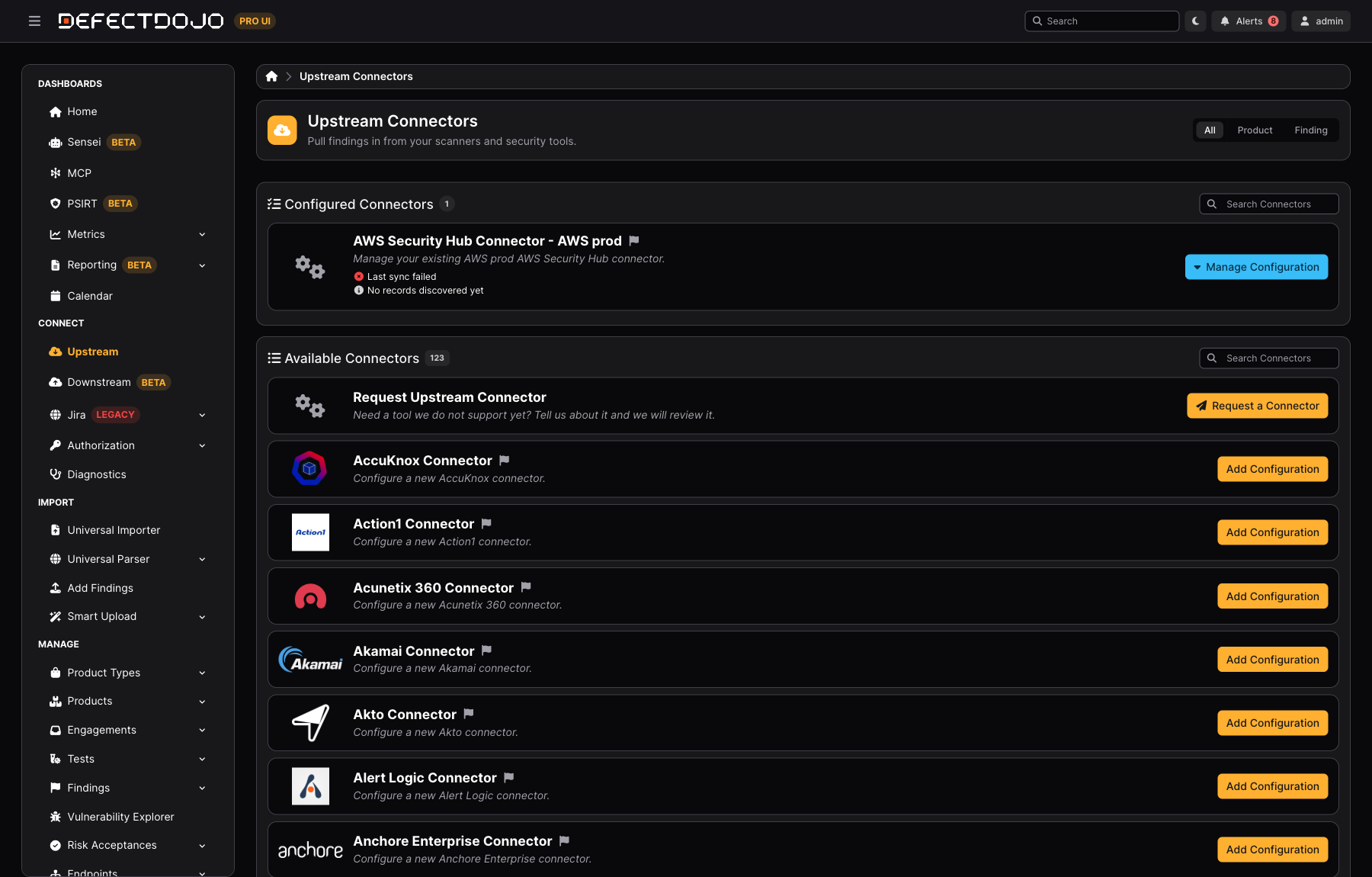
The Downstream Connectors and Authorization Connectors pages are laid out the same way.
Upstream Connectors Quick-Start
If you’re using DefectDojo’s Auto-Map settings, you can have your first Connector up and running in no time.
- Set up a Connector from a supported tool.
- Discover your tool’s data hierarchy.
- Sync the vulnerabilities found with your tool into DefectDojo.
That’s all, really! And remember, even if you create your Connector the ’easy’ way, you can easily change the way things are set up later, without losing any of your work.
How Upstream Connectors Work
As long as you have the API key from the tool you’re trying to connect, a connector can be added in just a few minutes. Once the connection is working, DefectDojo will Discover your tool’s environment to see how you’re organizing your scan data.
Let’s say you have a BurpSuite tool, which is set up to scan five different repositories for vulnerabilities. Your Connector will take note of this organizational structure and set up Records to help you translate those separate repositories into DefectDojo’s Asset / Engagement / Test hierarchy. If you have ‘Auto-Map Records’ enabled, DefectDojo will learn and copy that structure automatically.
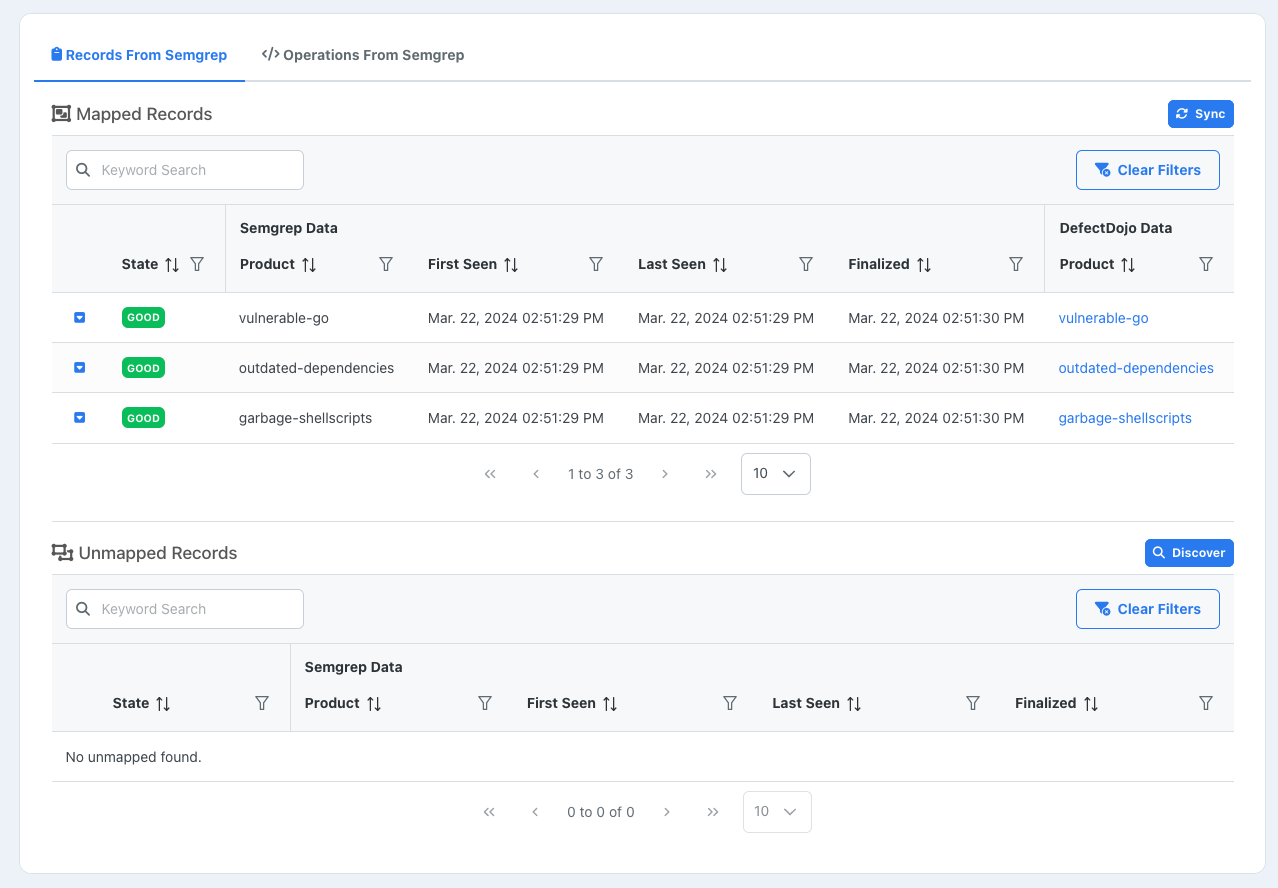
Once your Record mappings are set up, DefectDojo will start importing scan data on a regular basis. You’ll be kept up to date on any new vulnerabilities detected by the tool, and you can start working with existing vulnerabilities immediately, using DefectDojo’s Findings system.
When you’re ready to add more tools to DefectDojo, you can easily rearrange your import mappings to something else. Multiple tools can be set up to import vulnerabilities to the same destination, and you can always reorganize your setup for a better fit without losing any work.
Each Connector also decides how your tool’s data becomes a DefectDojo Finding — which value becomes the Title, which becomes the Description, and so on. If you need to change one of those decisions, see Connector Field Mappings.
My Connector isn’t supported
Request a connector from the UI (DefectDojo Pro Cloud)
On DefectDojo Pro Cloud, you can ask our team to build a connector for a tool we don’t support yet — directly from the UI:
- Go to Connect > Upstream (for tools that import data into DefectDojo). Issue-tracker and other outbound integrations can be requested the same way under Connect > Downstream.
- In the Available Connectors section, click Request a Connector.
- Fill in the request form. The Tool / Asset Name, the Tool API Base URL, the Authentication Type and the credentials for that authentication type are all required, because our team needs a reachable address and a working credential to build a connector and confirm it works against your tool. Credentials are stored securely. You can optionally add the vendor website, a link to the tool’s API docs, and a note describing your use case.
- Click Submit Request. You’ll see a confirmation that your request was received. Our team reviews each request to evaluate building support — submitting a request is not a guarantee that the connector will be built.
Requesting a connector requires global Maintainer permissions and is available on DefectDojo Pro Cloud only — the option does not appear on self-hosted (on-premise) instances.
Manual import
Even without a connector, DefectDojo can still handle manual import for a wide range of security tools. Please see our Supported Tool List, as well as our guide to Importing data.
Next Steps
- Check out the Upstream Connectors page by switching to DefectDojo’s Pro UI and opening Connect > Upstream.
- Follow our guide to create your first Upstream Connector.
- Check out the process of Running Operations with your Connected security tools and see how they can be configured to import data.
- Adjust how your tool’s data maps onto DefectDojo fields with Connector Field Mappings.