

Surveys
In DefectDojo, a Survey template is a reusable set of Questions that functions to collect information from developers, teams, and both internal and external stakeholders. They can be used to gather input before work begins, ensure alignment between individuals and teams as work progresses, and enable retrospective analysis once work has been completed.
In DefectDojo, a Survey system consists of three components:
- Survey templates, which group and order the Questions.
- Survey deployments, which are active instances that collect responses.
- Responses, which are the answers submitted by Users.
Creating a Survey template does not automatically make it available for responses. To collect responses, a Survey template must be deployed.
Permissions
The Surveys section in the sidebar is only visible to Users with Superuser status, and only Superusers can create Survey templates, create Questions, and deploy Surveys.
Users without Superuser status can still respond to Surveys that are shared with them, but they cannot create or manage them or their associated Questions.
Accessing Surveys and Questions
Users with Superuser status can access Surveys and Questions from the sidebar by clicking the Surveys option. The submenu provides access to All Surveys and All Questions, as well as the option to create new Surveys and Questions.
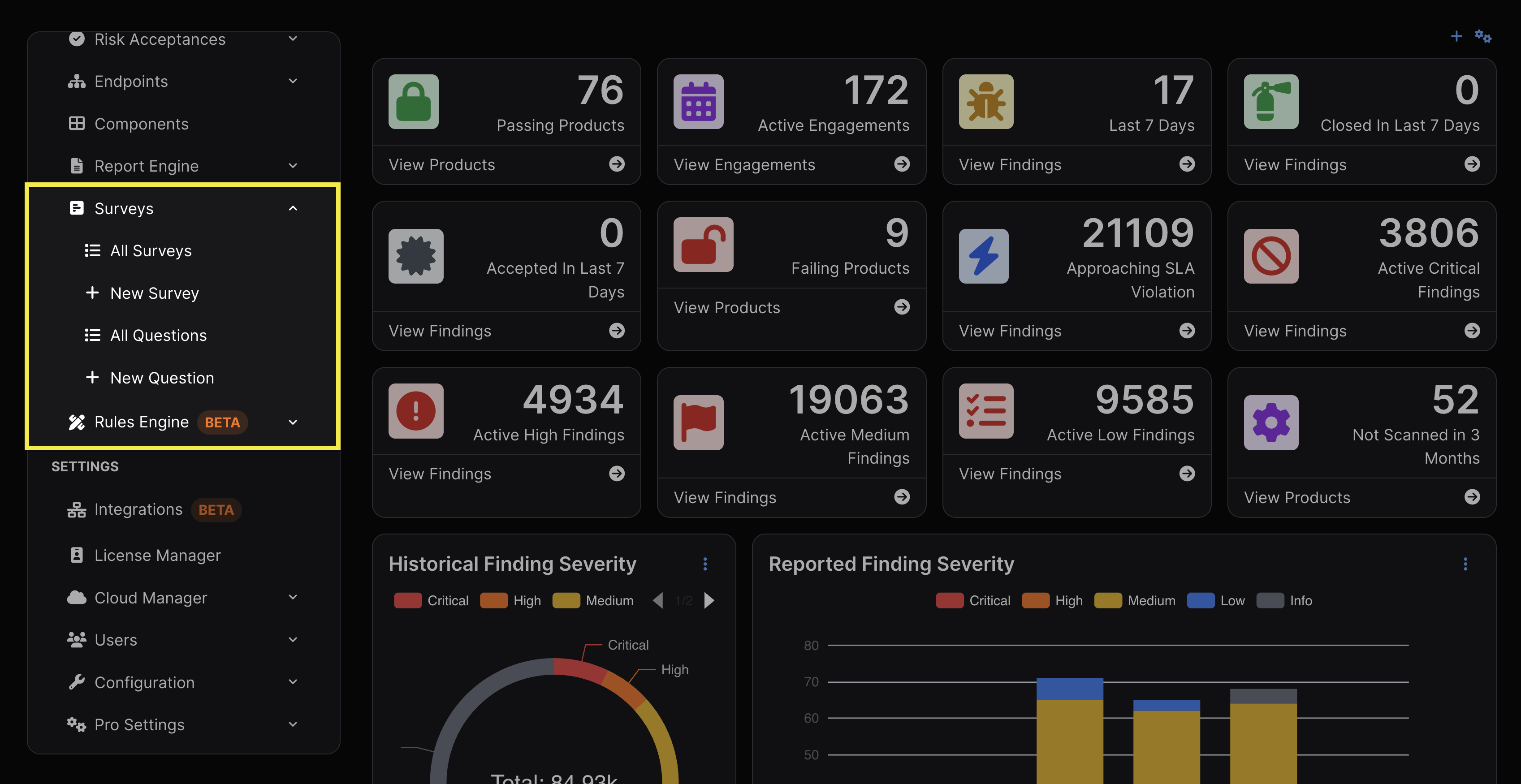
Accessing Surveys
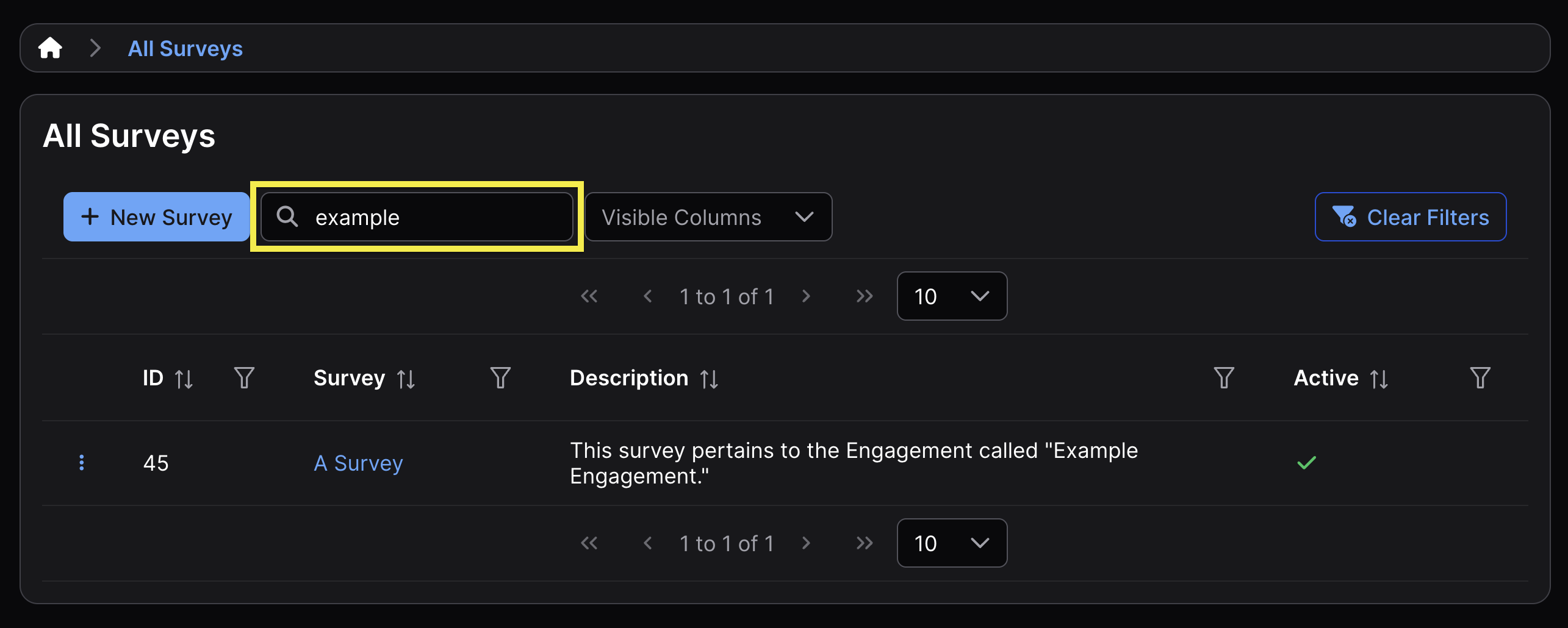
The view for All Surveys includes a table containing all Survey templates, including their ID, name, description, and active status. The table can be filtered using keywords, and it can be reorganized by clicking the header of each column.
Accessing Questions
The view of All Questions includes a table of Questions that can be added to a Survey. The table can be filtered using keywords, and it can be reorganized by clicking the header of each column.
Managing Survey Templates
Create Survey Templates
Survey templates can either be created by clicking New Survey in the sidebar, or by clicking the New Survey button at the top of the All Surveys view.
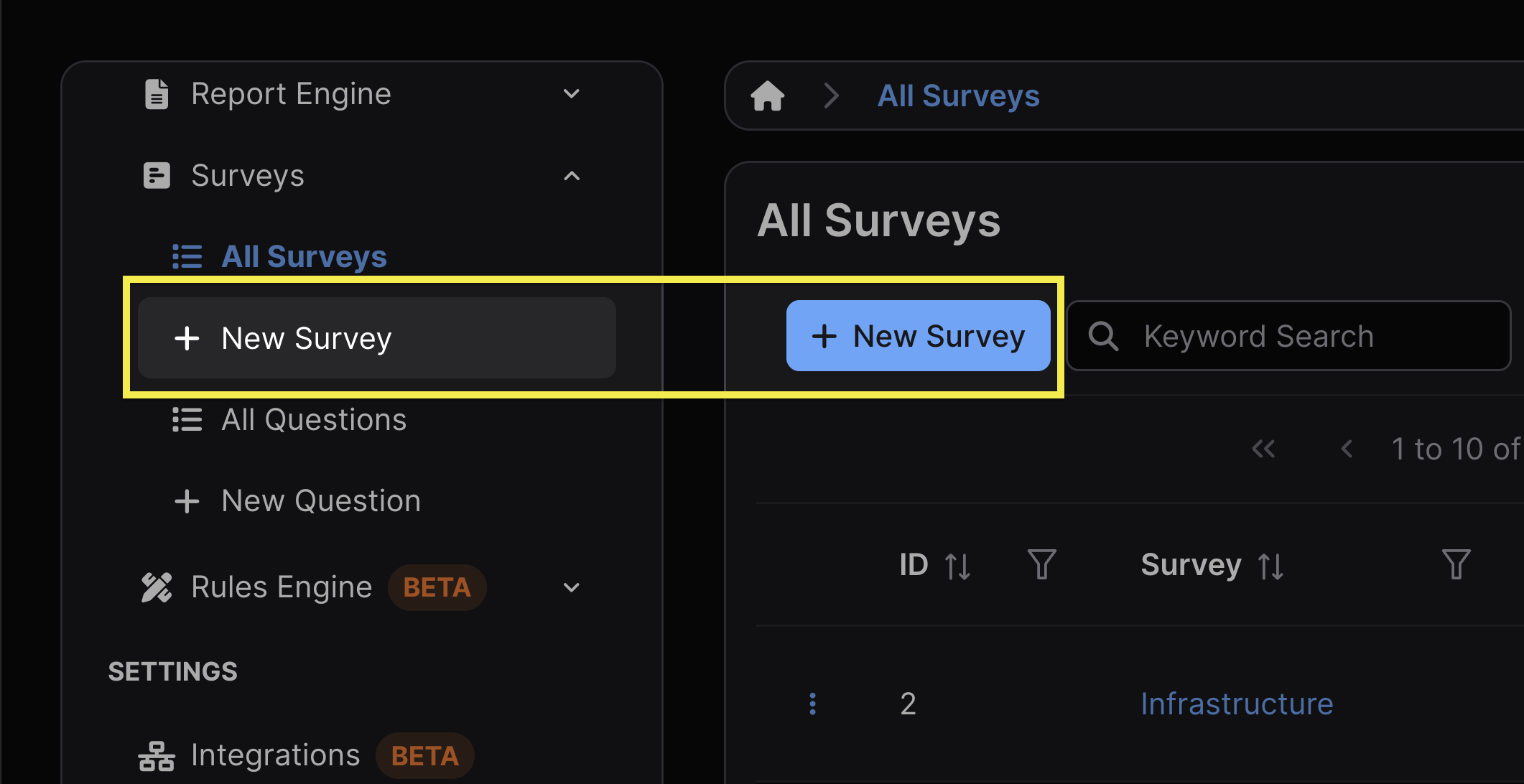
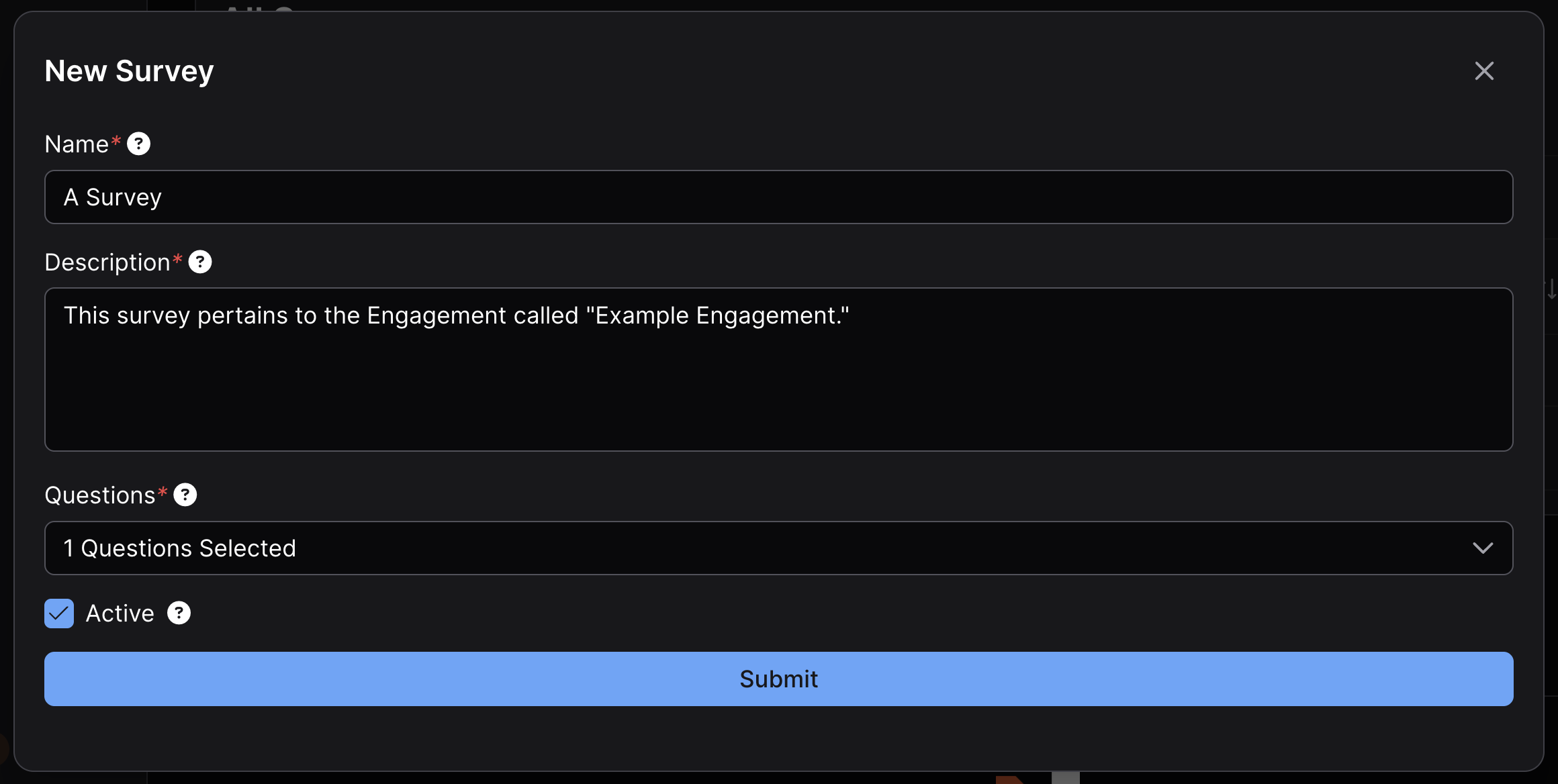
The Survey template must be given a name and description and have at least one Question chosen from the dropdown menu before being created.
Add Questions to a Pre-Existing Survey Template
To add Questions to a pre-existing Survey template, click the ⋮ kebab icon to the left of the desired Survey, click Edit Survey, select any new Questions to be added to the Survey from the dropdown menu, and then click Submit.
As a best practice, it is strongly recommended to avoid modifying or adding Questions to a Survey template while it has active deployments. Adding new Questions will not affect existing Responses, but those Responses will have been submitted without answering the newly added Questions, which may result in incomplete data.
Create Questions
Similar to Survey templates, Questions can either be created by clicking New Question in the sidebar, or by clicking the New Question button at the top of the All Questions view.
Question Types
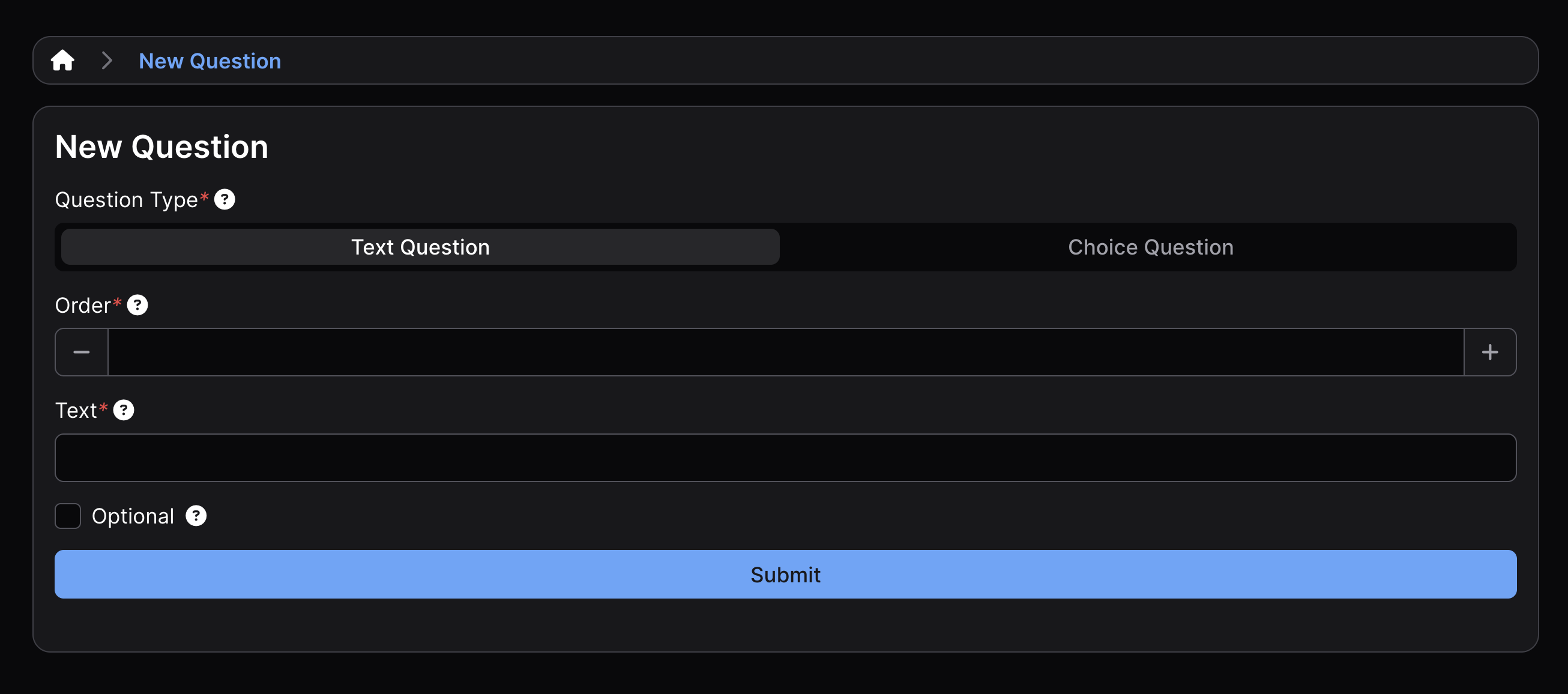
When creating a new Question, it can be formatted as either a text-based question or as a multiple-choice question by selecting Text Question or Choice Question at the top of the New Question view.
Question Order
Determine the order of a Question by giving it an order number. For example, if a Question has 1 in the Order field, that Question will appear above a Question with 2 in the Order field.
Optional Answers
Both text-based questions and multiple-choice questions can be toggled as Optional by clicking the corresponding checkbox.
Allowing Multiple Answers
An unlimited number of potential responses can be added to a multiple-choice question. Clicking the Allow Multiple Selections checkbox allows multiple answers to be selected (only available for multiple-choice questions).
Editing Questions
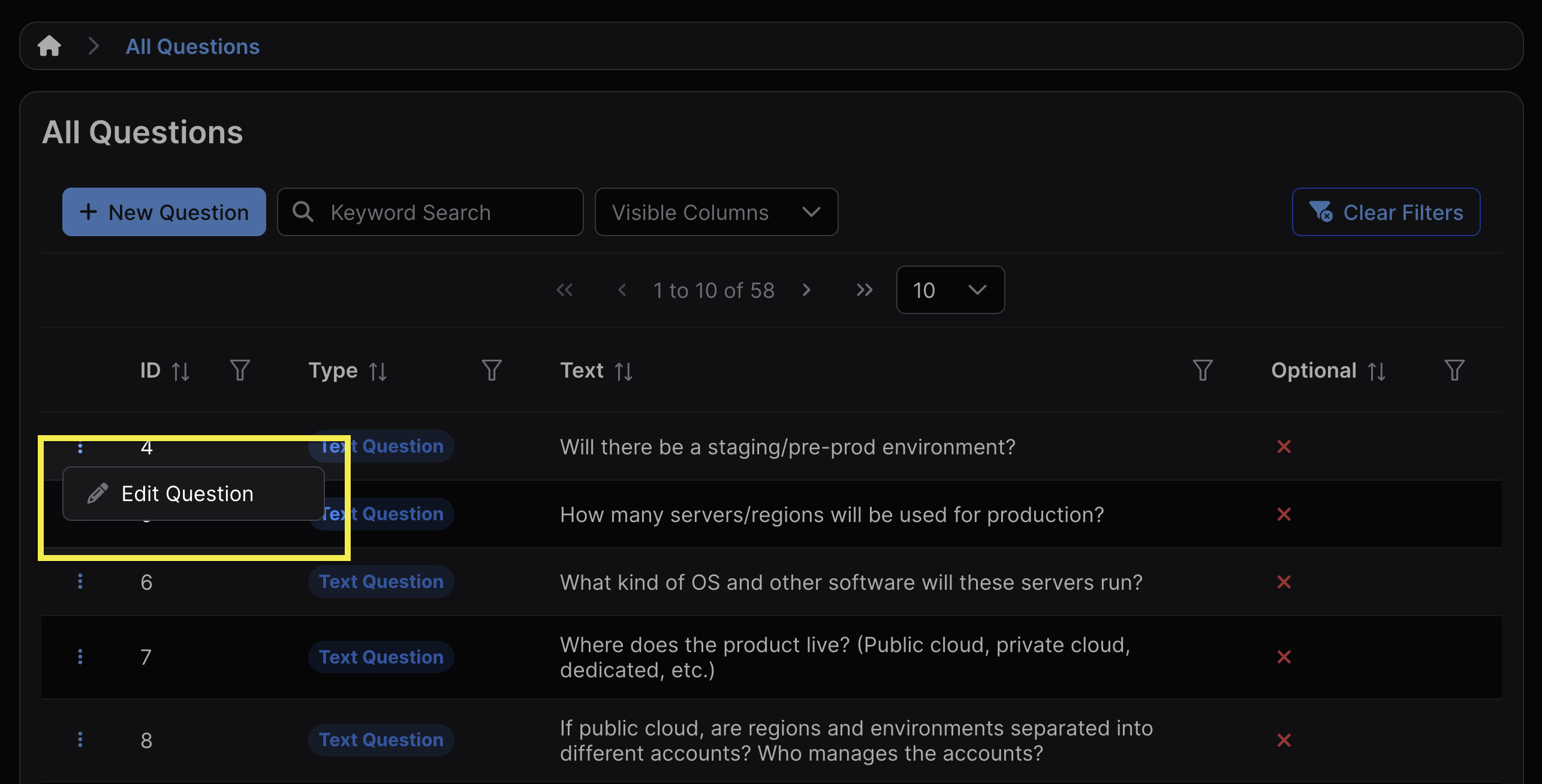
To change a Question, navigate to the All Questions view, click the ⋮ kebab icon to the left of the Question to be changed, click Edit Question, make the desired change, and finalize the change by clicking Submit. Questions can’t be deleted.
It is important to avoid editing Questions that are a part of active Questionnaires or adding Questions to active Questionnaires. Doing so will not affect any responses that had been previously collected, but it may result in incomplete or unreliable data.
Deploying Surveys
Once a Survey template has been successfully created, deploying a Survey creates an active instance that accepts responses.
To deploy a Survey, navigate to the All Surveys view, click the ⋮ kebab icon to the left of the Survey to be deployed, click Open Survey, set the expiration date, and click Submit.
If you wish to deploy the same Survey again, follow the same process. All deployments will appear within the Open Survey Instances table in the Survey’s view, and can be distinguished by their ID, creation time, and expiration date.
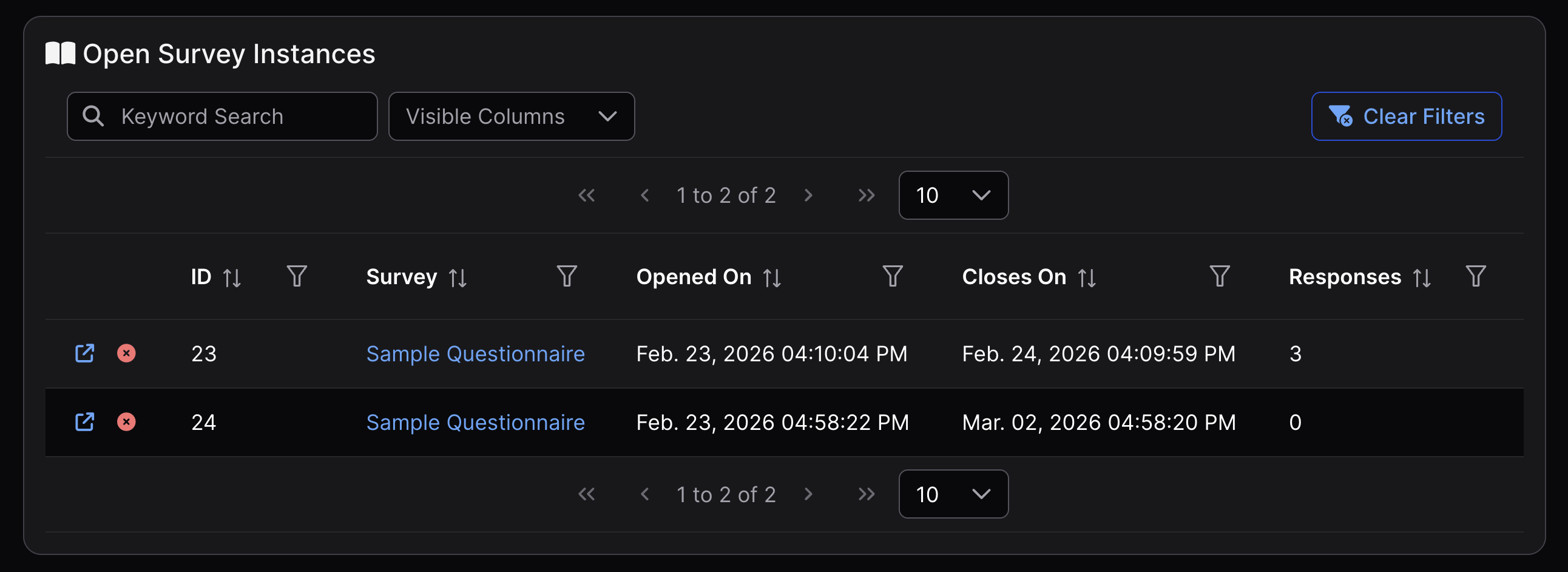
A Survey will close on the chosen date at the same time it was deployed. For example, if you deploy a Survey at 8:00 am on February 1, 2026, and schedule it to close on March 1, 2026, the survey will close at 8:00 am on the morning of March 1, 2026.
Once a Survey has been opened, its expiration date and time cannot be changed. If a different timeframe is required, a new deployment must be created.
Once an expiration date has passed, it will no longer be possible to submit responses to that deployment of the Survey, but the deployment will still appear in the Open Survey Instances table of that Survey’s view.
Sharing a Survey
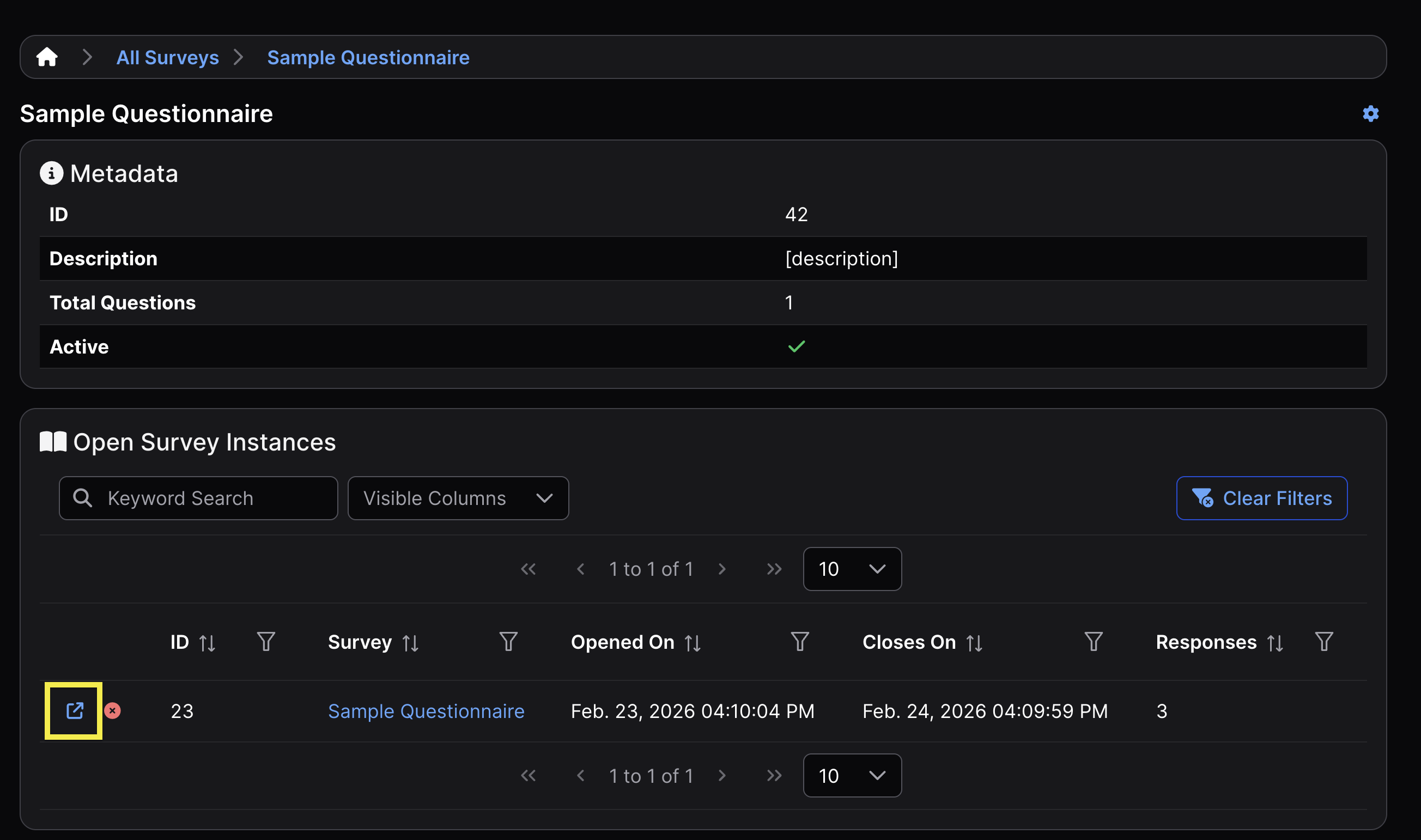
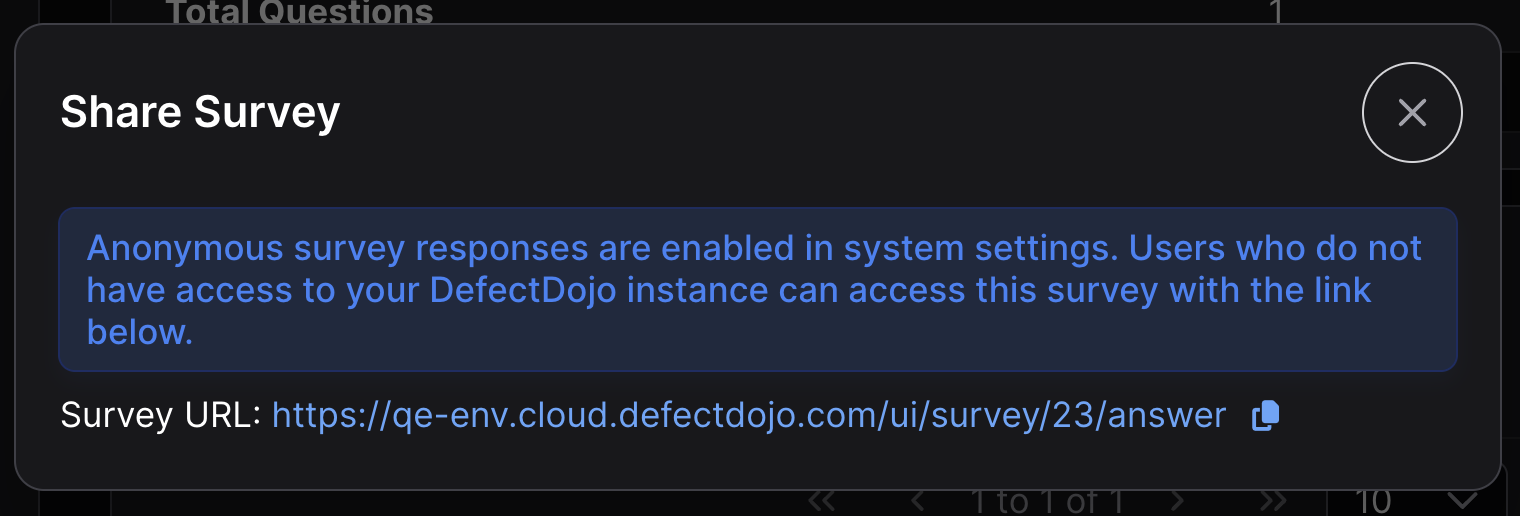
Once a Survey has been deployed, it can be shared with other Users by clicking the ↗ icon to the left of the Survey within the Open Survey Instances table in the Survey template’s view. This will reveal a link that is unique to that deployment that can be copied and shared with the intended recipients.
Closing a Survey
In order to close a Survey, click the red X to the left of the Survey within the Open Survey Instances table in the Survey template’s view.
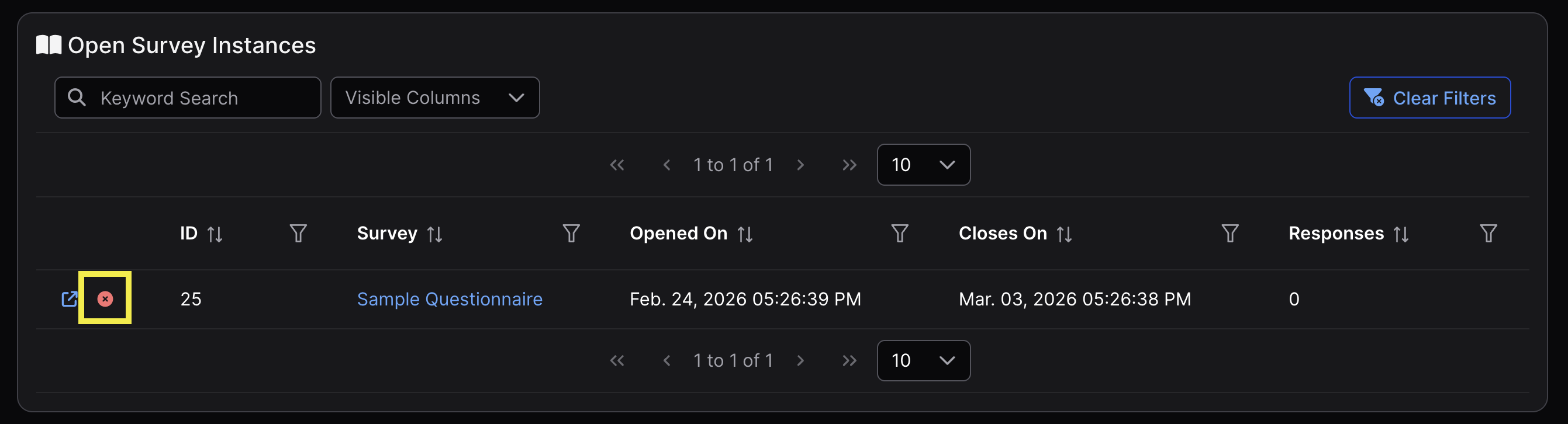
As noted in the later Responses section, this will only prevent further responses from being submitted. Responses that were submitted previously will remain visible within the Responses table at the bottom of the Survey template’s view.
Responding to Surveys
To respond to a Survey, non-Superusers must have the link shared with them directly using the instructions in the Sharing a Survey section above. Superusers can also respond using the same link.
Enabling Anonymous Responses
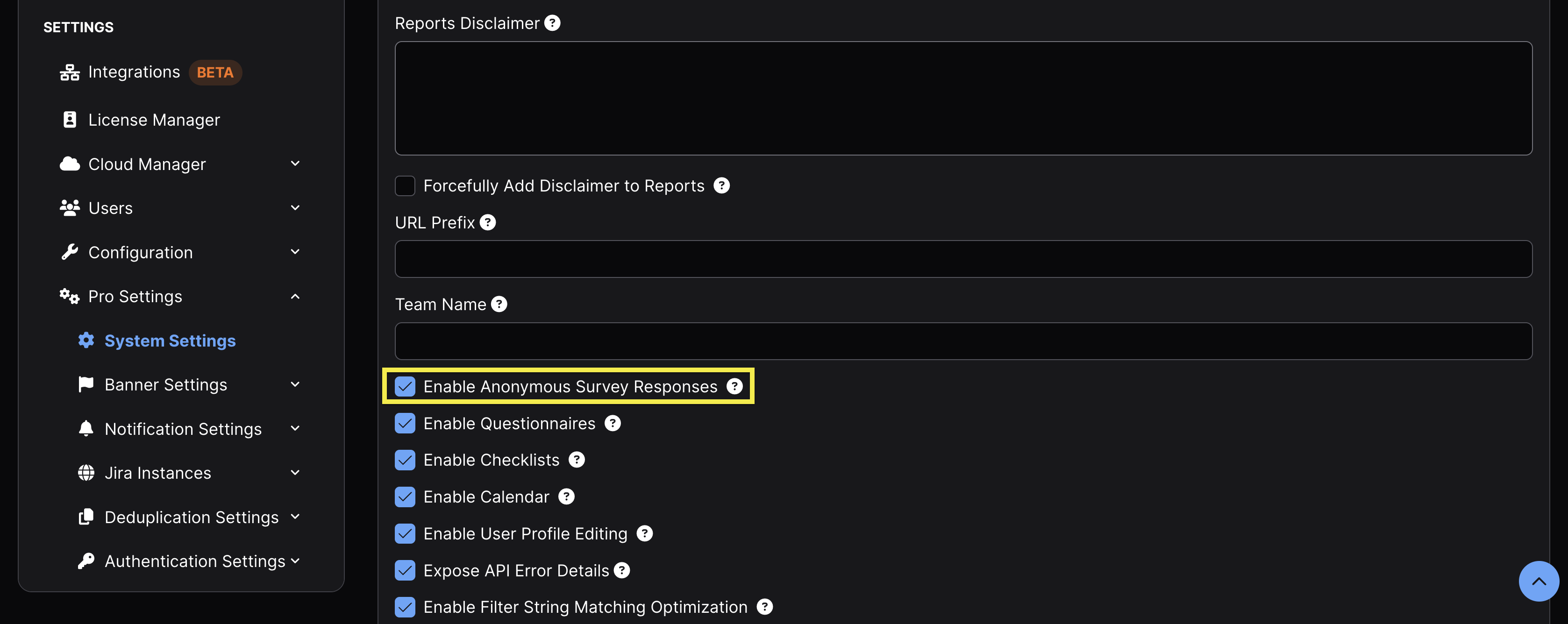
By default, Surveys are only accessible by DefectDojo Users. To allow external parties to respond to DefectDojo Surveys, ensure the Enable Anonymous Survey Responses option has been toggled in the System Settings, which is found within the Pro Settings submenu within the sidebar.
External responses will appear as anonymous because there is no DefectDojo user ID associated with the response.
If the scope of a Survey includes both internal and external Users, specify the Engagement name in the description upon creation, which will permit filtering of the results.
Managing Responses
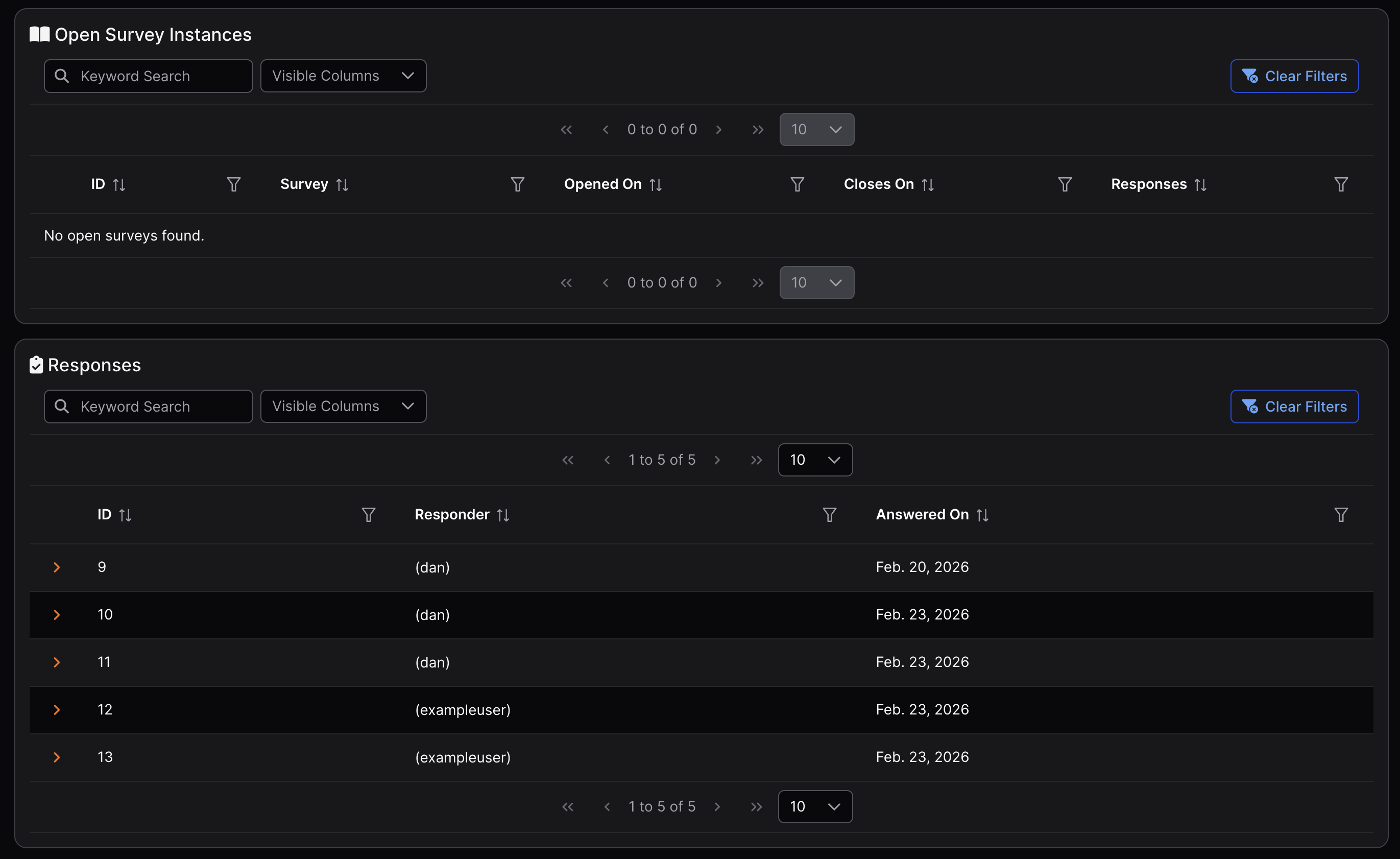
A single Survey template can be deployed multiple times simultaneously. All responses to multiple deployments of the same Survey template will be displayed together in the Responses table at the bottom of that Survey’s view.
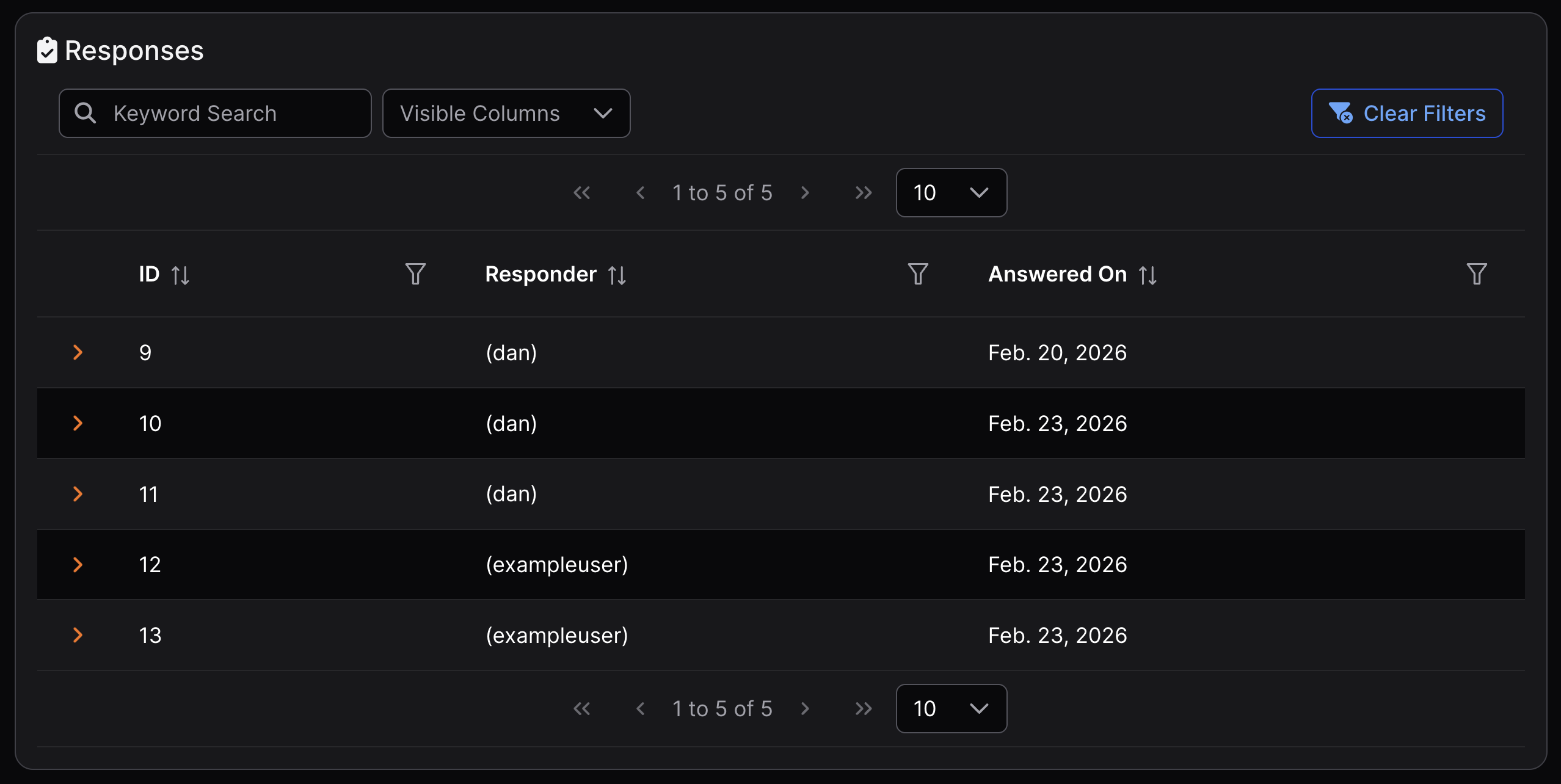
Even after a Survey deployment has expired or been closed, its responses remain visible in the Responses table at the bottom of the Survey’s view, provided the Survey template itself has not been deleted. These responses are permanent and cannot be removed.
As shown in the image below, there are no currently open Survey deployments, yet responses from prior deployments are still present in the Responses table.
Deleting Survey Templates
To delete a Survey Template, navigate to the All Surveys view, click the ⋮ kebab icon to the left the chosen Survey, and click Delete Survey. This permanently deletes the Survey template and all associated deployments and Responses. This action cannot be undone.