

Assign Priority, Risk and SLAs (Pro)
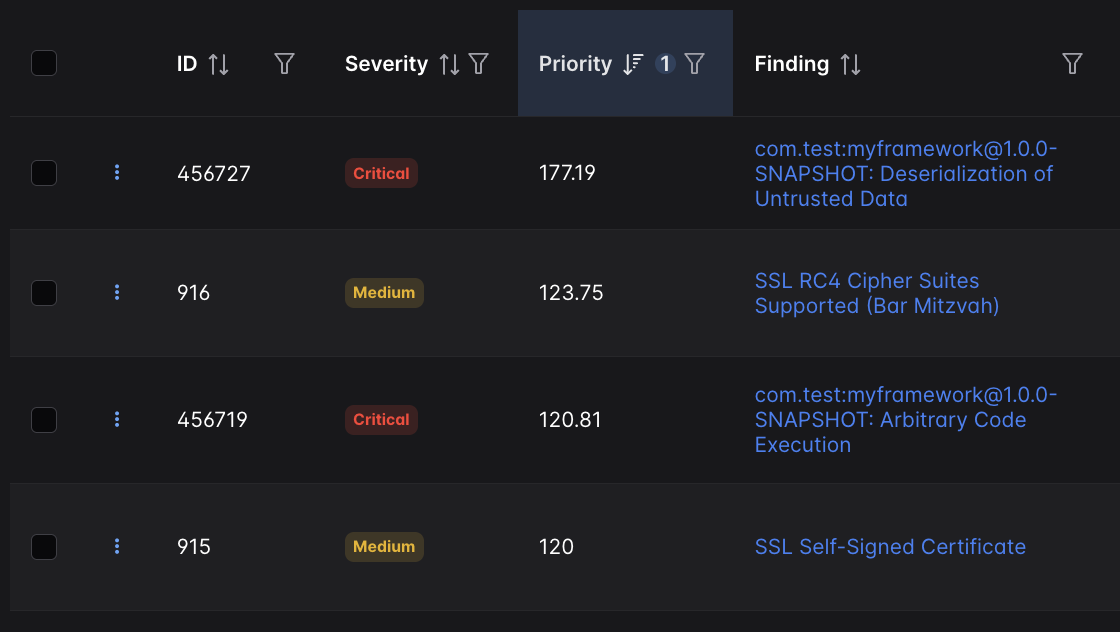
Effective risk-based vulnerability management requires an approach that considers both business context and technical exploitability. Using DefectDojo Pro’s Priority and Risk feature, users can automatically sort Findings into a meaningful context, ensuring high-impact vulnerabilities can be addressed first.
Priority is a calculated numerical rank applied to all Findings in your DefectDojo instance. It allows you to quickly understand vulnerabilities in context, especially within large organizations that are overseeing security needs for many Findings and/or Assets.
Risk is a 4-level ranking system which factors in a Finding’s exploitability to a greater degree. This is meant as a less granular, more ’executive-level’ version of Priority.

Priority and Risk values can be used with other filters to compare Findings in any context, such as:
- within a single Asset, Engagement or Test
- globally in all DefectDojo Assets
- between a few specific Assets
Applying Finding Priority and Risk helps your team respond to the most relevant vulnerabilities in your organization, and also provides a framework to assist in compliance with regulatory standards.
Learn more about Priority and Risk with DefectDojo, Inc.’s May 2025 Office Hours:
How Priority & Risk are calculated
The range of Priority values is from 0 to 1150. The higher the number, the more urgency the Finding is to triage or remediate.
The upper bound is not a fixed property of the scale. It is the highest Priority a hypothetical worst-case Finding could reach under the default Prioritization Engine settings: a Finding with the highest Severity, the strongest possible exploit evidence, and every Asset-level risk factor at its maximum. The bound is derived entirely from the engine’s configuration — never from the Findings or Assets in your instance. If you adjust the multipliers in your Prioritization Engine, the attainable maximum changes with them, and the recommended Risk Thresholds are recalculated to match.
Similar to Severity, Risk is scored from Low -> Medium -> Needs Action -> Urgent. Risk considers Priority fields and may be different from a tool’s reported Severity as a result.
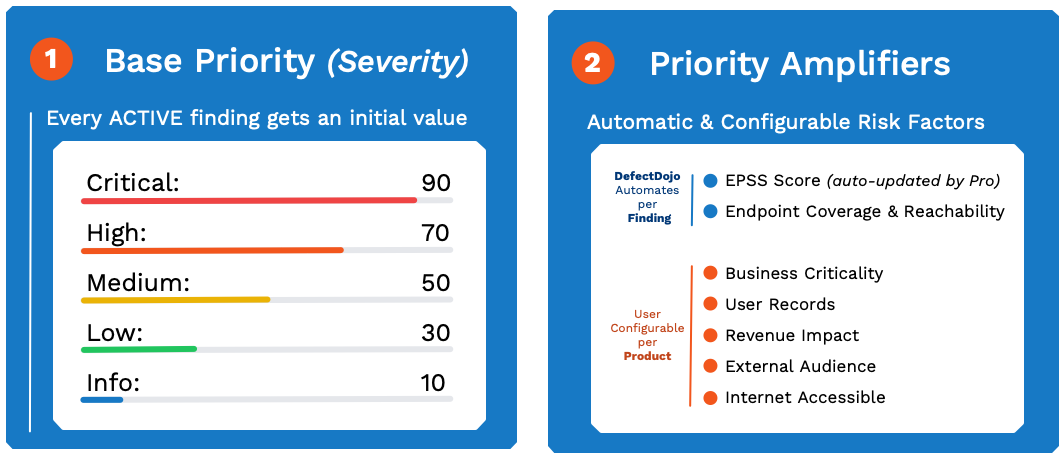
Priority Fields: Asset-Level
Each Asset in DefectDojo has metadata that tracks business criticality and risk factors. This metadata is used to help calculate Priority and Risk for any associated Findings.
All of these metadata fields can be set on the Edit Asset form for a given Asset.
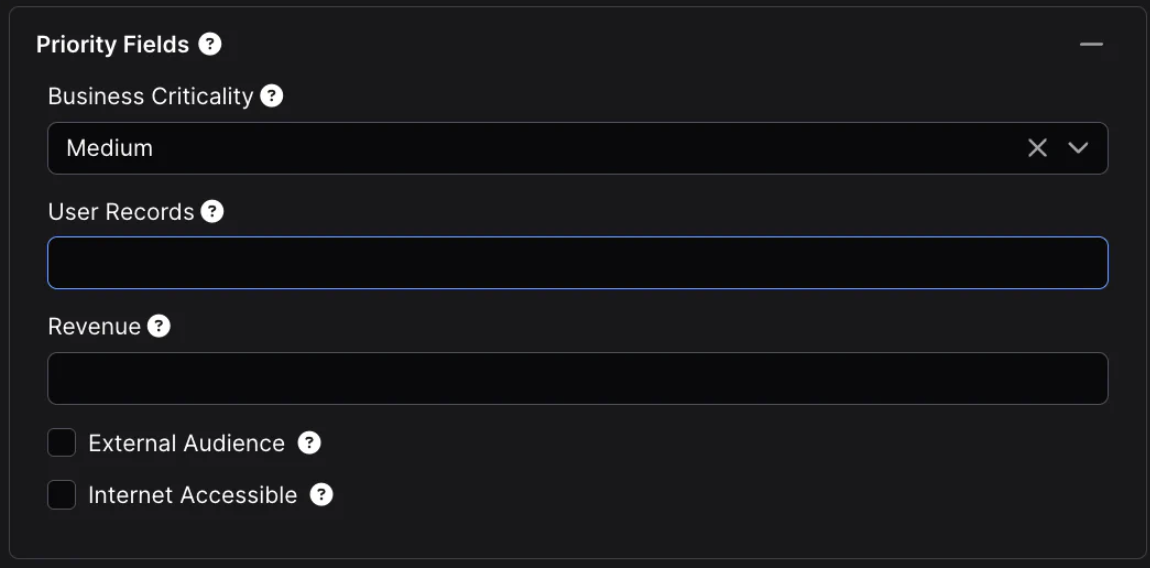
- Criticality can be set to any value of None, Very Low, Low, Medium, High, or Very High. Criticality is a subjective field, so when assigning this field, consider how the Asset compares to other Assets in your organization.
- User Records is a numerical estimation of user records in a database (or a system that can access that database).
- Revenue is a numerical estimation of annual revenue for the Asset. To calculate Priority, DefectDojo will calculate a percentage by comparing this Asset’s revenue to the sum of all Assets within the Organization.
It is not possible to set a currency type in DefectDojo, so make sure that all of your Revenue estimations have the same currency denomination. (“50000” could mean $50,000 US Dollars or ¥50,000 Japanese Yen - the denomination does not matter as long as all of your Assets have revenue calculated in the same currency).
- External Audience is a true/false value - set this to True if this Asset can be accessed by an external audience. For example, customers, users, or anyone outside of your organization.
- Internet Accessible is a true/false value. If this Asset can connect to the open internet, you should set this value to True.
Priority is a ‘relative’ calculation, which is meant to compare different Assets within your DefectDojo instance. It is ultimately up to your organization to decide how these filters are set. These values should be as accurate as possible, but the primary goal is to highlight your key Assets so that you can prioritize vulnerabilities according to your organization’s policies, so these fields do not necessarily need to be set perfectly.
Priority Fields: Finding-Level
Findings within an Asset can have additional metadata which can further adjust the Finding’s Priority and Risk level:
- Whether or not the Finding has an EPSS Score, this is automatically added to Findings and kept up to date for Pro users. The EPSS Score is the field that contributes to the Priority Score — EPSS Percentile is tracked on the Finding for reference but does not directly feed the calculation.
- How many Endpoints in the Asset are affected by this Finding
- Whether or not a Finding is Under Review
- Whether the Finding is in the KEV (Known Exploited Vulnerabilities) database, which is checked by DefectDojo on a regular basis
- The tool-reported Severity of a Finding (Info, Low, Medium, High, Critical)
EPSS Score vs EPSS Percentile
Two Findings that look identical on the visible factors (Severity, Business Criticality, Internet Accessible, Exploit Available) can still end up with different Priority Scores if their EPSS Scores differ. This is expected: EPSS Score is a contextual input to the calculation.
EPSS Percentile is shown on the Finding for context, but it is not consumed by the Priority Score calculation. If you need to compare two Findings to understand a Priority Score gap, look at the EPSS Score values, not the Percentile values.
The exact weight that EPSS Score (and the other factors) carries in the Priority Score calculation is intentionally not published. If you need to influence how heavily EPSS Score affects scoring in your environment, adjust the Exploitability slider in your Prioritization Engine.
Finding Risk Calculation
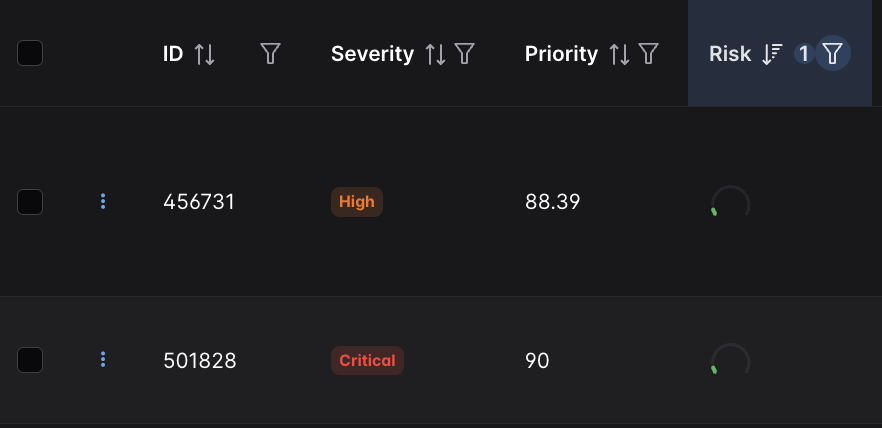
The Risk column on a Findings table is another way to quickly prioritize Findings. Risk is calculated using a Finding’s Priority level, but also factors in a Finding’s exploitability to a greater degree. This is meant as a less granular, more ’executive-level’ version of Priority.
The four assignable Risk levels are:
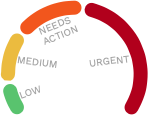
A Finding’s EPSS / exploitability is much more emphasized in the Risk calculation. As a result, a Finding can have both a high priority and a low risk value.
The Risk calculation itself cannot currently be adjusted directly. However, if Threat Intelligence is enabled, the Actively-Exploited Risk Floor does let you control the outcome for the case that matters most: a Finding confirmed to be exploited in the wild is lifted to at least a Risk band you choose, rather than being left in a low band because its base severity is Low. It ships set to Needs Action, and each Prioritization Engine can raise it, lower it, or clear it to switch the floor off. See the Actively-Exploited Risk Floor.
Priority Insights Dashboard
Users can take an executive-level view of Priority and Risk in their environment using the Priority Insights Dashboard (Metrics > Priority Insights in the sidebar)
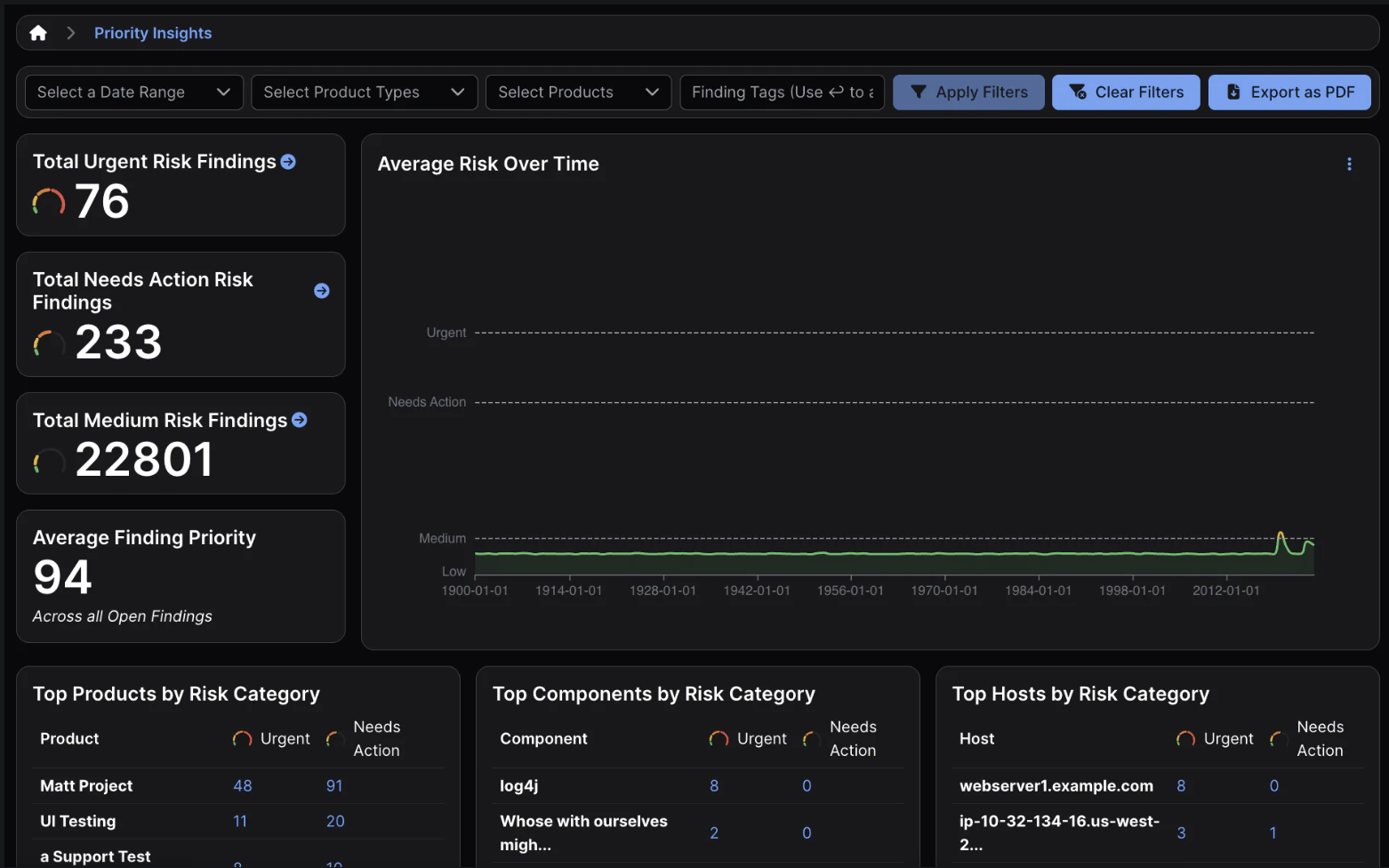
This dashboard can be filtered to include specific Assets or date ranges. As with other Pro dashboards, this dashboard can be exported from DefectDojo as a PDF to quickly produce a report.
Setting Priority & Risk for Regulatory Compliance
This is a non-exhaustive list of regulatory standards that specifically require vulnerability prioritization methods:
- SOX (Sarbanes-Oxley Act) compliance requires revenue-based prioritization for systems impacting financial data. In DefectDojo, a system’s revenue can be entered at the Asset level.
- PCI DSS compliance requires prioritization based on risk ratings and criticality to cardholder data environments. Business Criticality and External Audience can be set at the Asset level, while DefectDojo’s Finding-level EPSS sync supports PCI’s risk-based approach.
- NIST SP 800-40 is a preventative maintenance guide which specifically calls for vulnerability prioritization based on business impact, product criticality and internet accessibility factors. All of these can be set at DefectDojo’s Asset level.
- ISO 27001/27002 Control A.12.6.1 compliance requires management of technical vulnerabilities with Priority based on risk assessment.
- GDPR Article 32 requires risk-based security measures - user records and external audience flags at the Asset level can help prioritize systems in your organization that process personal data.
- FISMA/FedRAMP compliance require continuous monitoring and risk-based vulnerability remediation.
DefectDojo Pro’s Priority and Risk calculations can be adjusted, allowing you to tailor DefectDojo Pro to match your internal standards for Finding Priority and Risk.
Prioritization Engines
Similar to SLA configurations, Prioritization Engines allow you to set the rules governing how Priority and Risk are calculated.
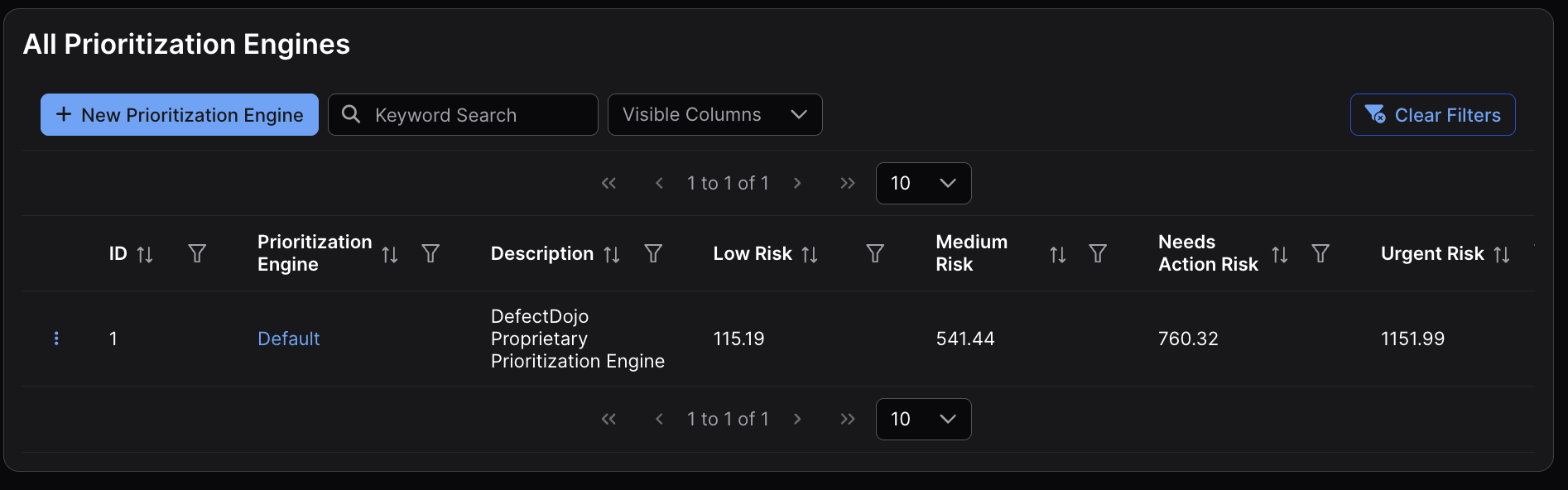
DefectDojo comes with a built-in Prioritization Engine, which is applied to all Assets. However, you can edit this Prioritization Engine to change the weighting of Finding and Asset multipliers, which will adjust how Finding Priority and Risk are assigned.
Finding Multipliers
Eight contextual factors impact the Priority score of a Finding. Three of these are Finding-specific, and the other five are assigned based on the Asset that holds the Finding.
You can tune your Prioritization Engine by adjusting how these factors are applied to the final calculation.

Select a factor by clicking the button, and adjust this slider allows you to control the percentage a particular factor is applied. As you adjust the slider, you’ll see the Risk thresholds change as a result.
How the multiplier percentages work
Each percentage scales that factor’s contribution relative to its built-in default weight: 100% applies the factor’s default influence, 50% halves it, and 200% doubles it. The percentage is not the factor’s share of the final Priority score. The built-in weights deliberately differ in size from factor to factor — exploit evidence carries far more weight than any single business-context field, for example — so two factors set to the same percentage generally do not contribute equal amounts to the result.
A few more things to know when tuning:
- The factors are not fully independent. Several factors scale with the Finding’s Severity contribution, so lowering the Severity multiplier also reduces the effect of those factors — it behaves more like a master volume control than an isolated weight.
- Setting a factor to 0% removes it from the calculation entirely.
- The true/false Asset factors (External Audience, Internet Accessible) only contribute when the corresponding flag is set to True on the Asset. An Asset that is not Internet Accessible receives no contribution from that factor, at any percentage.
- Because the percentages are relative multipliers, typing a target distribution directly into the sliders (for example “40% Severity, 30% Exploitability”) will not produce that split in the final score. Tune iteratively instead: adjust a slider, then read the effect off the recommended Risk Thresholds, which always reflect the Priority range attainable under the current settings.
The exact weight each factor carries is intentionally not published. If you need to map an in-house scoring model onto the Prioritization Engine, contact DefectDojo support — translating an existing weighting scheme into slider settings is a common request.
Finding-Level Multipliers
- Severity - a Finding’s Severity level
- Exploitability - the exploit evidence available for a Finding: its EPSS score, its KEV (Known Exploited Vulnerabilities) status, and — when Threat Intelligence is enabled — further evidence such as publicly available exploit code. The strongest single piece of evidence drives this factor, and this one slider scales the combined result; the underlying sources (KEV, EPSS, public exploits) cannot be weighted individually.
- Endpoints - the amount of Endpoints associated with a Finding
Asset-Level Multipliers
- Business Criticality - the related Asset’s Business Criticality (None, Very Low, Low, Medium, High, or Very High)
- User Records - the related Asset’s User Records count
- Revenue - the related Asset’s revenue, relative to the total revenue of the Organization
- External Audience - whether or not the related Asset has an external audience
- Internet Accessible - whether or not the related Asset is internet accessible
Risk Thresholds
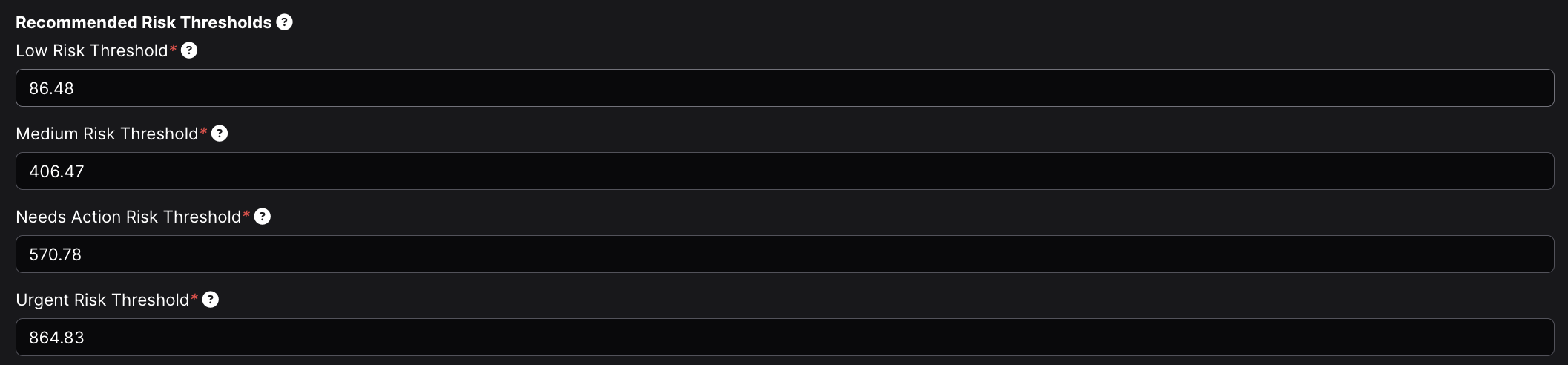
Based on the tuning of the Priority Engine, DefectDojo will automatically recommend Risk Thresholds. However, these thresholds can be adjusted as well and set to whatever values you deem appropriate.
A few notes on how the recommendations behave:
- The recommended values are computed from the Prioritization Engine’s settings alone — they describe the theoretical Priority range attainable under the current multipliers. They are never derived from the Findings or Assets in your instance, so two instances with the same engine settings see the same recommendations regardless of their data.
- Each threshold is the highest Priority value that still falls inside its band: a Finding at exactly the Low threshold is Low, a Finding at exactly the Medium threshold is Medium, and so on. A Finding whose Priority exceeds the Urgent threshold is still Urgent.
- Because the attainable range depends on the multipliers, moving any slider changes the recommendations. If you have set custom thresholds, review them after changing multipliers — the same threshold value covers a different share of the new range.
Creating New Prioritization Engines
You can use multiple Prioritization Engines, which can each be assigned to different Assets.

Creating a new Prioritization Engine will open the Prioritization Engine form. Once this form is submitted, a new Prioritization Engine will be added to the table.
Assigning Prioritization Engines to Assets
Each Asset can have a Prioritization Engine currently in use via the Edit Asset form for a given Asset.
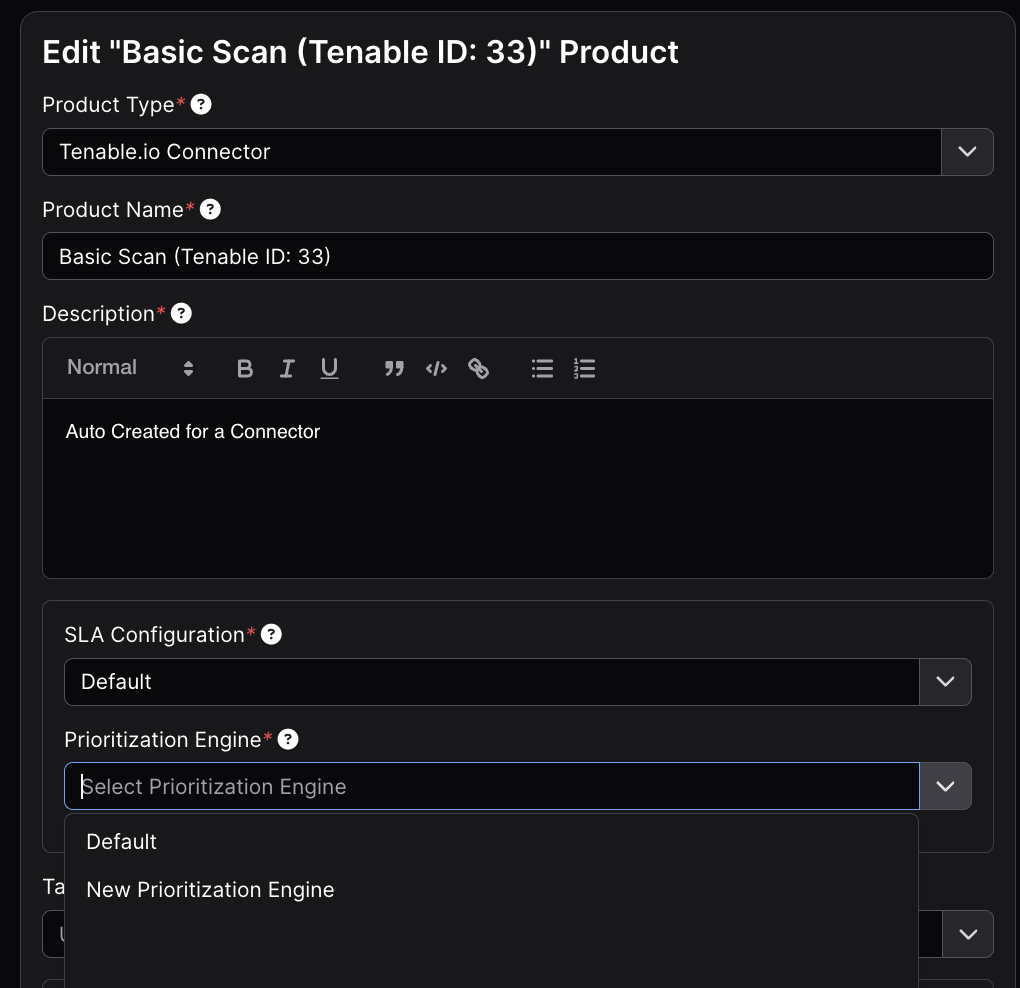
Note that when an Asset’s Prioritization Engine is changed, or a Prioritization Engine is updated, the Asset’s Prioritization Engine or the Prioritization Engine itself will be “Locked” until the prioritization calculation has completed.
Each Asset in DefectDojo can have its own Service Level Agreement (SLA) configuration, which represents the days your organization has to remediate or otherwise manage a Finding.
SLA can be set based on either Finding Severity or Finding Risk (in DefectDojo Pro).
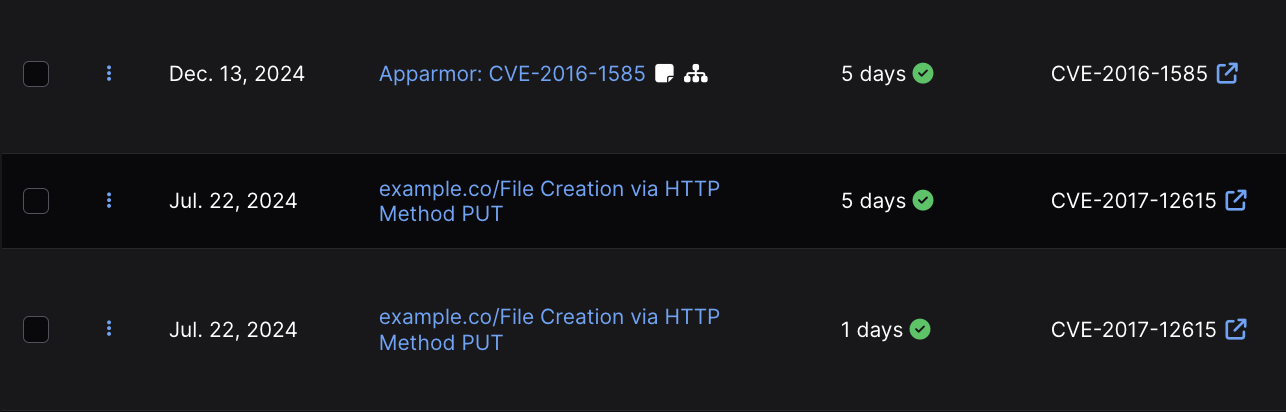
SLAs apply a countdown of days to a Finding based on the day that the Finding was created in DefectDojo. If a Finding is not Closed within the countdown, the Finding will be labeled as in breach of SLA.
Working with SLAs
You can use SLAs as a way to represent your organizations remediation policies. You can also use them as a way to prioritize the longest-active, most critical Findings in your DefectDojo instance.
- You can sort or filter Finding tables by SLA days.
- SLA violations can be configured to trigger Notifications to DefectDojo users assigned to the related Asset.
- In DefectDojo Pro, SLA performance is also tracked on the Executive Insights and Remediation Metrics Dashboards.
- SLA compliance can also be surfaced on a custom dashboard in DefectDojo Pro — for example with an SLA Burndown or a filtered Count widget.
Mitigated Within SLA status
If a Finding is successfully Mitigated by the SLA deadline, the Finding will record a ✅ green check mark in the Mitigated Within SLA column.

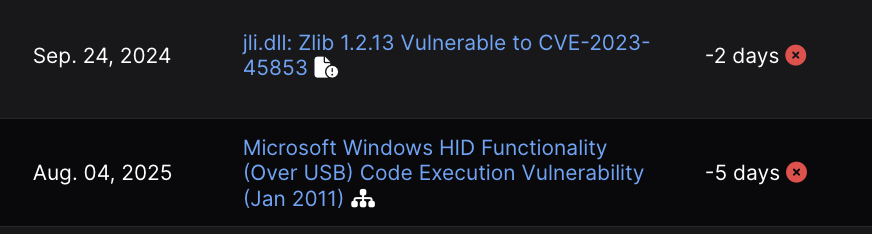
If a Finding was Mitigated, but not before the SLA was violated, the Finding will record a ❌ red X in the Mitigated Within SLA column.
Breaching SLAs
When an SLA for a given Finding is violated (the Finding is not Closed within the SLA timeline) the ✅ green check will switch to a ❌ red X. The SLA will continue to be tracked with a negative number, to represent how many days the SLA has been breached by.
Managing SLA Configurations (Pro)
In DefectDojo Pro, one or more SLA Configurations are managed under the Configuration > Service Level Agreements part of the sidebar. You can create a New Service Level Agreement or work with existing SLA configurations from the All Service Level Agreements page.
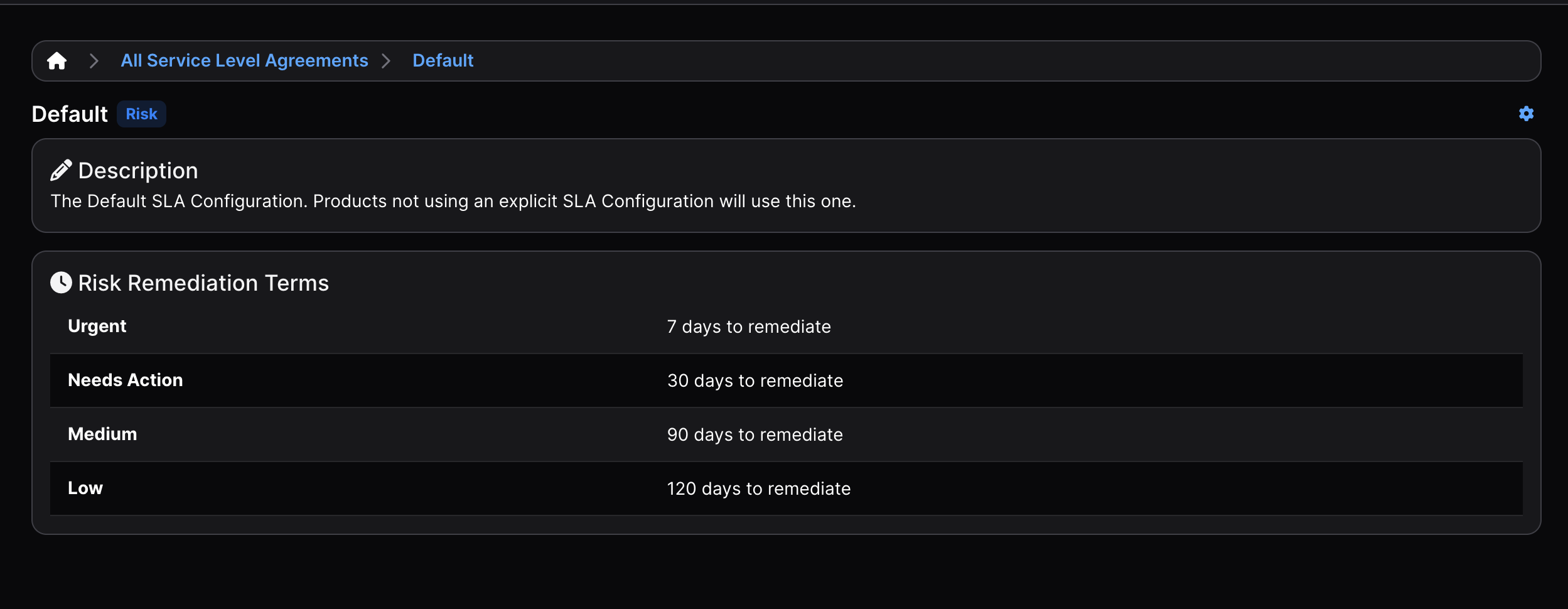
SLA Configurations can only be edited by Superusers or by a user with the corresponding Configuration Permission.
Configuring SLA
SLA configurations contain the days assigned to each Severity or Risk value of DefectDojo.
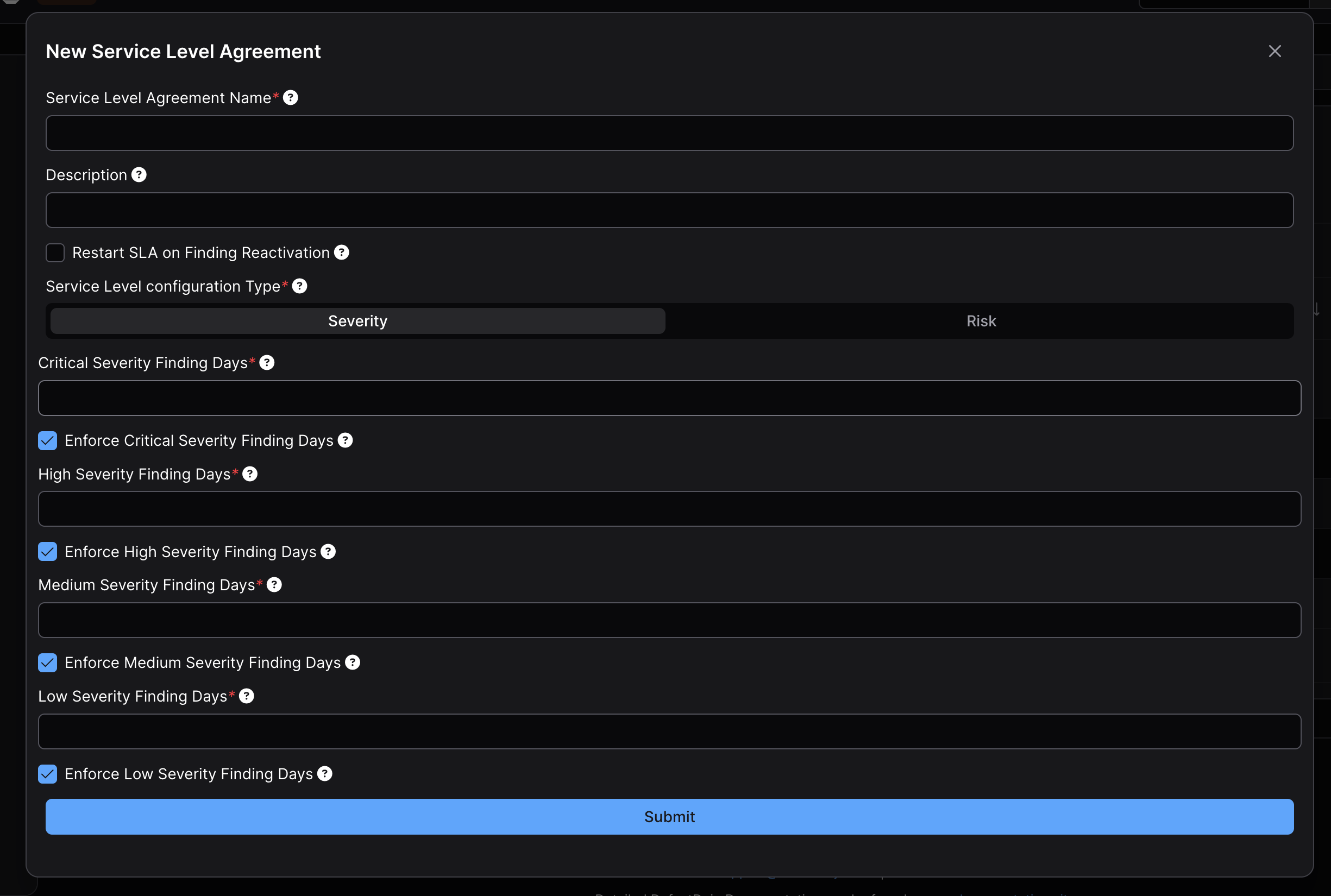
Each Service Level Agreement can have a unique name, along with an optional description.
Restart SLA on Finding Reactivation: if enabled, this option will start an SLA over when a Finding is Reopened. Otherwise, the SLA will be based on when the Finding was created.
When editing an SLA, you can choose whether that SLA will use Severity or Risk as a benchmark for assigning Days To Remediate. This is done by selecting the related option from the Service Level configuration Type section of the form.
From here, you can set the number of days allowed for each Severity or Risk level. You can also selectively enforce SLAs; by unchecking the Enforce ___ Finding Days you can ignore SLA calculation for those levels of Severity or Risk.
Apply an SLA Configuration to an Asset (Pro)
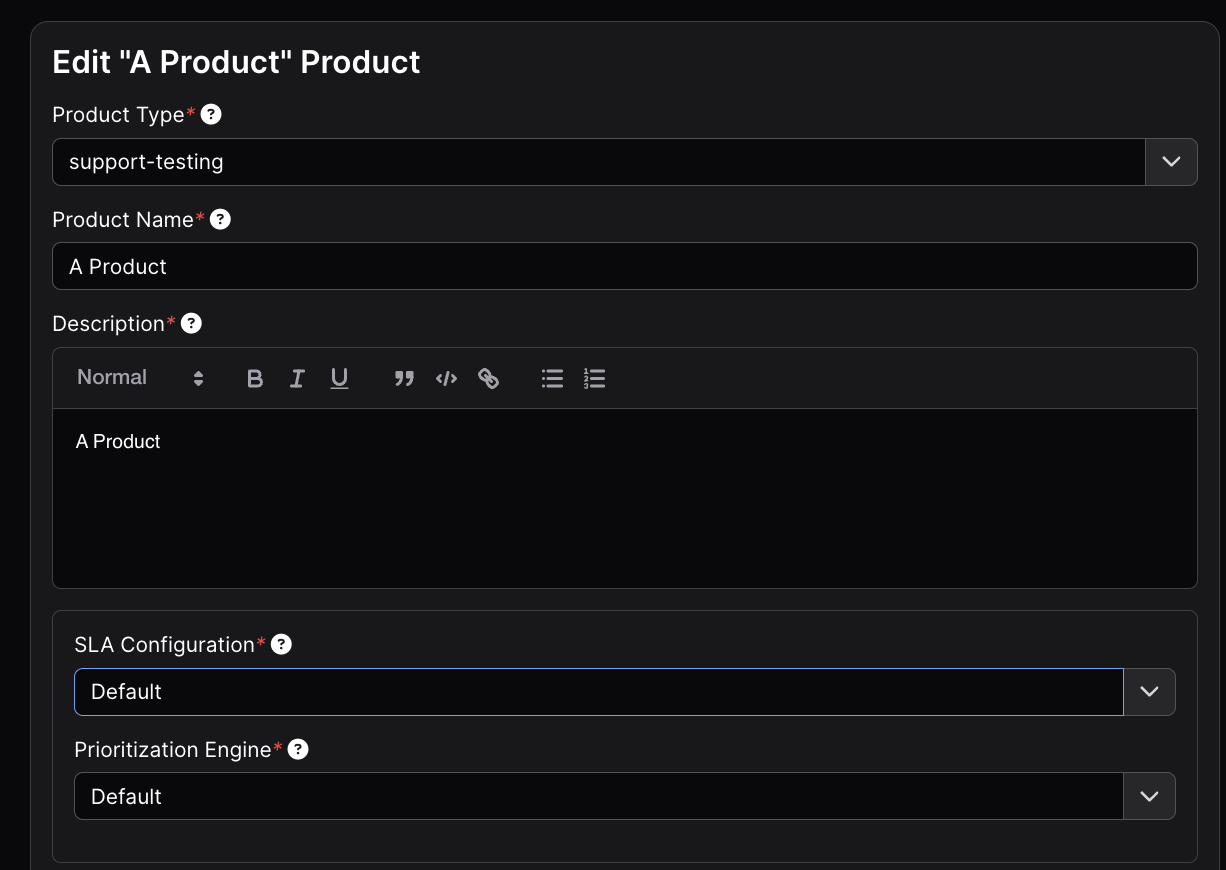
Newly created Assets in DefectDojo will always apply the Default SLA Configuration, which can be set to different values if you wish.
If you have SLA configurations, you can choose which of these is applied to your Asset from the Edit Asset form.
SLA Recalculation
Once a new SLA has been selected for an Asset, all of the associated Findings’ SLAs will need to be recalculated by DefectDojo. While this process is running, an Asset’s SLA cannot be changed.
Risk-based SLAs and Risk changes
When an SLA Configuration uses Risk as its benchmark, DefectDojo automatically recalculates a Finding’s SLA deadline whenever the Finding’s Risk changes — including changes driven by data updates, such as a new KEV listing, an updated EPSS score, or new Threat Intelligence evidence. The remediation window for the new Risk level is applied as soon as the Risk is recalculated.
The recalculation changes the number of days allowed, not the starting point. SLAs are always measured from the Finding’s SLA start date — by default, the date the Finding was first detected (see Notes on SLAs for the exceptions). A Risk change does not restart the countdown. A long-open Finding that moves into a stricter Risk band can therefore go into breach immediately; this is deliberate, as the time the Finding has already been open counts against the tighter deadline.
Vulnerability response policies
Some frameworks do not let you choose your own remediation windows. They publish a table, and a deadline is whatever that table says for the combination of facts that describe the finding. FedRAMP is the clearest example: its 2026 rules set a maximum response time for every combination of potential agency impact, whether the affected asset is reachable from the internet, whether exploitation is credible, and which certification class the service holds.
A response policy holds one published table as data. It records which standard it came from, which version of that standard, when that version took effect, and the vocabulary the standard grades impact in. Its rows are the individual cells of the table.
Policies are optional. An SLA configuration with no policy attached behaves exactly as it always has, and attaching one is a deliberate choice made per SLA configuration.
Attaching a policy
A response policy is selected on the SLA configuration, alongside the severity or risk days. Two fields matter:
- The Vulnerability Response Policy field chooses which published table governs findings under this SLA configuration. Leaving it empty keeps the existing behaviour.
- The Authorization Level field states which authorization or certification level the service holds under that standard. Most published tables give different deadlines to different levels, so a policy produces no deadline at all until this is set. DefectDojo logs a warning when a policy needs a level and none is set.
DefectDojo ships the FedRAMP Vulnerability Detection and Response table for 2026. It is seeded on startup and is never attached to anything automatically.
How a deadline is composed
A response policy tightens a deadline. It never extends one. The remediation date a finding ends up with is the earliest of:
- the days allowed for its severity or its risk, from the SLA configuration
- the CISA KEV due date, when capping by that date is enabled
- the cell the response policy resolves the finding into
Because every step takes the earliest date, attaching a policy can only bring a deadline forward. A finding whose policy cell is more generous than its severity window keeps the severity window.
The three facts a policy grades on
Each finding carries three facts, and each one records where its value came from.
Adverse impact is the standard’s own rating of what the vulnerability would do to the organizations relying on the service. DefectDojo takes it from a value someone set by hand, then from a rule, then from the finding’s existing impact rating where the policy uses the same vocabulary, and finally from a mapping out of severity that is configured on the policy itself. Severity is last on purpose. It describes the flaw rather than the consequences, so it is a starting point to correct rather than an answer.
Internet reachability is whether the affected asset can be reached from outside. This is not the same question as reachability analysis, which asks whether vulnerable code can be reached inside an application. DefectDojo takes it from a value someone set by hand, then from the asset’s exposure verdict, then from a configurable tag on the finding.
Credible exploitability is whether exploitation is realistic rather than theoretical. DefectDojo takes it from a value someone set by hand, then from a CISA KEV listing, then from an EPSS score at or above the configured threshold, then from threat intelligence showing a weaponized exploit. A proof of concept on its own is not enough.
A value set by hand is never replaced by a later recalculation. The same applies to a value set by a rule, because that is an automation the customer configured rather than one DefectDojo inferred.
Facts nobody has established
Reachability can end up unknown. Nothing proves that an asset cannot be reached from the internet just because no evidence of exposure was found, so DefectDojo distinguishes “not established” from “established as not reachable”. Only a person marking an asset as isolated settles the question in the negative.
When a fact is unknown, DefectDojo resolves the finding as if it held whichever value the policy treats more urgently, and records that it did so. An unmeasured fact can never earn a finding more time.
The evaluation clock
Publishing a deadline is only half of what these frameworks ask for. They also ask that every vulnerability be looked at quickly, and that you can show it was. A response policy therefore carries an evaluation window as well as a timeframe table, measured in days from the date the finding was detected, and different authorization levels usually get different windows.
A finding counts as evaluated once somebody establishes one of the three facts. There is no separate confirmation step, because deciding that a finding is internet reachable, or rating its adverse impact, is the judgment the framework is asking for. DefectDojo records when that happened and, where a person did it rather than a rule, who.
Findings whose window has passed without an evaluation appear in the unevaluated queue. Once a day DefectDojo sends one notification per asset listing how many of its findings are overdue. One per asset, not one per finding: a window measured in days will sometimes produce hundreds of overdue findings at once, and an alert for each would bury the thing it exists to raise. The notification goes to the asset’s members and its organization’s members.
Only open findings are counted. A finding that was closed without ever being evaluated is worth knowing about in a report, but it is not something anyone can still act on, and leaving it in a daily queue would make the queue permanently dirty.
Rules can do the routine evaluations
A window measured in days is hard to meet by hand across a large estate, so the rules engine has a Set a vulnerability response fact action. It sets one of the three facts, records that a rule was the source, and stamps the evaluation clock in the same step.
The intended shape is a rule that answers the cases your scanners already have evidence for, so that the findings left for a person are the ones that need a judgment. A rule never overwrites a value somebody set by hand, and a rule running every night does not keep moving the recorded evaluation time on findings it has already seen.
Escalation
Some frameworks treat a particular combination of facts as an incident rather than as a vulnerability, and expect it to be handled as one until it is brought back below that line. The condition is part of the policy, so it can differ between standards and between versions of the same standard.
DefectDojo flags a finding that meets its policy’s escalation condition and lists it in a separate queue. The flag clears on its own when the finding stops meeting the condition, which usually means its impact has been mitigated down a level. The record that it was escalated, and when, is kept after the flag clears, because the fact that it happened is part of what a reviewer asks about.
There is no separate incident record to manage. A flag and a filtered view are what the frameworks actually require, and the process that follows an escalation already lives in whatever incident tooling you use.
Versions
A new release of a standard arrives as a new policy rather than as an edit to the one already in use. Findings judged under an earlier release keep the version that produced their deadline, so an assessor can still be shown which published table a given date came from. Seeding never overwrites a policy that already exists, so any changes made to a shipped policy survive upgrades.
Editing a policy, or any of its cells, recalculates the findings it governs, in the same way that changing the days on an SLA configuration does.
The FedRAMP table DefectDojo ships reflects one published version of that standard. Confirm which version applies to your own authorization before relying on it, and note that the table publishes no deadline for the lowest impact rating, so findings at that rating keep their severity or risk window.
Notes on SLAs
- SLAs can be optionally restarted once a Risk Accepted Finding reactivates. This is set when creating the Risk Acceptance by setting the Restart SLA Expired field.
- Reimporting a Finding does not restart the SLA - SLAs are always calculated from when a Finding was first detected unless Restart SLA on Finding Reactivation is enabled.
- Risk Acceptance expiry or reactivation of a Closed Finding are the only ways to reset the SLA start date for a Finding once it is created (without changing the Asset’s SLA configuration). Note that with a Risk-based SLA Configuration, a Finding’s deadline can still change when its Risk changes — see Risk-based SLAs and Risk changes — but the start date the countdown is measured from stays the same.