

Assign Priority, Risk and SLAs (Pro)
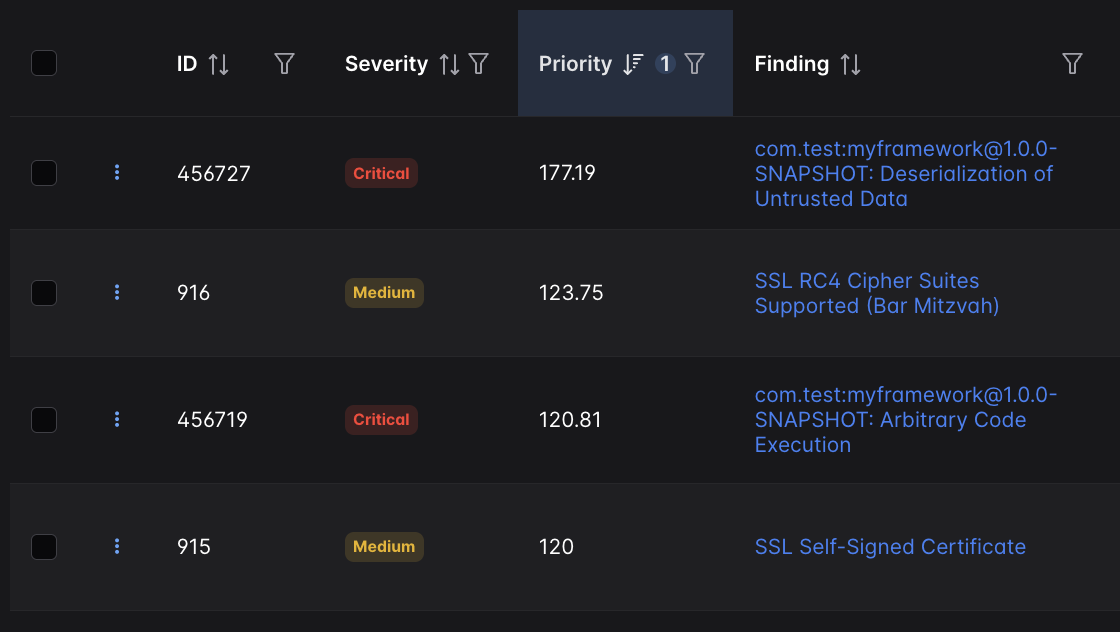
Effective risk-based vulnerability management requires an approach that considers both business context and technical exploitability. Using DefectDojo Pro’s Priority and Risk feature, users can automatically sort Findings into a meaningful context, ensuring high-impact vulnerabilities can be addressed first.
Priority is a calculated numerical rank applied to all Findings in your DefectDojo instance. It allows you to quickly understand vulnerabilities in context, especially within large organizations that are overseeing security needs for many Findings and/or Products.
Risk is a 4-level ranking system which factors in a Finding’s exploitability to a greater degree. This is meant as a less granular, more ’executive-level’ version of Priority.

Priority and Risk values can be used with other filters to compare Findings in any context, such as:
- within a single Product, Engagement or Test
- globally in all DefectDojo Products
- between a few specific Products
Applying Finding Priority and Risk helps your team respond to the most relevant vulnerabilities in your organization, and also provides a framework to assist in compliance with regulatory standards.
Learn more about Priority and Risk with DefectDojo Inc’s May 2025 Office Hours:
How Priority & Risk are calculated
The range of Priority values is from 0 to 1150. The higher the number, the more urgency the Finding is to triage or remediate.
Similar to Severity, Risk is scored from Low -> Medium -> Needs Action -> Urgent. Risk considers Priority fields and may be different from a tool’s reported Severity as a result.
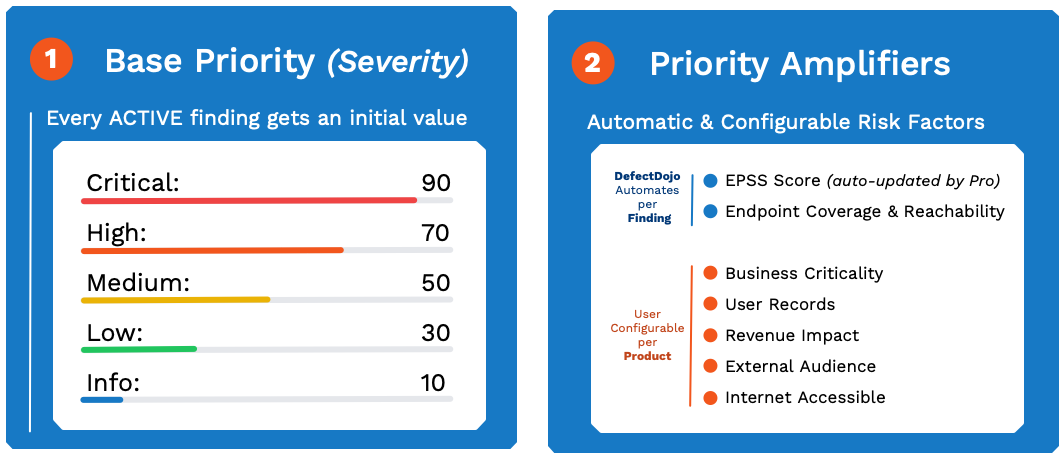
Priority Fields: Product-Level
Each Product in DefectDojo has metadata that tracks business criticality and risk factors. This metadata is used to help calculate Priority and Risk for any associated Findings.
All of these metadata fields can be set on the Edit Product form for a given Product.
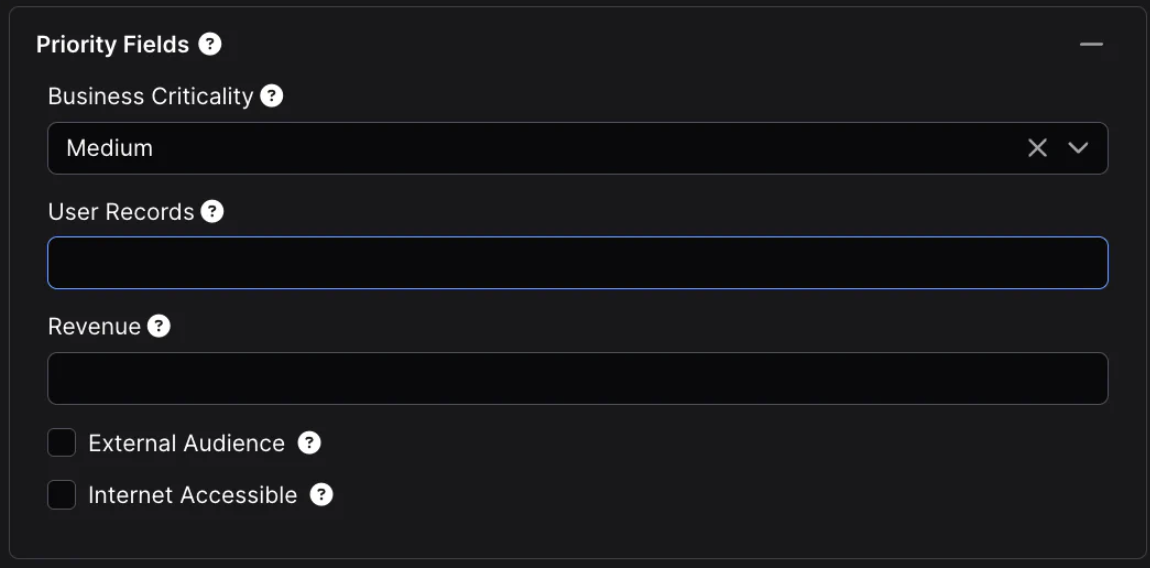
- Criticality can be set to any value of None, Very Low, Low, Medium, High, or Very High. Criticality is a subjective field, so when assigning this field, consider how the Product compares to other Products in your organization.
- User Records is a numerical estimation of user records in a database (or a system that can access that database).
- Revenue is a numerical estimation of annual revenue for the Product. To calculate Priority, DefectDojo will calculate a percentage by comparing this Product’s revenue to the sum of all Products within the Product Type.
It is not possible to set a currency type in DefectDojo, so make sure that all of your Revenue estimations have the same currency denomination. (“50000” could mean $50,000 US Dollars or ¥50,000 Japanese Yen - the denomination does not matter as long as all of your Products have revenue calculated in the same currency).
- External Audience is a true/false value - set this to True if this Product can be accessed by an external audience. For example, customers, users, or anyone outside of your organization.
- Internet Accessible is a true/false value. If this Product can connect to the open internet, you should set this value to True.
Priority is a ‘relative’ calculation, which is meant to compare different Products within your DefectDojo instance. It is ultimately up to your organization to decide how these filters are set. These values should be as accurate as possible, but the primary goal is to highlight your key Products so that you can prioritize vulnerabilities according to your organization’s policies, so these fields do not necessarily need to be set perfectly.
Priority Fields: Finding-Level
Findings within a Product can have additional metadata which can further adjust the Finding’s Priority and Risk level:
- Whether or not the Finding has an EPSS score, this is automatically added to Findings and kept up to date for Pro users
- How many Endpoints in the Product are affected by this Finding
- Whether or not a Finding is Under Review
- Whether the Finding is in the KEV (Known Exploited Vulnerabilities) database, which is checked by DefectDojo on a regular basis
- The tool-reported Severity of a Finding (Info, Low, Medium, High, Critical)
Finding Risk Calculation
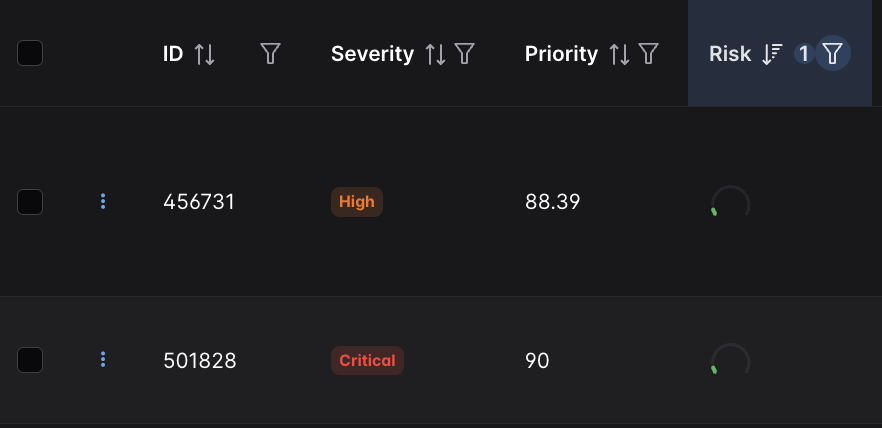
The Risk column on a Findings table is another way to quickly prioritize Findings. Risk is calculated using a Finding’s Priority level, but also factors in a Finding’s exploitability to a greater degree. This is meant as a less granular, more ’executive-level’ version of Priority.
The four assignable Risk levels are:
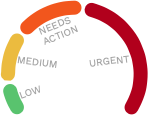
A Finding’s EPSS / exploitability is much more emphasized in the Risk calculation. As a result, a Finding can have both a high priority and a low risk value.
As with Finding Priority, the Risk calculation cannot currently be adjusted.
Priority Insights Dashboard
Users can take an executive-level view of Priority and Risk in their environment using the Priority Insights Dashboard (Metrics > Priority Insights in the sidebar)
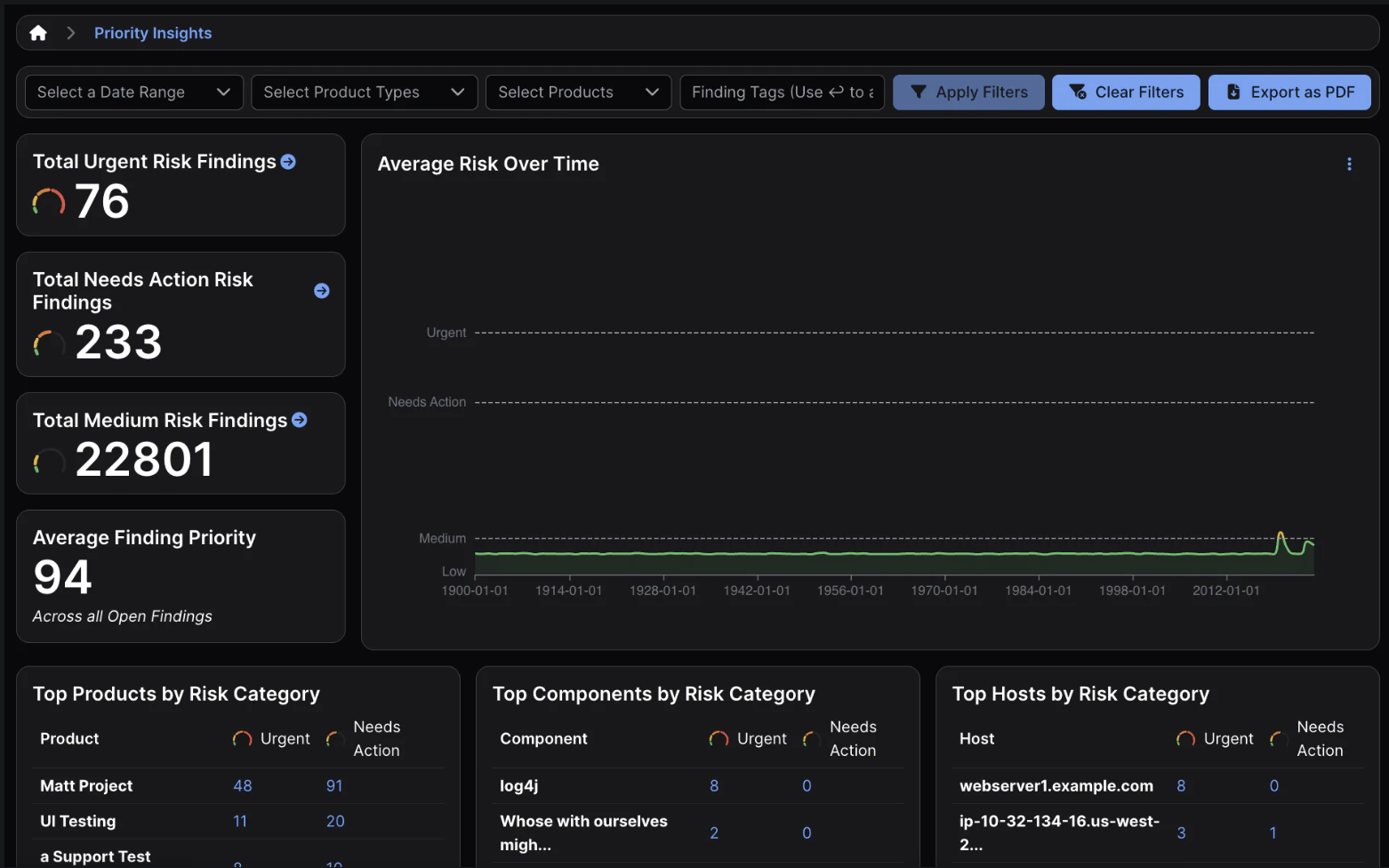
This dashboard can be filtered to include specific Products or date ranges. As with other Pro dashboards, this dashboard can be exported from DefectDojo as a PDF to quickly produce a report.
Setting Priority & Risk for Regulatory Compliance
This is a non-exhaustive list of regulatory standards that specifically require vulnerability prioritization methods:
- SOX (Sarbanes-Oxley Act) compliance requires revenue-based prioritization for systems impacting financial data. In DefectDojo, a system’s revenue can be entered at the Product level.
- PCI DSS compliance requires prioritization based on risk ratings and criticality to cardholder data environments. Business Criticality and External Audience can be set at the Product level, while DefectDojo’s Finding-level EPSS sync supports PCI’s risk-based approach.
- NIST SP 800-40 is a preventative maintenance guide which specifically calls for vulnerability prioritization based on business impact, product criticality and internet accessibility factors. All of these can be set at DefectDojo’s Product level.
- ISO 27001/27002 Control A.12.6.1 compliance requires management of technical vulnerabilities with Priority based on risk assessment.
- GDPR Article 32 requires risk-based security measures - user records and external audience flags at the Product level can help prioritize systems in your organization that process personal data.
- FISMA/FedRAMP compliance require continuous monitoring and risk-based vulnerability remediation.
DefectDojo Pro’s Priority and Risk calculations can be adjusted, allowing you to tailor DefectDojo Pro to match your internal standards for Finding Priority and Risk.
Prioritization Engines
Similar to SLA configurations, Prioritization Engines allow you to set the rules governing how Priority and Risk are calculated.
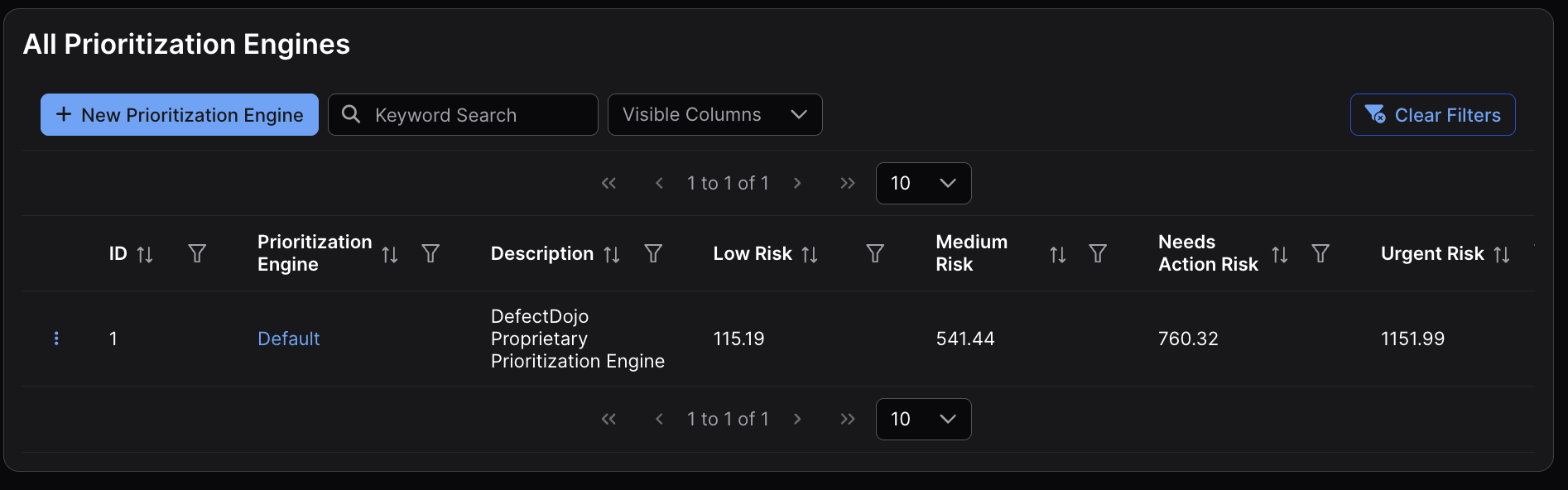
DefectDojo comes with a built-in Prioritization Engine, which is applied to all Products. However, you can edit this Prioritization Engine to change the weighting of Finding and Product multipliers, which will adjust how Finding Priority and Risk are assigned.
Finding Multipliers
Eight contextual factors impact the Priority score of a Finding. Three of these are Finding-specific, and the other five are assigned based on the Product that holds the Finding.
You can tune your Prioritization Engine by adjusting how these factors are applied to the final calculation.

Select a factor by clicking the button, and adjust this slider allows you to control the percentage a particular factor is applied. As you adjust the slider, you’ll see the Risk thresholds change as a result.
Finding-Level Multipliers
- Severity - a Finding’s Severity level
- Exploitability - a Finding’s KEV and/or EPSS score
- Endpoints - the amount of Endpoints associated with a Finding
Product-Level Multipliers
- Business Criticality - the related Product’s Business Criticality (None, Very Low, Low, Medium, High, or Very High)
- User Records - the related Product’s User Records count
- Revenue - the related Product’s revenue, relative to the total revenue of the Product Type
- External Audience - whether or not the related Product has an external audience
- Internet Accessible - whether or not the related Product is internet accessible
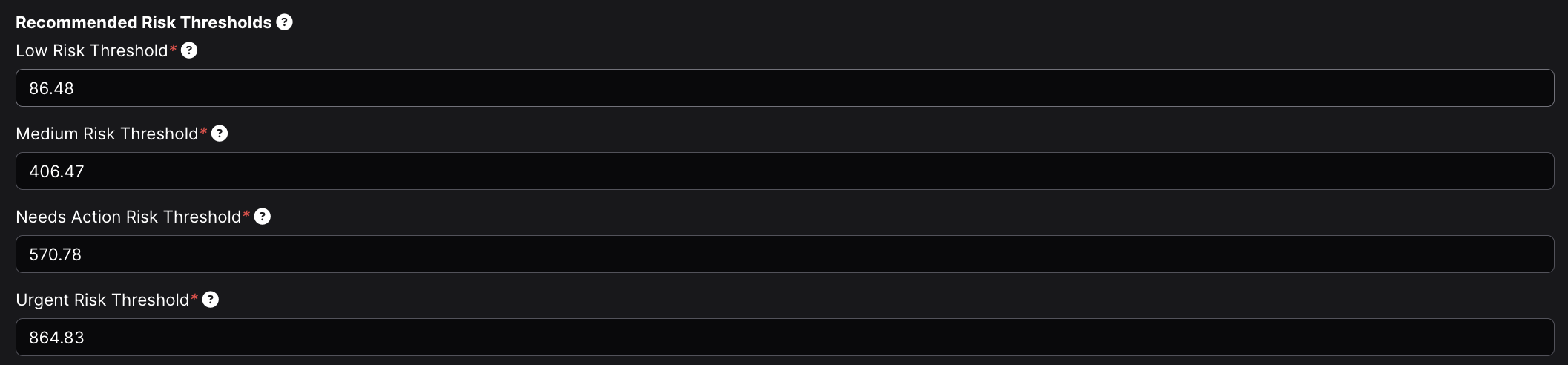
Risk Thresholds
Based on the tuning of the Priority Engine, DefectDojo will automatically recommend Risk Thresholds. However, these thresholds can be adjusted as well and set to whatever values you deem appropriate.
Creating New Prioritization Engines
You can use multiple Prioritization Engines, which can each be assigned to different Products.

Creating a new Prioritization Engine will open the Prioritization Engine form. Once this form is submitted, a new Prioritization Engine will be added to the table.
Assigning Prioritization Engines to Products
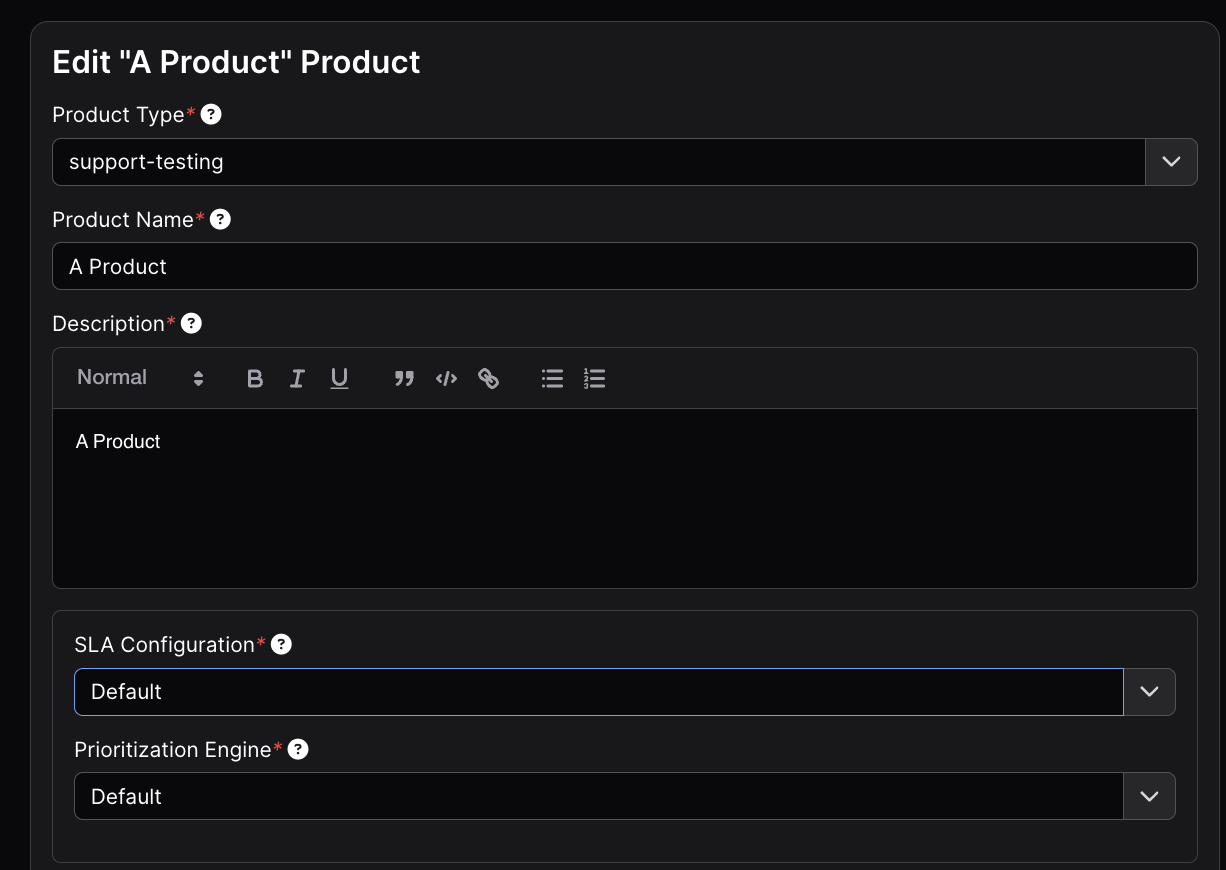
Each Product can have a Prioritization Engine currently in use via the Edit Product form for a given Product.
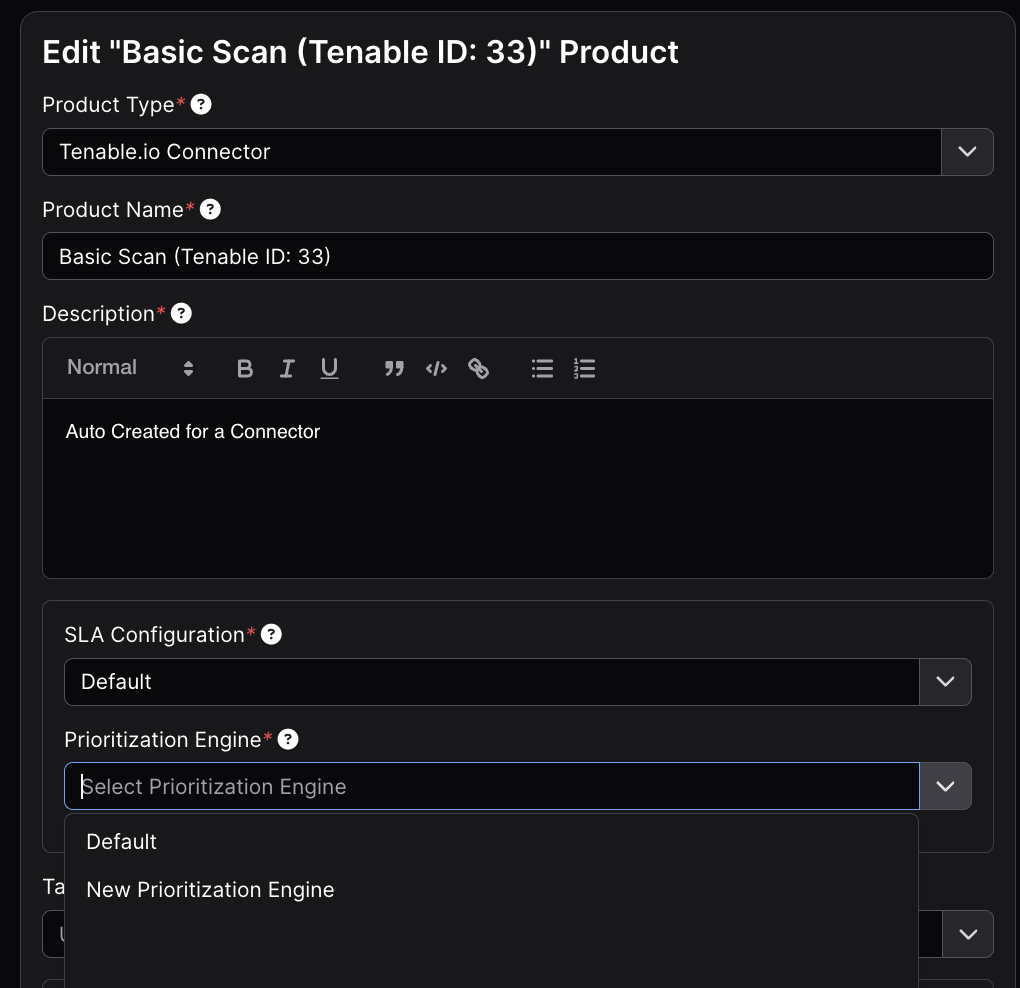
Note that when a Product’s Prioritization Engine is changed, or a Prioritization Engine is updated, the Product’s Prioritization Engine or the Prioritization Engine itself will be “Locked” until the prioritization calculation has completed.
Each Product in DefectDojo can have its own Service Level Agreement (SLA) configuration, which represents the days your organization has to remediate or otherwise manage a Finding.
SLA can be set based on either Finding Severity or Finding Risk (in DefectDojo Pro).
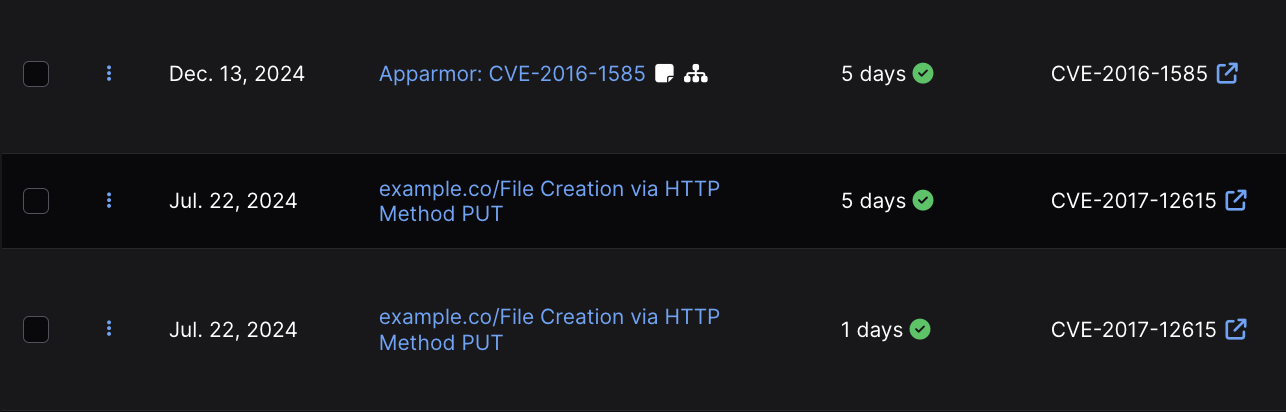
SLAs apply a countdown of days to a Finding based on the day that the Finding was created in DefectDojo. If a Finding is not Closed within the countdown, the Finding will be labeled as in breach of SLA.
Working with SLAs
You can use SLAs as a way to represent your organizations remediation policies. You can also use them as a way to prioritize the longest-active, most critical Findings in your DefectDojo instance.
- You can sort or filter Finding tables by SLA days.
- SLA violations can be configured to trigger Notifications to DefectDojo users assigned to the related Product.
- In DefectDojo Pro, SLA performance is also tracked on the Executive Insights and Remediation Metrics Dashboards.
- SLA compliance can also be used to create custom Dashboard Tiles in DefectDojo Pro.
Mitigated Within SLA status
If a Finding is successfully Mitigated by the SLA deadline, the Finding will record a ✅ green check mark in the Mitigated Within SLA column.

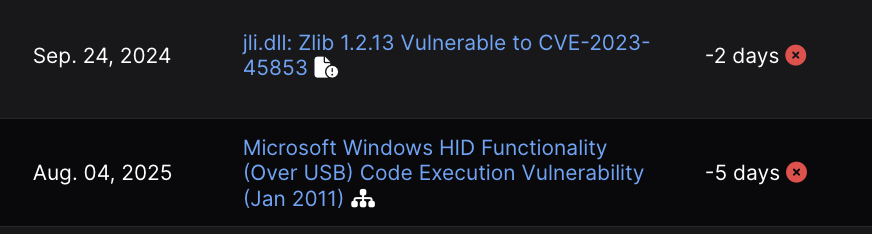
If a Finding was Mitigated, but not before the SLA was violated, the Finding will record a ❌ red X in the Mitigated Within SLA column.
Breaching SLAs
When an SLA for a given Finding is violated (the Finding is not Closed within the SLA timeline) the ✅ green check will switch to a ❌ red X. The SLA will continue to be tracked with a negative number, to represent how many days the SLA has been breached by.
Managing SLA Configurations (Pro)
In DefectDojo Pro, one or more SLA Configurations are managed under the Configuration > Service Level Agreements part of the sidebar. You can create a New Service Level Agreement or work with existing SLA configurations from the All Service Level Agreements page.
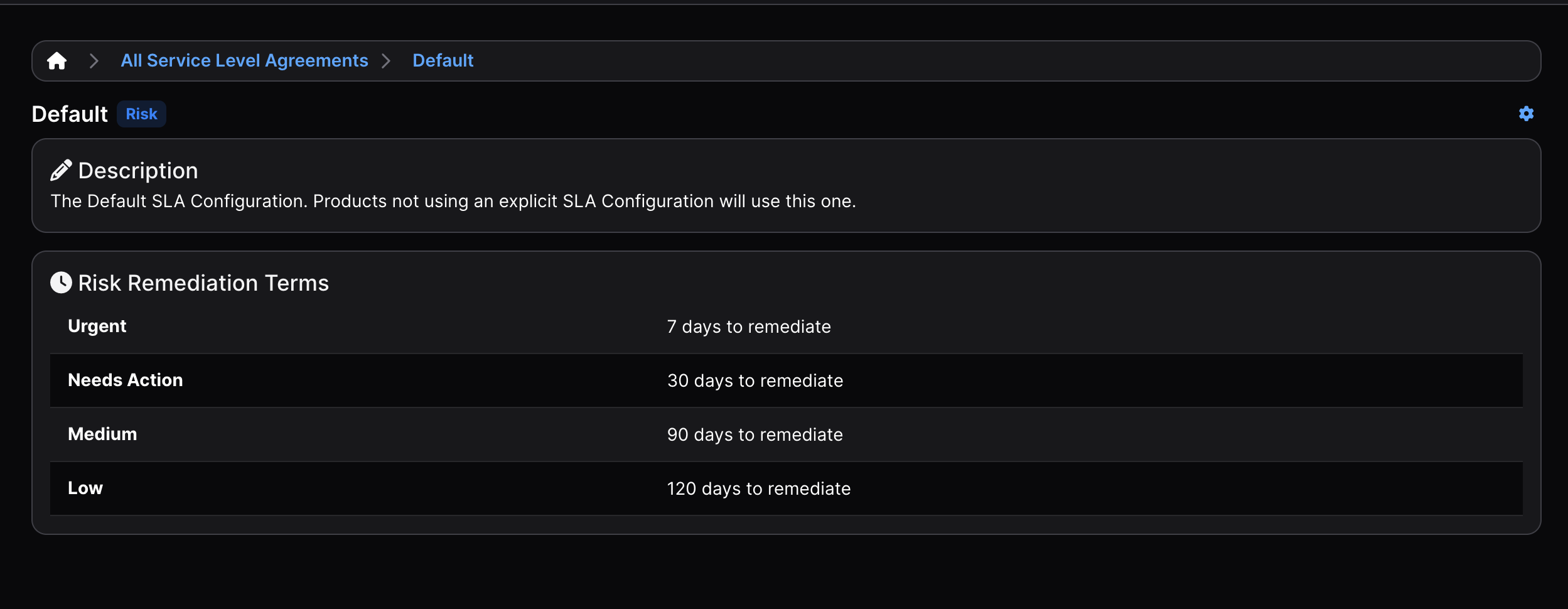
SLA Configurations can only be edited by Superusers or by a user with the corresponding Configuration Permission.
Configuring SLA
SLA configurations contain the days assigned to each Severity or Risk value of DefectDojo.
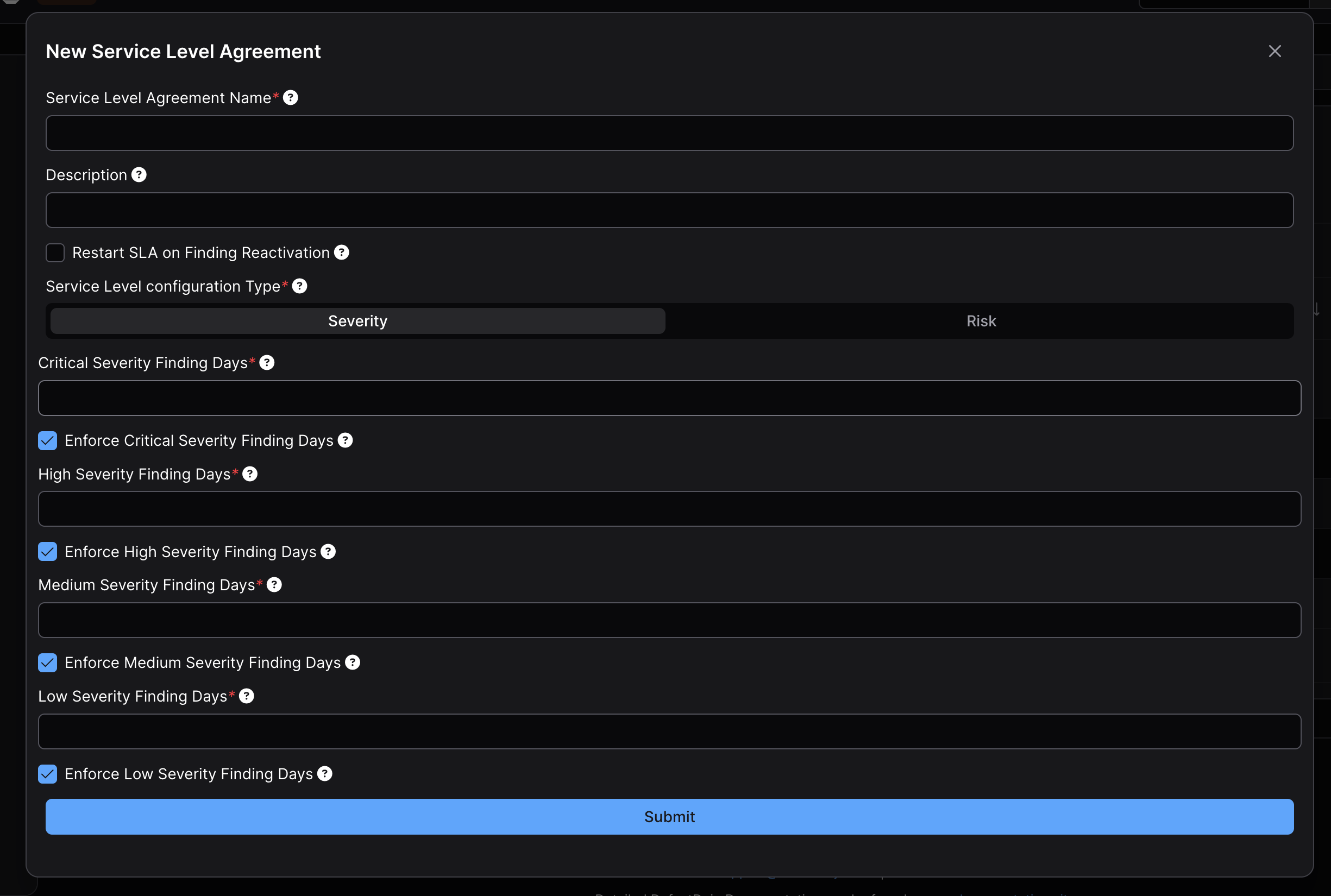
Each Service Level Agreement can have a unique name, along with an optional description.
Restart SLA on Finding Reactivation: if enabled, this option will start an SLA over when a Finding is Reopened. Otherwise, the SLA will be based on when the Finding was created.
When editing an SLA, you can choose whether that SLA will use Severity or Risk as a benchmark for assigning Days To Remediate. This is done by selecting the related option from the Service Level configuration Type section of the form.
From here, you can set the number of days allowed for each Severity or Risk level. You can also selectively enforce SLAs; by unchecking the Enforce ___ Finding Days you can ignore SLA calculation for those levels of Severity or Risk.
Apply an SLA Configuration to a Product (Pro)
Newly created Products in DefectDojo will always apply the Default SLA Configuration, which can be set to different values if you wish.
If you have SLA configurations, you can choose which of these is applied to your Product from the Edit Product form.
SLA Recalculation
Once a new SLA has been selected for a Product, all of the associated Findings’ SLAs will need to be recalculated by DefectDojo. While this process is running, a Product’s SLA cannot be changed.
Notes on SLAs
- SLAs can be optionally restarted once a Risk Accepted Finding reactivates. This is set when creating the Risk Acceptance by setting the Restart SLA Expired field.
- Reimporting a Finding does not restart the SLA - SLAs are always calculated from when a Finding was first detected unless Restart SLA on Finding Reactivation is enabled.
- Risk Acceptance expiry or reactivation of a Closed Finding are the only ways to reset or recalculate an SLA for a Finding once it is created (without changing the Product’s SLA configuration).