

Regulations (Pro)
Regulations provide a registry of regulatory and compliance frameworks relevant to an organization. They can be associated with Assets to identify the regulatory frameworks that apply to them. Examples of Regulations include GDPR, HIPAA, PCI DSS, and SOX.
Regulations are useful for:
- Compliance reference: Maintain information about regulatory frameworks that apply to an organization.
- Organization: Centralize regulatory and compliance information within DefectDojo.
- Reference: Link to an external source for additional information about a regulation.
Importantly, Regulations serve only as reference information and do not themselves assess Findings for compliance or enforce regulatory requirements. Rather, they identify the regulatory frameworks applicable to each Asset.
Accessing Regulations
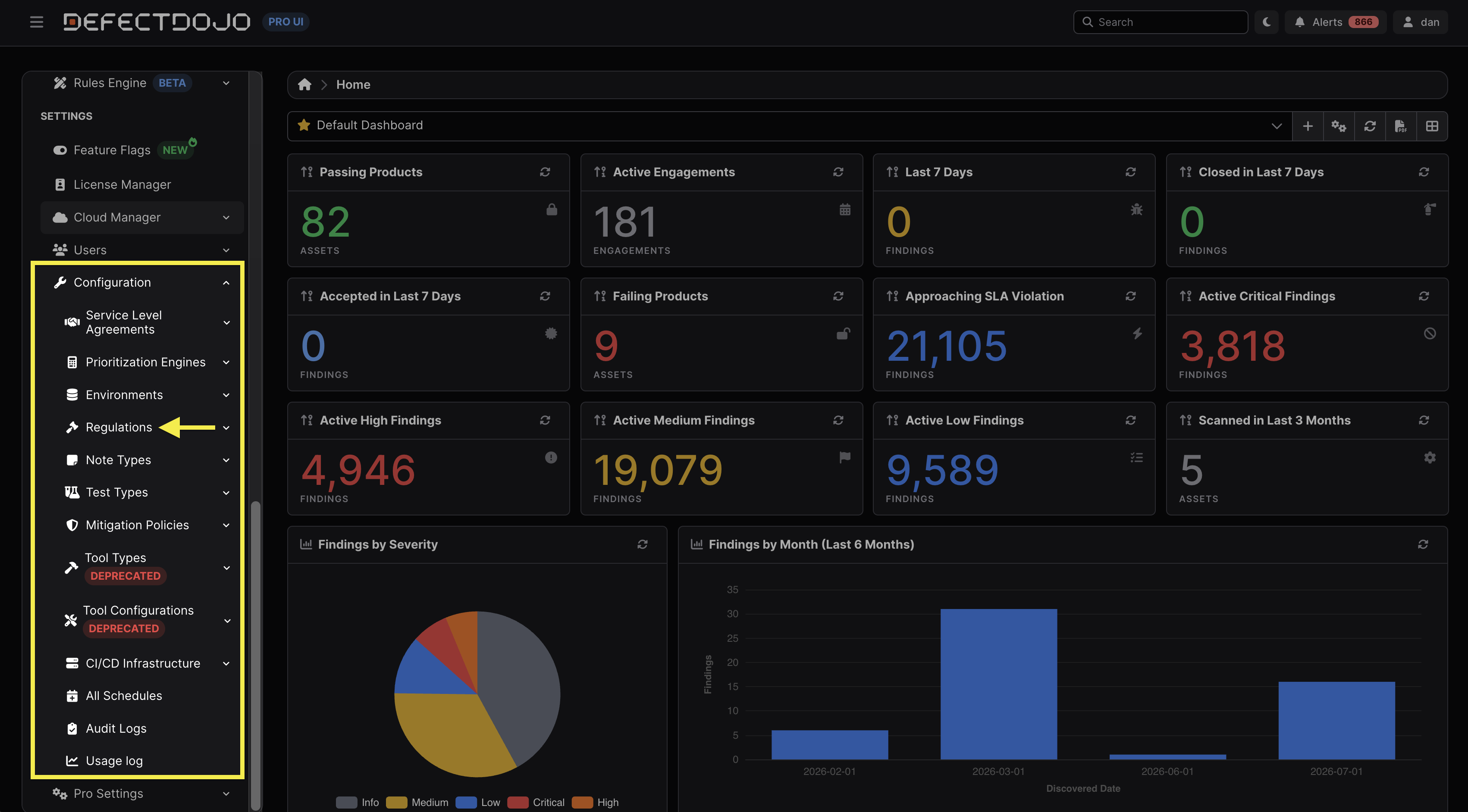
Regulations are accessible from within the Configuration submenu of the sidebar.
Permissions
All Users can view the list of existing Regulations, regardless of their global role.
However, the ability to create, edit, and delete Regulations is limited to Superusers.
More information about permissions and global roles can be found here.
Regulation Data
Regulations include the following fields:
- Regulation name: The full name of the Regulation.
- Acronym: The commonly used acronym for the Regulation.
- Category: Privacy, Finance, Education, Medical, Corporate, and Other.
- Jurisdiction: The jurisdiction in which the Regulation applies.
- Description: A description of the Regulation and its purpose.
- Reference: A URL linking to an external source for additional information about the Regulation (e.g., Wikipedia or the Regulation’s official source page).
Working with Regulations
Creating Regulations
Regulations can be created by clicking the New Regulation button in the upper left corner of the Regulations view. From there, enter information for all required fields and click Submit to create the Regulation.
Editing Regulations
Regulations can be edited by clicking the ⋮ kebab icon to the left of the desired Regulation and selecting Edit Regulation from the dropdown menu.
Deleting Regulations
Regulations can be deleted by clicking the ⋮ kebab icon to the left of the desired Regulation and selecting Delete Regulation from the dropdown menu. Deleting a Regulation while it is still linked to an Asset will remove it from that Asset.
As noted previously, the ability to create, edit, and delete Regulations is reserved only for Superusers.
Associating Regulations with Assets
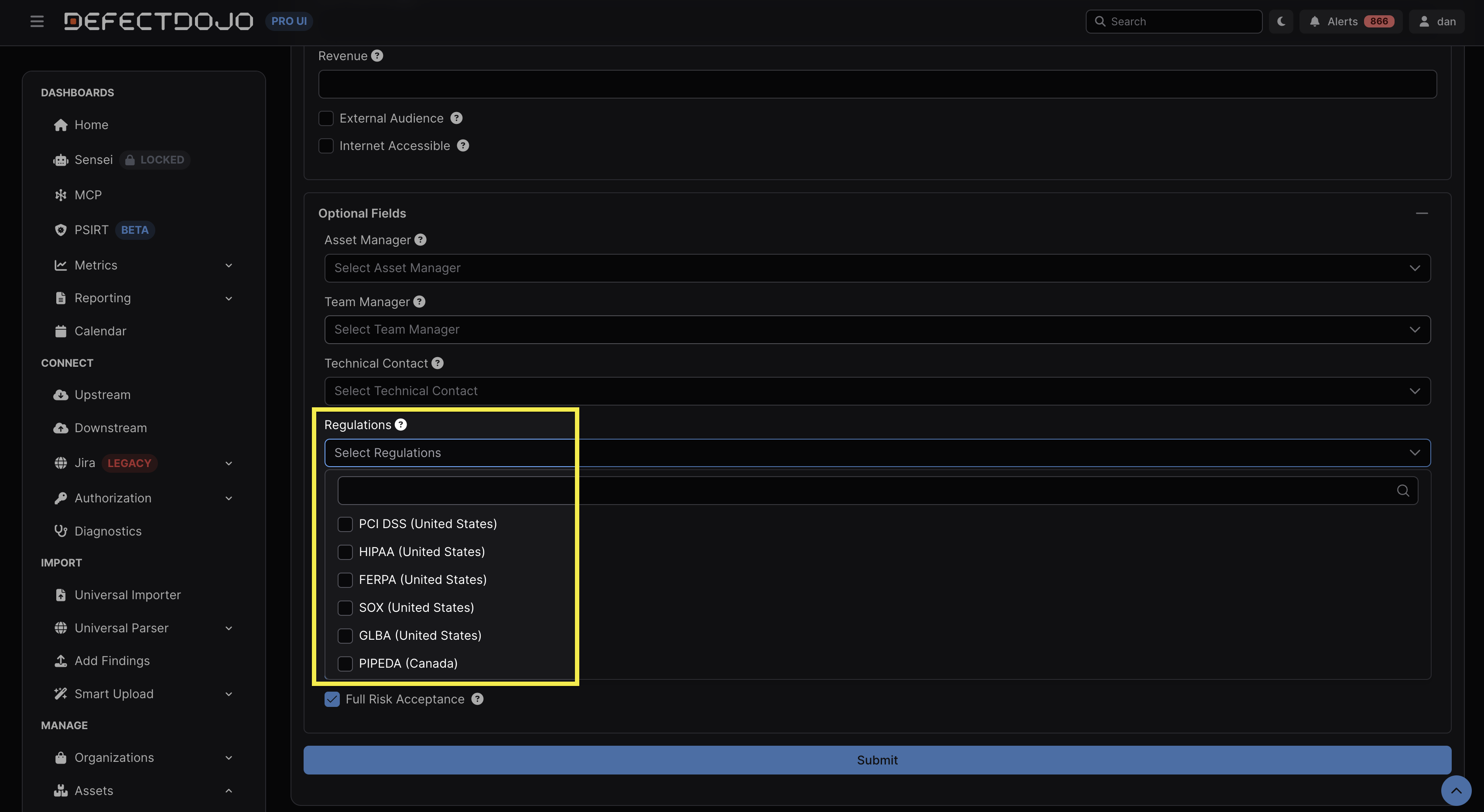
Regulations can be associated with an Asset using the Optional Fields section within an Asset’s settings. To access an Asset’s settings, click Edit Asset from within the gear menu in the upper-right corner of the Asset’s view.
The Regulations dropdown menu lists all active Regulations in your instance. Select any Regulations that apply to the Asset and click Submit.
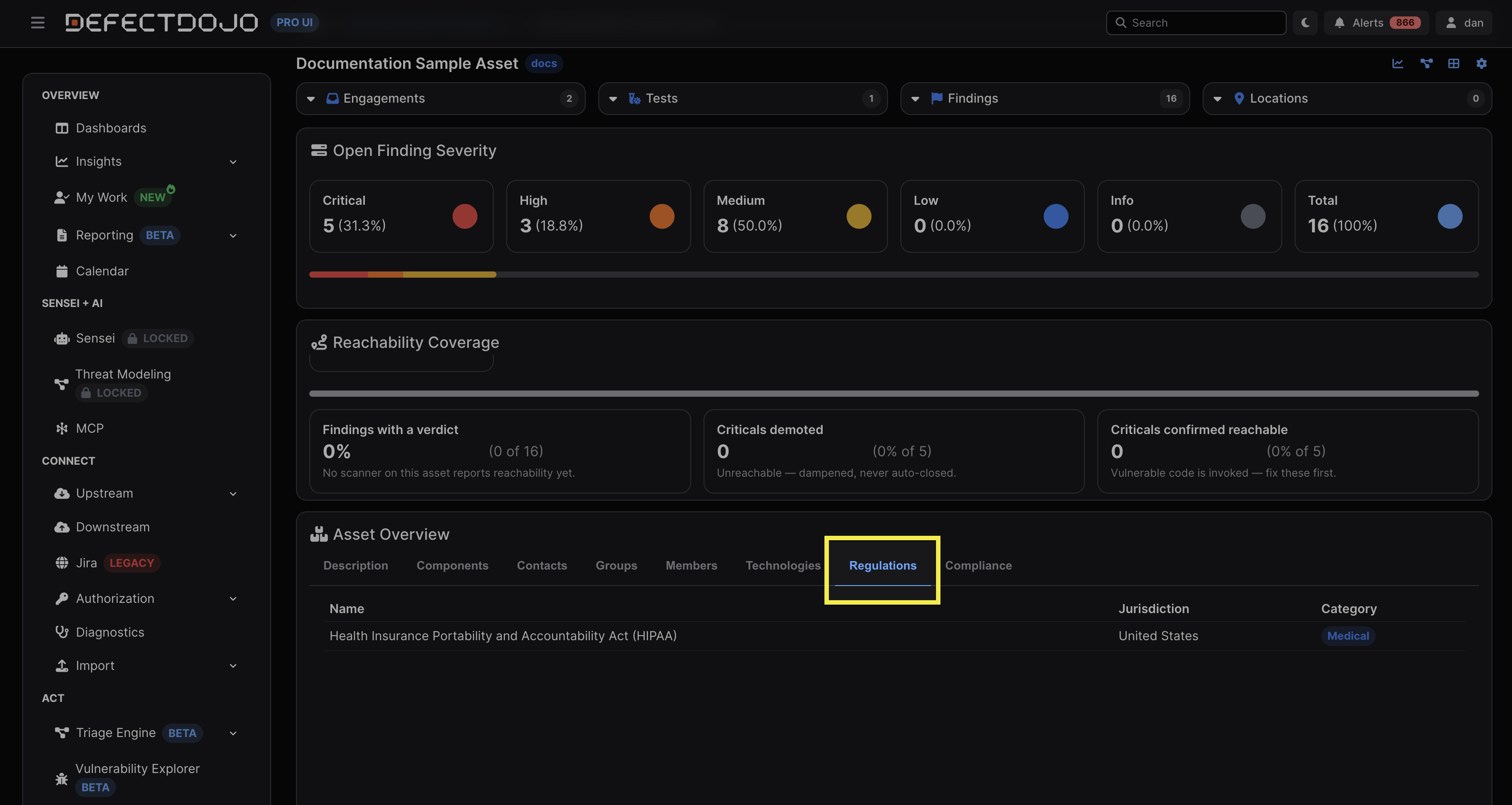
Once submitted, any applicable Regulations will appear within the Regulations subsection of the Asset Overview table in the Asset’s view.
Associating a Regulation with an Asset provides regulatory context for the Asset but does not perform compliance assessments or automatically evaluate its Findings.