Calendar (Pro)
DefectDojo features a built-in Calendar so you can track all prior and active Engagements and Tests within your organization. Any time a User creates a new Engagement or Test and establishes the start and end dates, a corresponding entry will automatically be added to the Calendar.
Landing Page
The Calendar page includes filters at the top and a monthly calendar below. The filters can adjust which results appear in the calendar based on:
- Engagement and/or Test
- Start and End date
- Engagement Status (e.g., Completed, In Progress, On Hold, etc.)
- Engagement/Test Lead (i.e., to whom is the Engagement/Test assigned?)
- Engagement Type (e.g., Interactive or CI/CD)
- Test Type (e.g., Pen Test, Acunetix Scan, Tenable Scan, etc.)
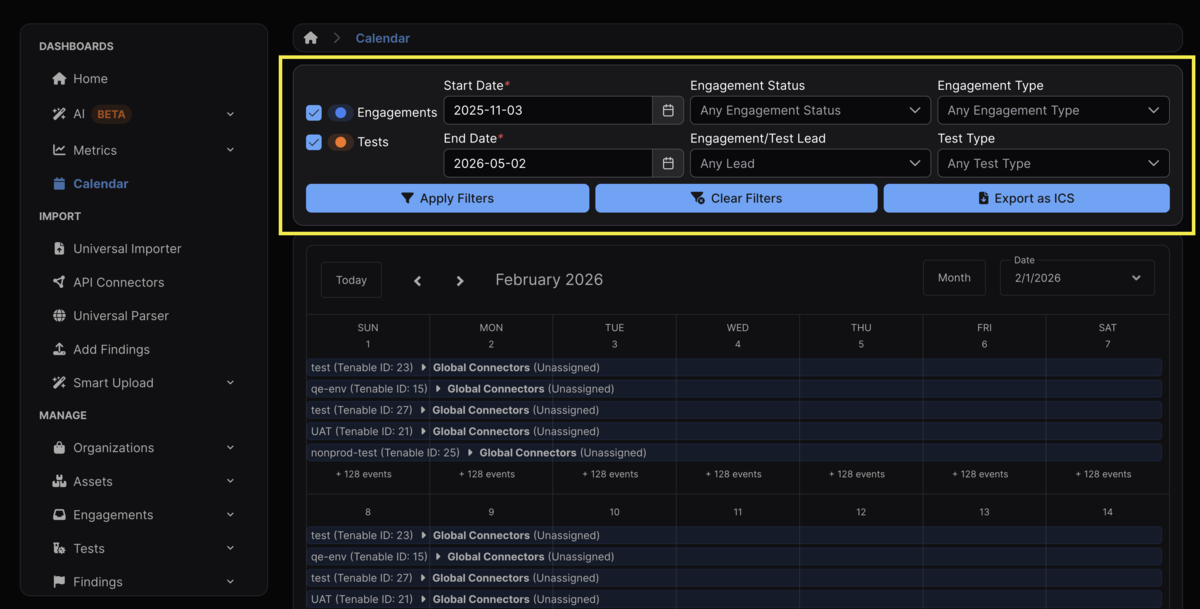
Once filtered, results can be exported and shared as an ICS file.
Importantly, Calendar will only present Engagements and Tests to which the User viewing the calendar has access. It will not display Engagements and Tests that the User does not have permission to view.
Features
Monthly View
The monthly calendar will preview five entries on each day. Additional entries occurring on that day will be hidden from view unless the "+ [X] events" is clicked within the cell of any particular date. Once clicked, the calendar will shift from a monthly view to a daily view.
Clicking on an entry for a Test or Engagement will open a pop-up modal with additional information on that entry, including:
- Start and End Date
- Test or Engagement Type
- Lead
- Status
- Asset
- Engagement
- Test
From there, the Asset, Engagement, or Test can be accessed via hyperlink.
Daily View
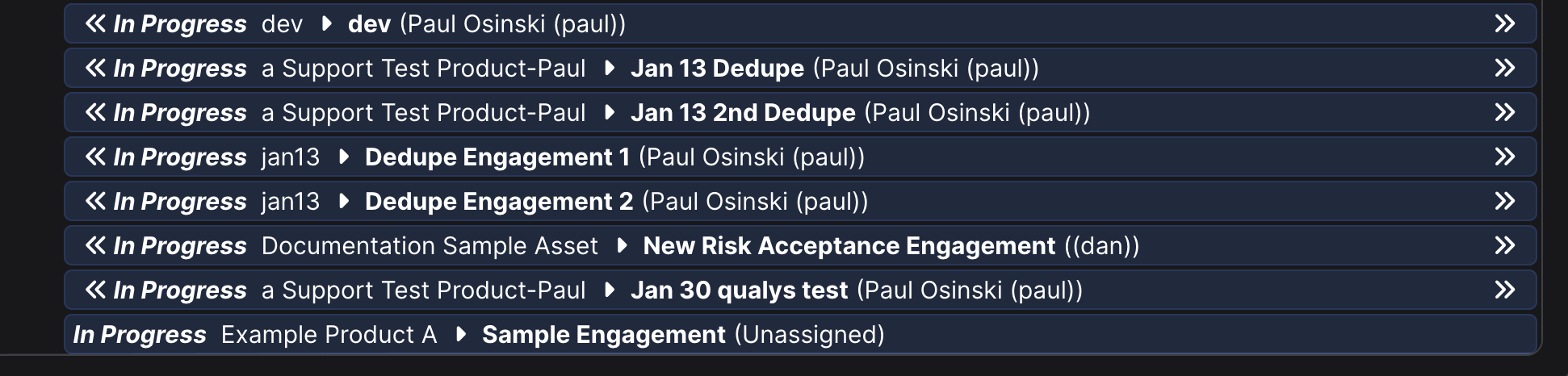
In the daily view, all currently active Engagements and Tests will appear chronologically in descending order (i.e, a newly created Engagement or Test will be found at the bottom of that day’s entry). Engagements appear in blue, while Tests appear in Orange.
If set within the applicable Engagement/Test, the title of each entry in the daily calendar will include the following:
- Status
- Product
- Engagement
- Test
- Assignee
Arrows
The arrows on the left and right side of each entry indicate whether that particular Test or Engagement is present on the preceding and/or following day.
For example, a Test that was made on the same day on which it’s being viewed will not have arrows on the left because that Test didn’t exist the day before. Conversely, a Test that ends on the same day on which it’s being viewed will not have arrows on the right because the entry won’t exist on the following day.
For example, as the final Engagement in the screenshot below (In Progress Example Product A ▶ Sample Engagement (Unassigned)) is being viewed on the day it was created, and the Target End Date was set for the following day, no arrows are present on either the left or right side.