

Audit Logs (Pro)
Audit Logs provide a chronological record of actions performed within DefectDojo. They ensure accountability and compliance by recording which user performed which action and when.
Audit logs are valuable for:
- Security investigations: Determine who performed sensitive actions.
- Compliance: Demonstrate an auditable history for standards such as SOC 2, ISO 27001, or internal governance requirements.
- Troubleshooting: Identify when a configuration or object changed.
- Accountability: Track administrative and user activity across the platform.
In short, Audit Logs provide a centralized record of important events that helps administrators understand their instance’s activity history beyond the history of any single object.
Accessing Audit Logs
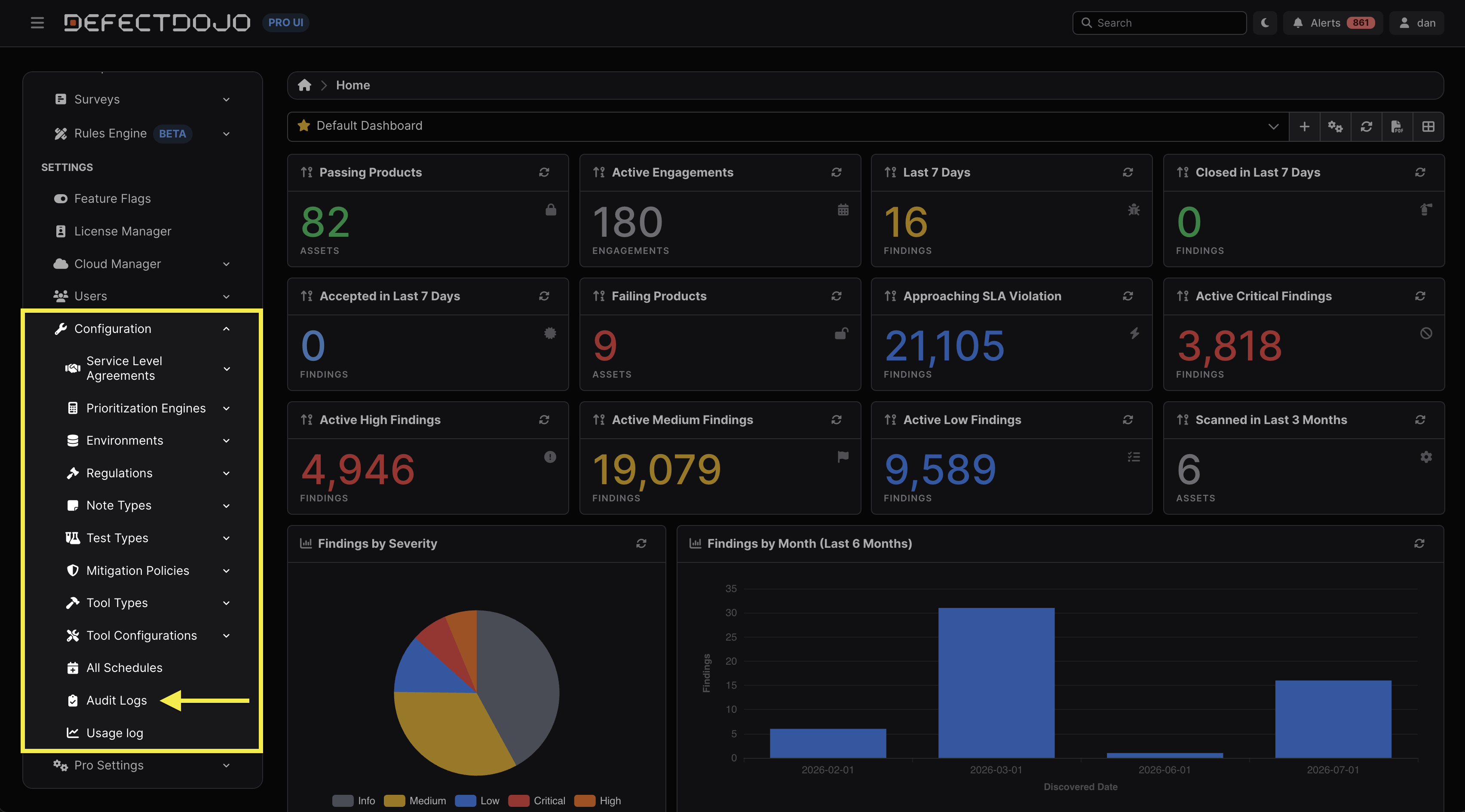
Audit Logs are accessible from the sidebar under Settings > Operations > Audit Logs.
Permissions
Access to Audit Logs is determined by a User’s global role.
The global roles of API Importer, Reader, and Writer do not permit access to Audit Logs, whereas Maintainer and Owner roles do. Superusers also have access to Audit Logs regardless of their global role.
More information about permissions and global roles can be found here.
Audit Logs Contents
Audit Logs track a variety of actions, including, but not limited to:
- Interactions with objects (e.g., creating, updating, or deleting objects).
- Updates to a Finding’s priority and risk score.
- Creation and editing of User profiles.
- EPSS percentile updates.
The full list of changes and actions that are captured in Audit Logs can be found here.
Audit Logs Table
Audit Logs includes multiple columns with various data to improve traceability, including:
- Timestamp: The time at which the change took place.
- User: The user who performed the action.
- Action: What action was performed (e.g., create, update, delete).
- Model: What aspect was modified (e.g., Asset, User, Finding, Location, Firewall, URL, etc.).
- Object ID: DefectDojo’s unique ID for the object that was modified.
- Object Name: The name of the affected object.
- Changes: Specific fields modified by the action, including their previous and updated values.
- Data: An exact snapshot of the record at the moment the action was taken, including every field, not just those that were changed.
- Context: Surrounding details of how the change happened, who made it, where in the app it came from, and a label saying what job performed the change (if it was an automated job).
- URL: The URL used to execute the particular operation. These paths could refer to DefectDojo’s Vue UI, or to the REST API. The URL field will not be populated for back-end processes.
- IP Address: The network address of the device that made the change. This will not be populated for back-end processes.
Audit Logs Timeline
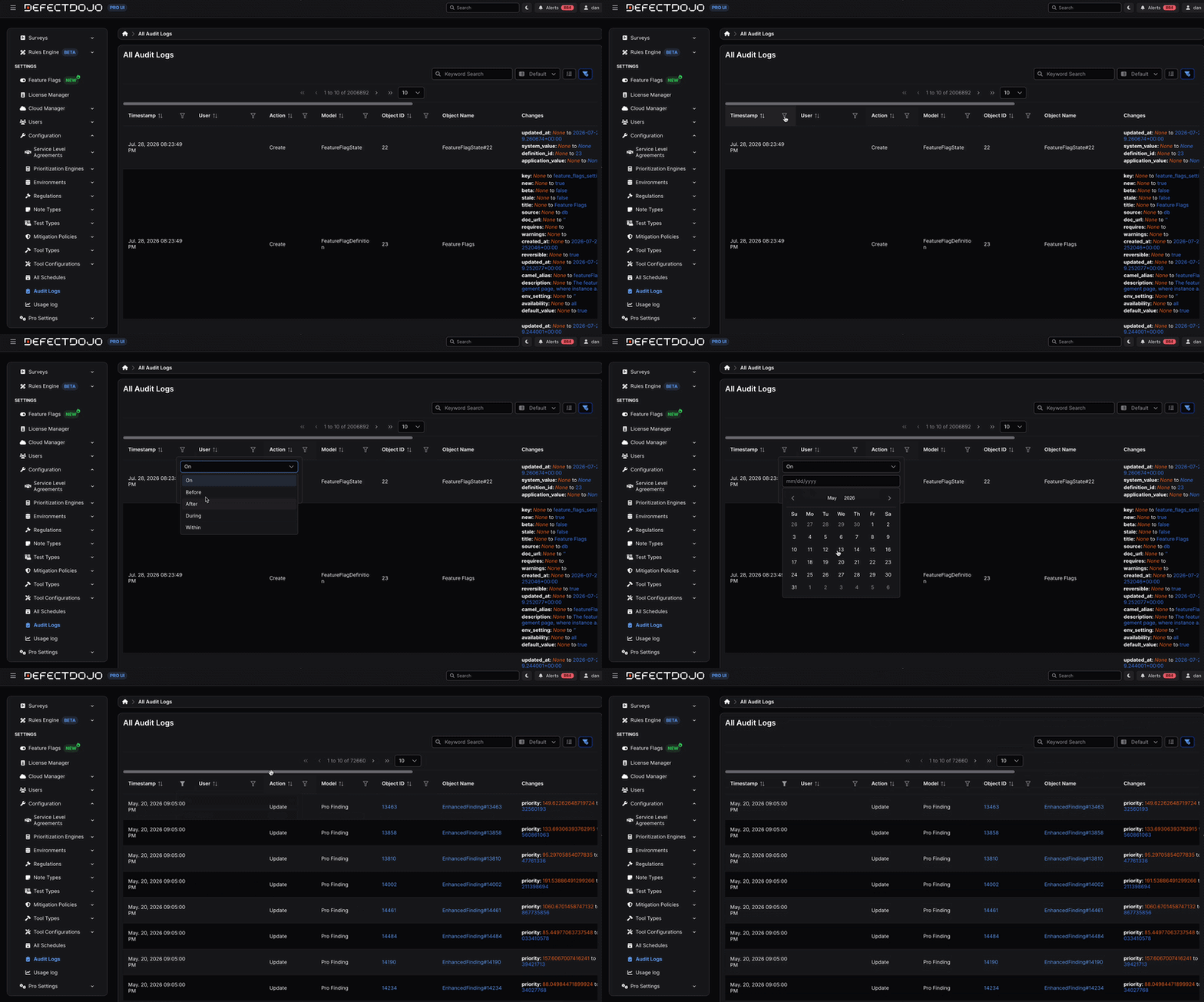
By default, Audit Logs display entries from the previous 31 days. Older entries remain available and can be viewed by adjusting the Timestamp filter.
Filtering Audit Logs
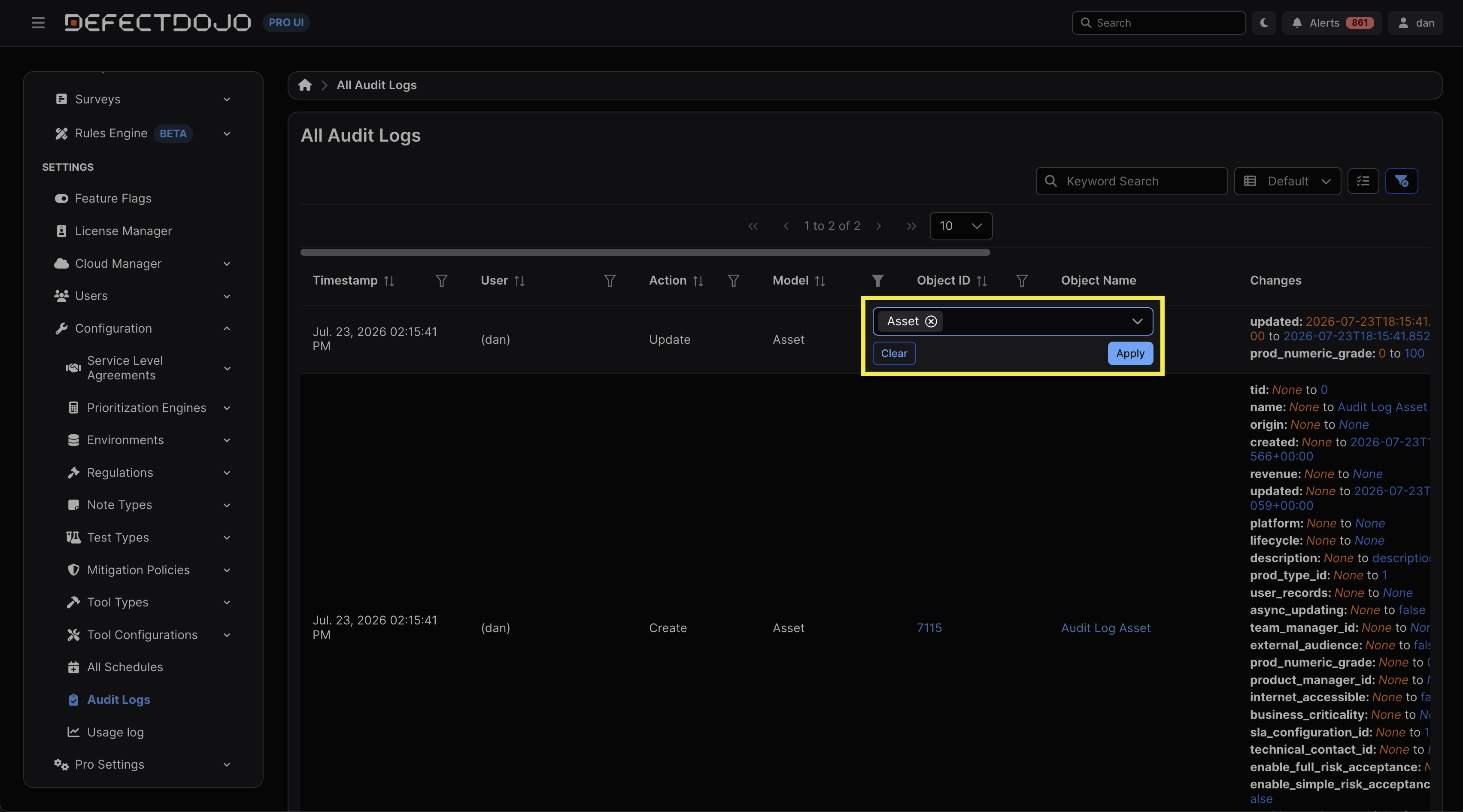
The Audit Logs table includes filters to help narrow the displayed results. For example, if you wanted to see actions pertaining only to Assets, you could filter for Assets within the table.
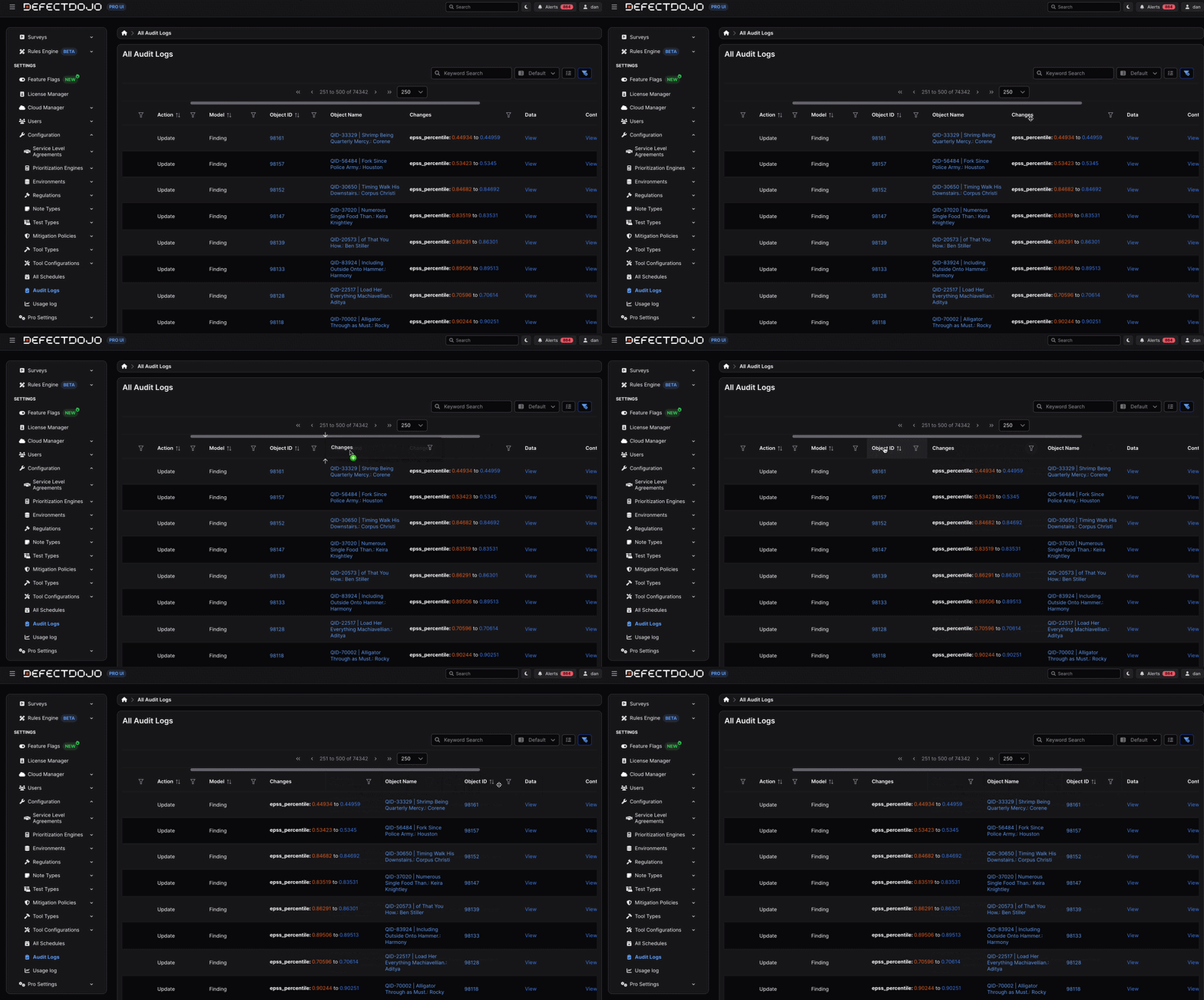
The columns within Audit Logs can also be arranged in alphabetical, ascending/descending, or chronological order, depending on the contents of the column in question. Columns may also be dragged left or right depending on their preferred arrangement.
Object History
Object History provides a chronological record of changes made to an individual DefectDojo object (e.g., Organization, Asset, Engagement, Test, Findings, Endpoints, and Risk Acceptances). Each entry includes details such as the timestamp, user, action performed, and the associated changes.
Unlike Audit Logs, which record events across an entire instance, Object History pertains strictly to activity for a single object, making it easier to understand an object’s history without filtering through unrelated system events.
Object History is useful for:
- Reviewing the progression of an object over time.
- Determining when a change was made.
- Identifying which user made a modification.
- Troubleshooting unexpected changes.
Accessing Object History
Object History can be accessed through the gear menu at the top right corner of any object’s view. Only Users with access to the object in question can view the object’s Object History.
Audit Logs and Object History
While the function of Audit Logs and Object History overlaps, they operate at different scopes. Object History focuses on changes made to individual objects, whereas Audit Logs provide a system-wide record of significant events across your DefectDojo instance, offering a broader, bird’s-eye view of activity.
Endpoints
Object History Endpoint (Pro Only)
DefectDojo Pro users have access to a /history API path for these objects to view similar data. For example: /api/v2/findings/{id}/history/.
Audit Log Endpoint (Pro Only)
DefectDojo Pro users also have access to a dedicated /audit_log endpoint for their entire instance. This log can only be accessed by users or API tokens with superuser permissions.
This API returns 31 days of audit logs.
Sending default or empty parameters will return the last 31 days of audit logs.
Parameter
window_monthwhich will take a month and year in the format MM-YYYY and provide the audit logs for that month.You can set the
window_startparameter to limit these logs to a shorter window, rather than returning the entire month.
For more information, see the API documentation, located in your instance: your-instance.cloud.defectdojo.com/api/v2/oa3/swagger-ui/