

SAML Configuration (Pro)
DefectDojo Pro supports SAML authentication, configured from Connect > Authorization > Providers. Open-source DefectDojo does not include SSO — see Authorized Users for open-source access control.
ACS URL (Assertion Consumer Service)
Your Identity Provider needs to know where to POST the SAML response after a user authenticates. DefectDojo’s ACS URL is:
https://<your-instance>.cloud.defectdojo.com/saml2/acs/A few things to know about this endpoint:
- The endpoint accepts
POSTrequests only. Opening the ACS URL directly in a browser issues a GET and will return an HTTP 405 Method Not Allowed. This is expected behavior — it does not mean SAML is broken or misconfigured. The endpoint is designed to be invoked by your IdP as part of the SAML redirect flow, not by a browser typing the URL. - The ACS URL is available on your DefectDojo Cloud instance at all times — you do not need to enable SAML in DefectDojo first before pointing your IdP at it. You can configure the IdP side and the DefectDojo side in either order.
Setup
Open Connect > Authorization > Providers and select SAML.
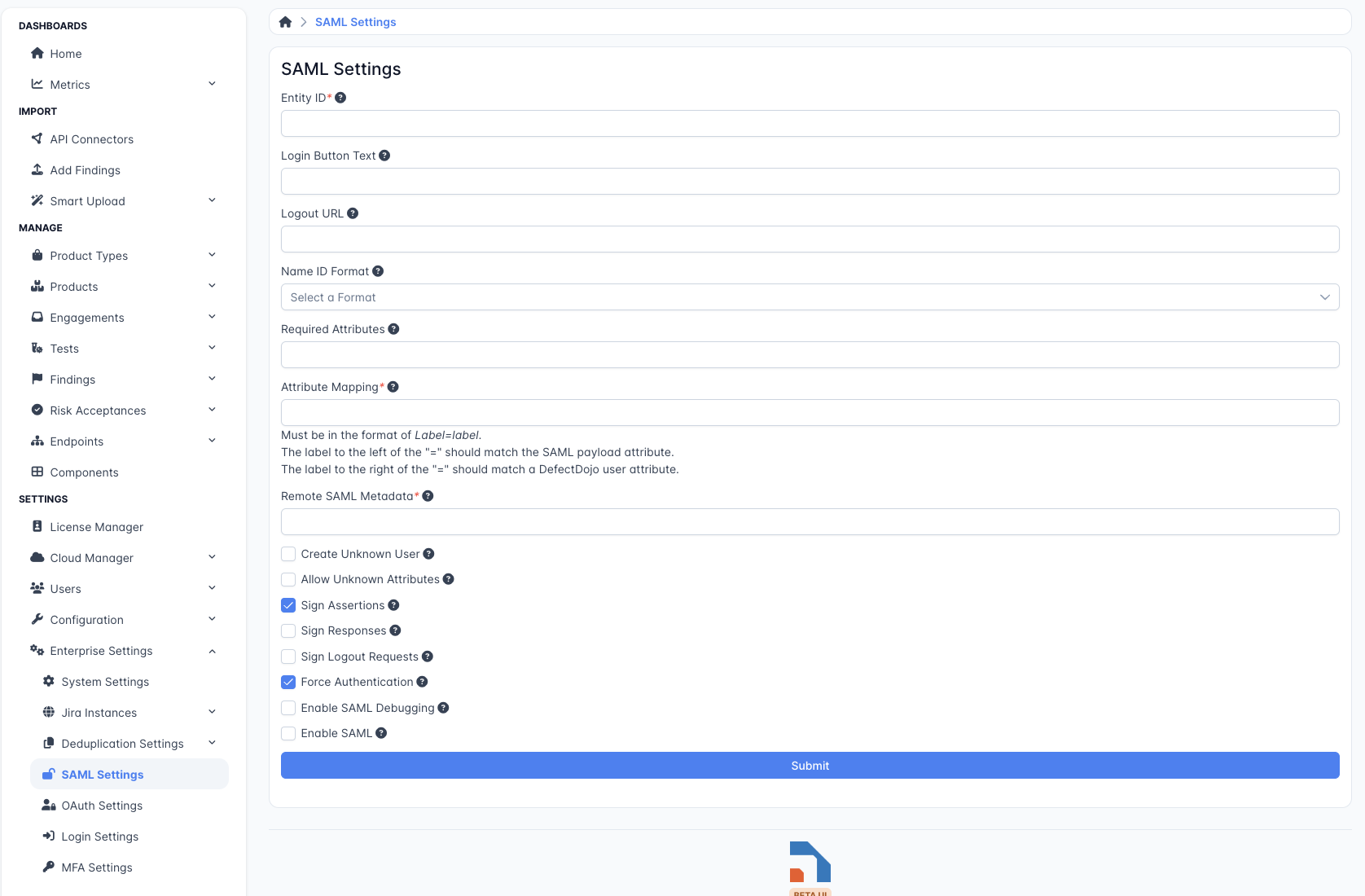
Set an Entity ID — a label or URL that your SAML Identity Provider uses to identify DefectDojo. This field is required.
Optionally set Login Button Text — the text shown on the button users click to begin SAML login.
Optionally set a Logout URL to redirect users to after they log out of DefectDojo.
Choose a Name ID Format:
- Persistent — users are consistently identified by SAML across sessions.
- Transient — users receive a different SAML ID on each login.
- Entity — all users share a single SAML NameID.
- Encrypted — each user’s NameID is encrypted.
Required Attributes — specify the attributes DefectDojo requires from the SAML response.
Attribute Mapping — map the attributes your IdP sends to the DefectDojo user fields they should populate. Each row pairs one SAML Attribute with one DefectDojo Field; use Add Attribute Mapping for additional rows and the bin icon to remove one.
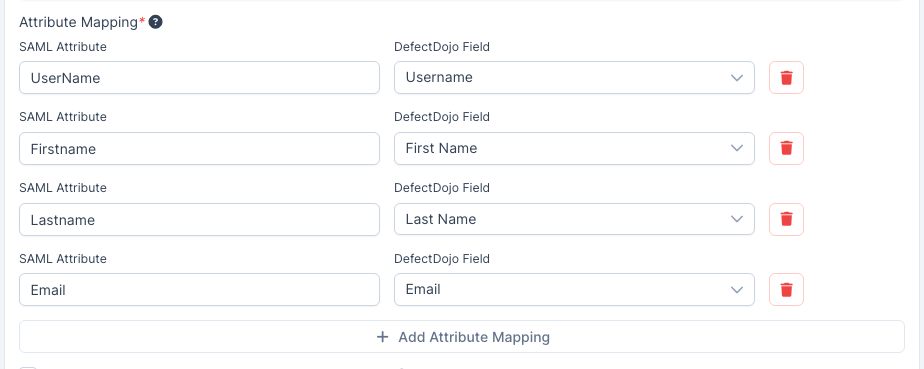
- SAML Attribute is free text and must match the attribute name your IdP actually emits. Some IdPs (e.g. Entra ID / Azure AD) send fully qualified claim URIs such as
http://schemas.microsoft.com/identity/claims/emailaddressrather than friendly names. If you are not sure what your IdP sends, enable Enable SAML Debugging (see Troubleshooting) and inspect the assertion in the logs. - DefectDojo Field is chosen from a list: Username, First Name, Last Name and Email.
- At minimum, map the attribute that corresponds to Username. DefectDojo looks users up by username when matching SAML logins to existing accounts.
- Mapping an attribute to Email is strongly recommended: DefectDojo uses the email address for notifications, and to match an incoming login to an existing account by email.
- The same attribute may feed more than one field — for example an email claim used for both Email and Username. The reverse is not allowed: each DefectDojo field may be mapped from only one attribute.
- A row with only one half filled in is rejected on save, and the offending cell is highlighted. Rows you add but never fill in are discarded rather than treated as errors.
- SAML Attribute is free text and must match the attribute name your IdP actually emits. Some IdPs (e.g. Entra ID / Azure AD) send fully qualified claim URIs such as
Remote SAML Metadata — the URL where your SAML Identity Provider metadata is hosted.
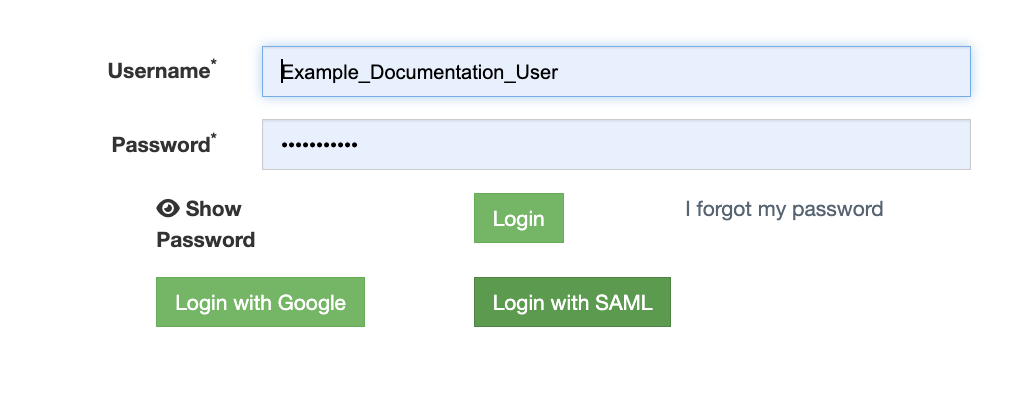
Check Enable SAML at the bottom of the form to activate SAML login. A Login With SAML button will appear on the DefectDojo login page.
 .
.
Additional Options
- Create Unknown User — automatically create a new DefectDojo user if they are not found in the SAML response.
- Allow Unknown Attributes — allow login for users who have attributes not listed in the Attribute Mapping.
- Sign Assertions/Responses — require all incoming SAML responses to be signed.
- Sign Logout Requests — sign all logout requests sent by DefectDojo.
- Force Authentication — require users to authenticate with the Identity Provider on every login, regardless of existing sessions.
- Enable SAML Debugging — log detailed SAML output for troubleshooting. See Troubleshooting → SAML Debugging output for where the log output appears.
SAML Group Mapping
DefectDojo can use the SAML assertion to automatically assign users to User Groups. Groups in DefectDojo assign permissions to all of their members, so Group Mapping allows you to manage permissions in bulk. This is the only way to set permissions via SAML.
Group mapping is optional. Although the Group Name Attribute and Group Limiter Regex Expression fields appear with a required-field asterisk (*) in the UI, the SAML form will submit without them, and SAML login will work without group mapping. You do not need to pre-build groups or roles in your IdP (e.g. Azure AD application roles) before enabling SAML — you only need to configure these fields when you actually want DefectDojo to read group membership from the assertion. If you do not configure group mapping, newly created SSO users will have no permissions by default; see Default access for SSO-provisioned users below.
The Group Name Attribute field specifies which attribute in the SAML assertion contains the user’s group memberships. When a user logs in, DefectDojo reads this attribute and assigns the user to any matching groups. To limit which groups from the assertion are considered, use the Group Limiter Regex Expression field — this is a regular expression applied to the group names from the assertion, used to filter which ones DefectDojo should act on.
The value must match the attribute name your Identity Provider emits in the assertion exactly, including any namespace prefix. A short, friendly name like groups will only work if your IdP is configured to emit that literal attribute name — many IdPs use a fully qualified claim URI instead.
Group Name Attribute by Identity Provider
| Identity Provider | Default attribute name to use |
|---|---|
| Entra ID / Azure AD | http://schemas.microsoft.com/ws/2008/06/identity/claims/groups |
| Okta | groups (the attribute name you configured on the SAML app’s Group Attribute Statement) |
| Keycloak | groups (or whatever you set as the “SAML Attribute Name” on the Group List mapper) |
| PingFederate / generic | Whatever value you configured on the IdP side — check your IdP’s assertion before assuming groups |
If group mapping appears to do nothing — users log in successfully but no groups are created or assigned — see Troubleshooting → SAML group mapping does nothing below.
If no group with a matching name exists, DefectDojo will automatically create one and assign its members the Reader role. Note that this Reader role governs the member’s access to the group itself — it does not grant any access to underlying Assets, Organizations, or other organizational assets. Those permissions are configured separately, and a newly auto-created group still has none of them until a Superuser assigns the group a role on the relevant Assets or Organizations.
To activate group mapping, check the Enable Group Mapping checkbox at the bottom of the form.
Default access for SSO-provisioned users
When a new user is created via SAML (or any social-auth provider) and is not added to any group via SAML Group Mapping, they will land on a DefectDojo instance with no permissions. They will see zero Organizations, zero Assets, and zero Engagements when they log in — the dashboard will appear empty.
To give every newly provisioned SSO user a sensible baseline, configure a Default group + Default group role on the System Settings page:
- Open Settings > System > System Settings (Superuser only).
- Set Default group to the User Group that newly created users should join.
- Set Default group role to the role they should hold in that group (e.g. Reader).
- Optionally set Default group email pattern to a regex (e.g.
.*@yourcompany\.com$) so the default group is only applied to users whose email matches. - Save.
Both Default group and Default group role must be set — if either is empty, the default group is not applied.
This setting applies to every newly created user, including users created via SAML, OAuth, and other social-auth providers, because it runs on Django’s user-creation signal rather than inside a specific authentication backend.
Existing users are not affected. The default group is only applied when a user is first created. Existing DefectDojo users will keep their current group memberships even if you change this setting later.
Cloud vs On-Premise Differences
DefectDojo Cloud does not have the same level of SAML customization as DefectDojo On-Prem. The only variables that can be set are through the UI. Here are some of the key differences:
| Capability | Cloud | On-Premise |
|---|---|---|
| Username matching | NameID only | NameID only (the SAML_USE_NAME_ID_AS_USERNAME env var applies to Open Source only, not Pro) |
| SAML assertion encryption | Not currently supported | Not currently supported |
| SAML login logs | Not available in the UI. Contact Support to request logs. | Available via application container logs (docker logs dojo) |
| Configuration method | Pro UI (Connect > Authorization > Providers) only | Pro UI (Connect > Authorization > Providers), Django Admin, or Django Shell |
| Environment variables | Cannot be set by customers directly. Contact Support for changes. | Can be set via dojo-compose-cli environment add |
If you need to match users on an attribute other than NameID (such as uid or email), configure your Identity Provider to send the desired value as the NameID rather than adjusting DefectDojo settings.
Troubleshooting
SAML Debugging output
When Enable SAML Debugging (in Additional Options) is checked, DefectDojo writes detailed SAML processing output — including the raw attributes received from the IdP — to the application logs at the DEBUG level under the saml2 logger.
| Where you’re running | Where to read the debug output |
|---|---|
| DefectDojo Cloud | The SAML debug log is not exposed in the UI. Contact DefectDojo Support to request the logs for a specific time window. |
| On-Premise (single container) | docker logs dojo (or your Helm/K8s log aggregation) |
| On-Premise (Helm/K8s) | kubectl logs deployment/defectdojo-django -c uwsgi (or your cluster’s log aggregator) |
Turn this option off after you’ve finished troubleshooting — SAML debug logs are verbose and may contain sensitive attribute values from your IdP.
Users get a “User not found” or “Permission denied” error after a successful IdP login
If the SAML assertion parses successfully (no XML or signature errors) but DefectDojo refuses the login, the most common cause is a username mismatch between the IdP and DefectDojo.
DefectDojo looks up the user by username when matching a SAML login to an existing account. If the value your IdP sends as the username attribute does not match an existing DefectDojo user’s username, the lookup fails — even though the rest of the assertion is valid.
Two remedies, pick whichever fits your environment:
- Drop
usernamefrom the Attribute Mapping and let DefectDojo fall back to using the SAMLNameIDas the username instead. This is appropriate if your DefectDojo usernames already match the NameID format your IdP emits. - Align the usernames. Make sure the usernames in DefectDojo are exactly what your IdP sends in the
usernameclaim. For most organizations the easiest convention is to make DefectDojo usernames equal to the user’s email address, and have the IdP send the email as theusernameclaim.
If you’re not sure what the IdP is actually sending, enable Enable SAML Debugging (above) and inspect the parsed attributes in the logs.
SAML group mapping does nothing — users log in but no groups are assigned
The most common cause is a mismatch between the Group Name Attribute field and the attribute name your IdP is actually sending. See the Group Name Attribute by Identity Provider table above, and enable Enable SAML Debugging to see the raw attributes coming back from the IdP.