

Login Settings (Pro)
Once you have an SSO provider working, Login Settings controls how the DefectDojo login page itself behaves — whether username/password login is still offered, whether visitors are sent straight to your identity provider, how long a session lasts, and whether SSO can create accounts on the fly. Open-source DefectDojo does not include these controls — see Authorized Users.
Find it under Connect > Authorization > Login Settings. Only a Superuser can change it.
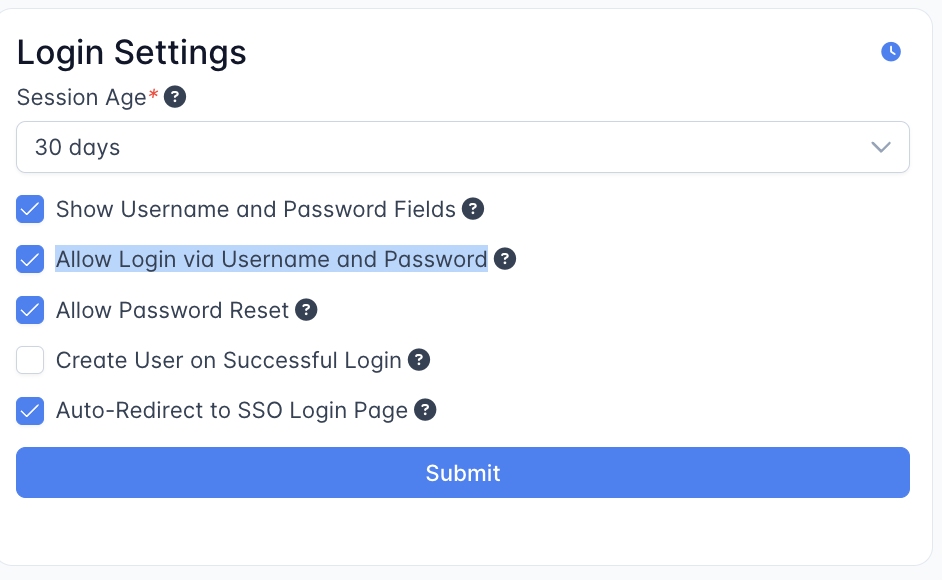
Settings
- Session Age — how long a session stays valid before the user must log in again. Choices range from 30 minutes to 30 days; the default is 12 hours.
- Show Username and Password Fields — when enabled, the username and password fields are shown on the login page.
- Allow Login via Username and Password — when enabled, classic username/password authentication is allowed and its login button is shown. Turn this off once SSO is working to make the instance SSO-only. See Making the instance SSO-only for the safe way to do this.
- Allow Password Reset — when enabled, users can start the password-reset flow from the login page. This only applies to local passwords; SSO users reset credentials at their identity provider.
- Create User on Successful Login — when enabled, a user authenticated by SSO who does not yet exist in DefectDojo is created automatically with minimal permissions (just-in-time provisioning). When disabled, only users who already exist in DefectDojo can sign in via SSO. Pair this with a Default group (below) so new users are not stranded with no access.
- Auto-Redirect to SSO Login Page — when enabled, visiting DefectDojo redirects straight to the SSO login instead of showing the DefectDojo login form. This only works when exactly one SSO connection is configured. Always keep the login fallback in mind before enabling it.
Default access for new users
Create User on Successful Login decides whether an SSO user is provisioned; it does not grant them any access. A newly created user with no group membership sees an empty dashboard. Configure a Default group and Default group role on the System Settings page so every new user gets a sensible baseline — the mechanism is described in full under Default access for SSO-provisioned users.
Making the instance SSO-only
To require SSO for everyone:
- Confirm your SSO provider works and at least one Superuser can sign in through it.
- Keep at least one Superuser account with a working username and password as a break-glass fallback.
- Turn off Allow Login via Username and Password (and, if you wish, Show Username and Password Fields).
Login fallback
If your SSO integration stops working, return to the standard login form by appending ?force_login_form to your DefectDojo login URL:
https://<your-instance>.cloud.defectdojo.com/login?force_login_formThis works even when Auto-Redirect to SSO Login Page is on or the password login button is hidden, which is why keeping one username/password Superuser account is the recommended safety net.