

Google Auth
DefectDojo Pro supports login via Google accounts. New users are created automatically on first login if they don’t already exist. Existing DefectDojo users are matched to Google accounts by username (the portion before the @ in their Google email). Open-Source users should refer to the Open-Source Google guide.
Prerequisites
Complete the following steps in the Google Cloud Console before configuring DefectDojo:
Sign in to the Google Developers Console.
Go to Credentials > Create Credentials > OAuth Client ID.
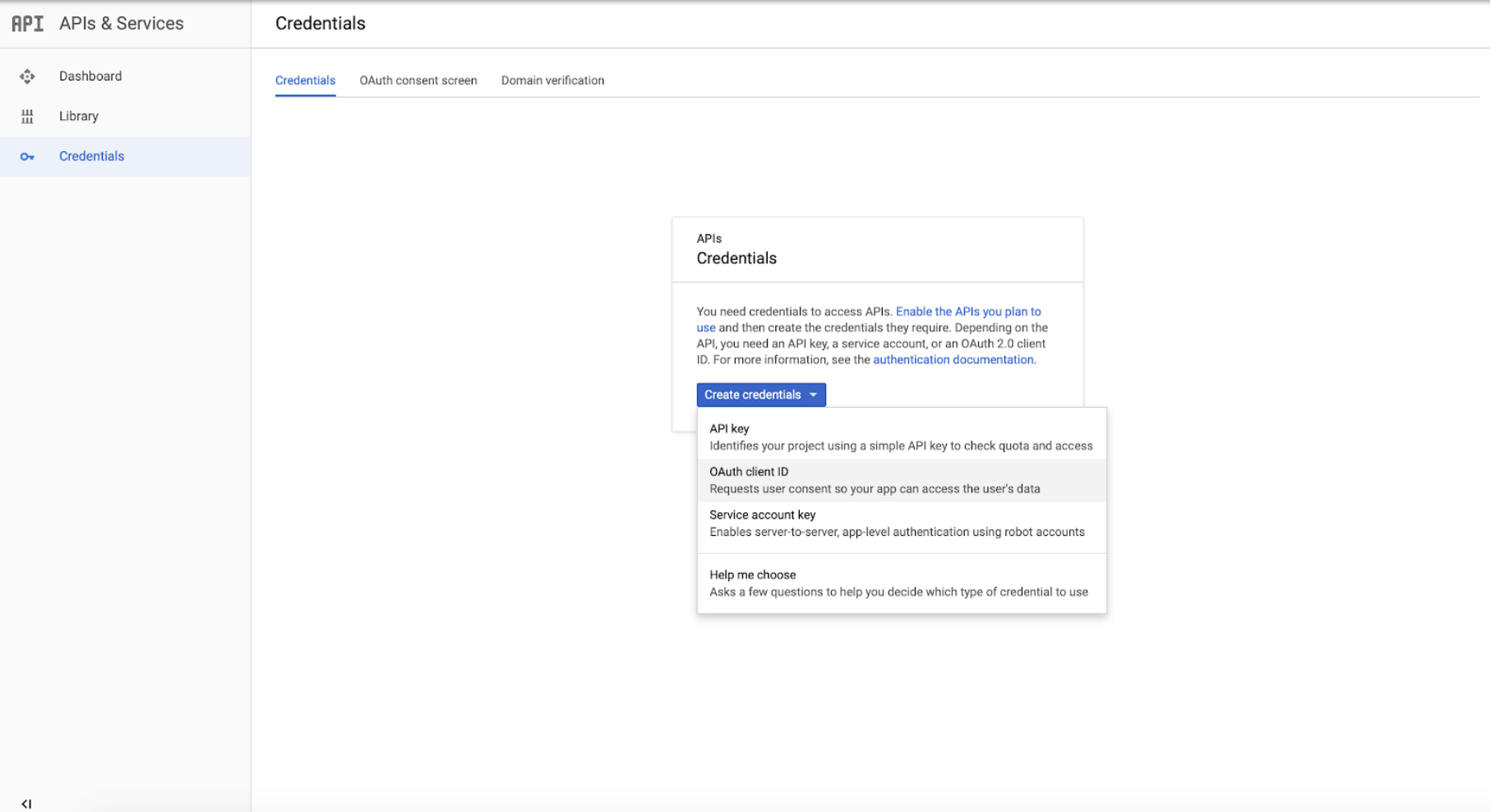
Select Web Application and give it a descriptive name (e.g.
DefectDojo).Under Authorized Redirect URIs, add:
https://your-instance.cloud.defectdojo.com/complete/google-oauth2/Note the Client ID and Client Secret Key.
Configuration
In DefectDojo, go to Enterprise Settings > OAuth Settings, select Google, and fill in the form:
- Google OAuth Key — enter your Client ID
- Google OAuth Secret — enter your Client Secret Key
- Whitelisted Domains — enter your organization’s domain (e.g.
yourcompany.com) to allow any user with that domain to log in - Whitelisted E-mail Addresses — alternatively, enter specific email addresses to allow (e.g.
user1@yourcompany.com, user2@yourcompany.com)
You must set at least one whitelisted domain or email address, or no users will be able to log in via Google.
Check Enable Google OAuth and submit the form. A Login With Google button will appear on the login page.