

Authorization Connectors (Pro)
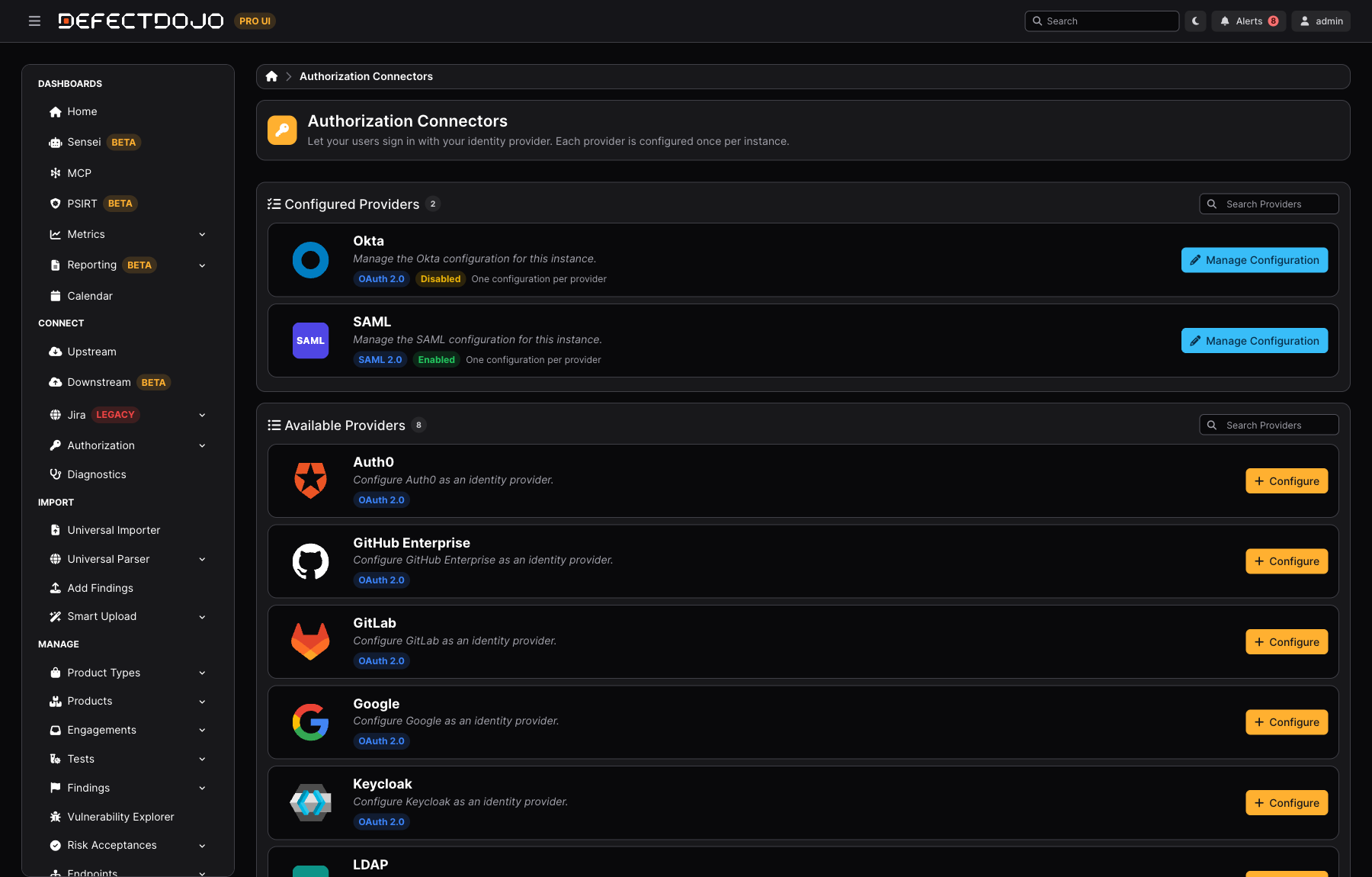
Authorization Connectors is one page listing every identity provider DefectDojo Pro supports, what state each one is in, and what protocol it speaks. Before it existed, each provider lived on its own settings form and there was no way to answer “what is set up on this instance?” without opening all of them.
Authorization Connectors is a DefectDojo Pro feature. Find it under Connect > Authorization > Providers. Only a Superuser can view or change identity provider configuration.
How the page is organised
Providers are split into two sections, and each section is listed alphabetically with a count beside its heading:
- Configured Providers — providers that have been set up on this instance, whether or not they are currently switched on.
- Available Providers — providers that are supported but not yet set up.
The split is on configured, not enabled, deliberately. A provider that was configured and then switched off stays in Configured Providers, because that is where the person who set it up will look for it. Its state is on the tile instead.
Each tile shows:
| Logo and name | The provider, named without its protocol |
| Protocol tag | SAML 2.0, OAuth 2.0, OpenID Connect, or LDAP |
| Status tag | Enabled, Disabled, or Not configured |
BETA tag | Present on providers that are still in beta |
| Action | Manage Configuration for a configured provider, Configure for an available one |
Both sections have a search box that matches on provider name and on protocol, so searching oauth narrows the page to the OAuth providers.
One configuration per provider
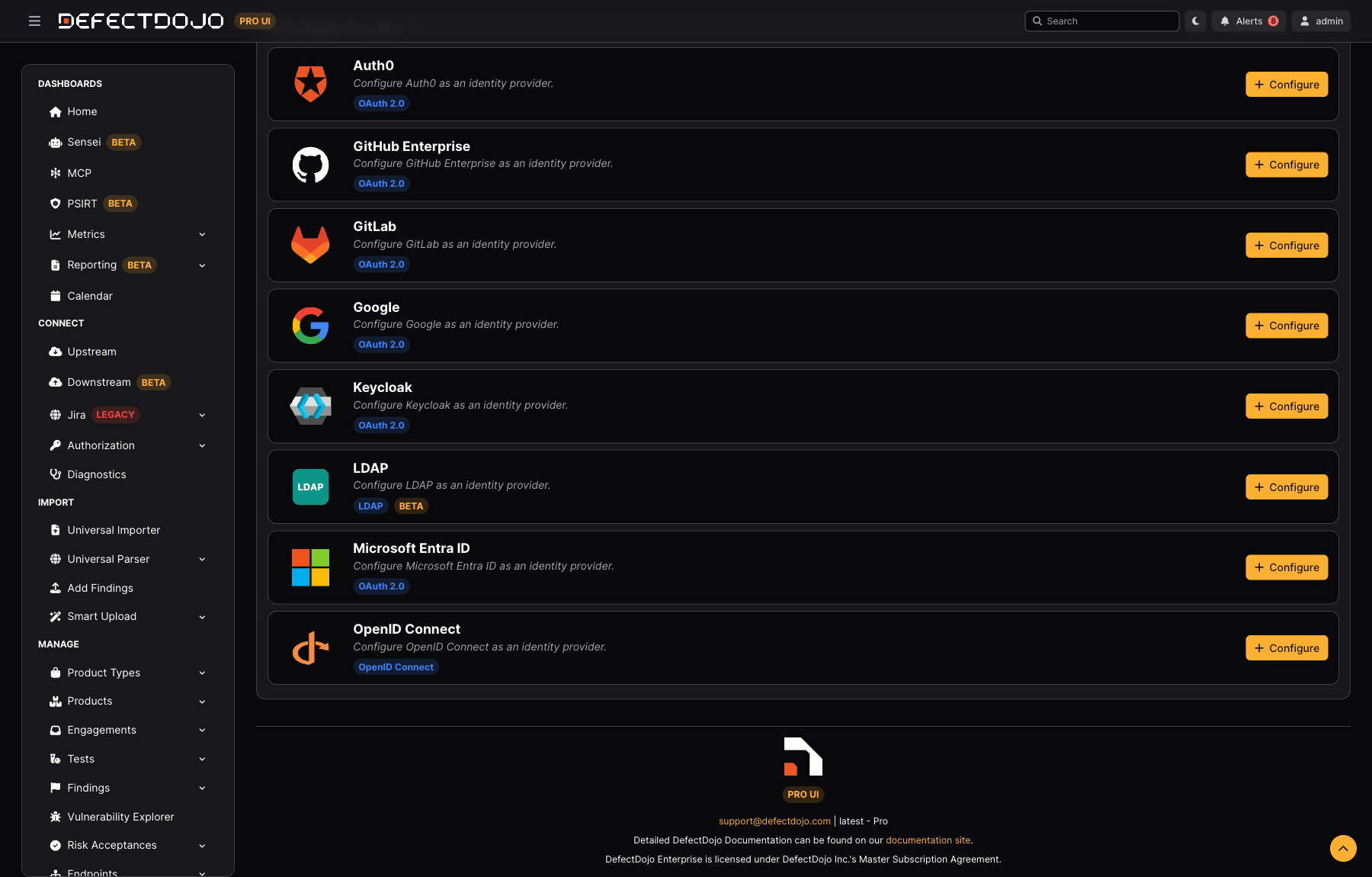
Identity provider settings are a single set of values per provider per instance — one Okta application, one SAML identity provider, one LDAP directory. The tiles say so, and there is no “add another”: to change how a provider is set up, you edit the configuration that already exists.
This is what makes Authorization Connectors different from the connector galleries, where a tool can have many configurations side by side.
The three states, and what they mean
| Status | Meaning | What to do next |
|---|---|---|
| Enabled | Configured and accepting sign-ins | Nothing |
| Disabled | Configured, but switched off — its button will not appear on the login page | Re-enable it from its configuration when you want it back |
| Not Configured | Supported, nothing filled in yet | Configure to set it up |
Selecting a provider opens that provider’s own settings form directly. There is no intermediate provider picker.
Supported providers
| Provider | Protocol | Setup guide |
|---|---|---|
| Auth0 | OAuth 2.0 | Auth0 |
| GitHub Enterprise | OAuth 2.0 | GitHub Enterprise |
| GitLab | OAuth 2.0 | GitLab |
| OAuth 2.0 | ||
| Keycloak | OAuth 2.0 | KeyCloak |
| LDAP | LDAP | LDAP |
| Microsoft Entra ID | OAuth 2.0 | Azure Active Directory |
| Okta | OAuth 2.0 | Okta |
| OpenID Connect | OpenID Connect | OIDC |
| SAML | SAML 2.0 | SAML |
The page reports what a provider’s configuration state is. It never returns the configuration’s secrets — client secrets, bind passwords, and certificates are not part of the data behind this page, and cannot be read back out of it.
When a provider will not connect
Authorization Connectors tells you what is configured; it does not show you failed sign-ins. Those are recorded in Diagnostics, where SSO, SAML, and LDAP each report their own attempts with the reason they were rejected — a bad assertion signature, a rejected bind, a mismatched attribute. Those rows are instance-level and therefore superuser-only.
Keep at least one superuser account with a username and password as a fallback, and remember that /login?force_login_form returns the standard login form if an identity provider stops working. See Single Sign-On for both.
Related
- Single Sign-On — the per-provider setup guides and login settings
- Diagnostics — why a sign-in attempt failed
- Connectors — the upstream gallery this page is modelled on