

Set Personal Notifications
Note: In DefectDojo Pro, notification settings live in the Pro UI as three separate pages rather than one page with a Scope drop-down: Settings > Notifications > Personal Notifications, System Notifications and Notification Template. System Notifications and the Notification Template are visible to superusers only. Notification Webhooks moved alongside them, under Settings > Notifications > Notification Webhooks.
Configure Personal notifications
Personal Notifications are sent in addition to System-Wide Notifications, and will apply to any Asset, Organization or other data type that you have access to. Personal Notification preferences only apply to a single user, and can only be set on the account which is configuring them.
System notifications are set by a DefectDojo Superuser and cannot be opted out of by an individual user.
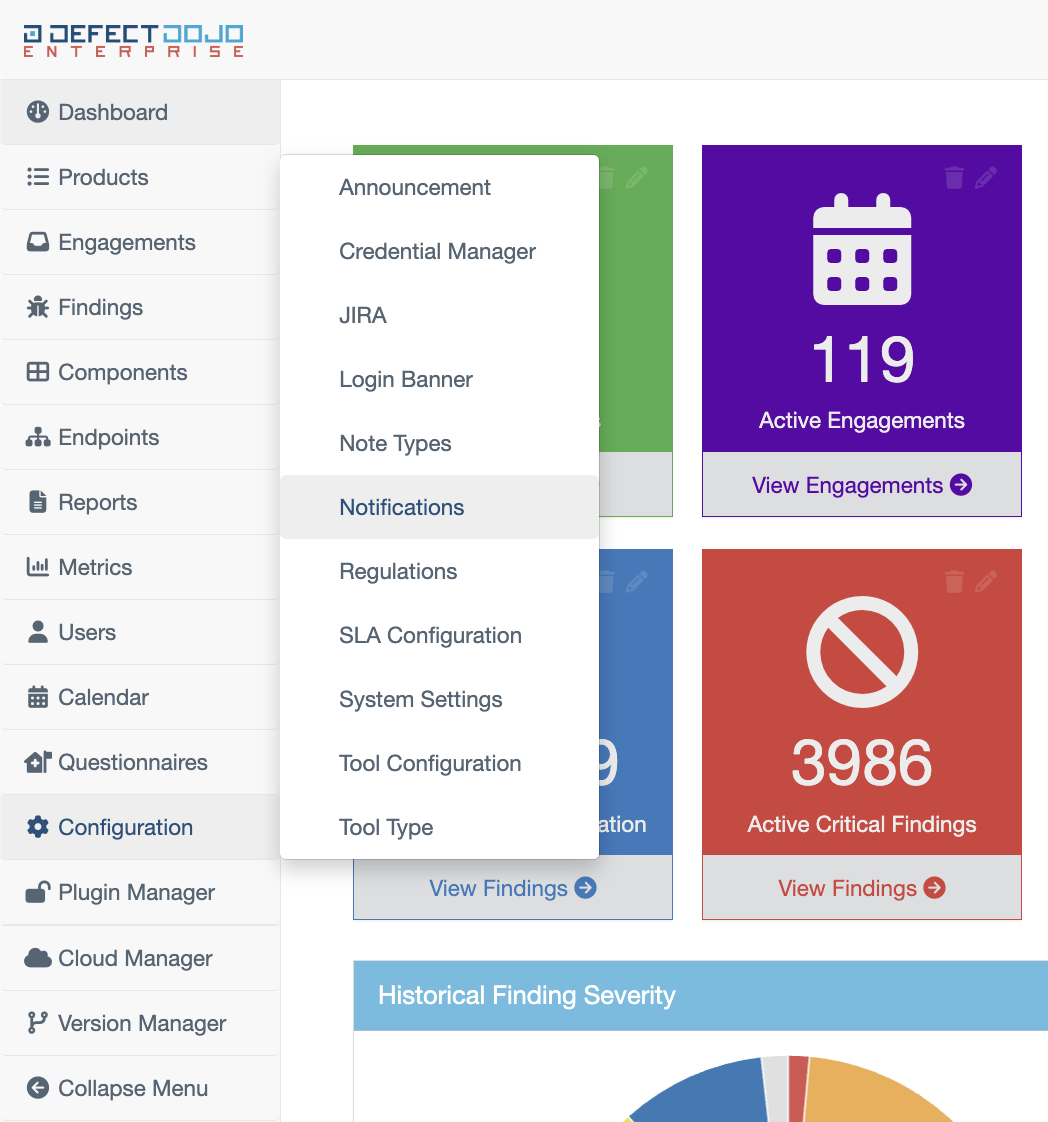
- Start from the Notifications page (Settings > Notifications > Personal Notifications in the Pro UI, or ⚙️Configuration > Notifications in the Classic UI).
- From the Scope drop down menu, you can select which set of notifications you wish to edit.
- Select Personal Notifications.
- Check the notification method which you wish to use for each type of notification. You can select more than one.
Personal Notifications cannot be sent via Microsoft Teams, as Teams only allows for posting Global notifications in a single channel.
Receive new Findings that match a set of filters (Pro)
To be told about new Findings that match particular filters rather than every event of a kind, adopt the Alert on new findings that match a set of filters template in the Triage Engine: it sends an in-app alert about the matching new Findings. See Starting a rule.
Receive Personal notifications for a specific Asset
In addition to standard personal notifications, DefectDojo Users can also receive notifications for activity on a specific Asset. This is helpful when there are certain Assets which a user needs to monitor more closely.
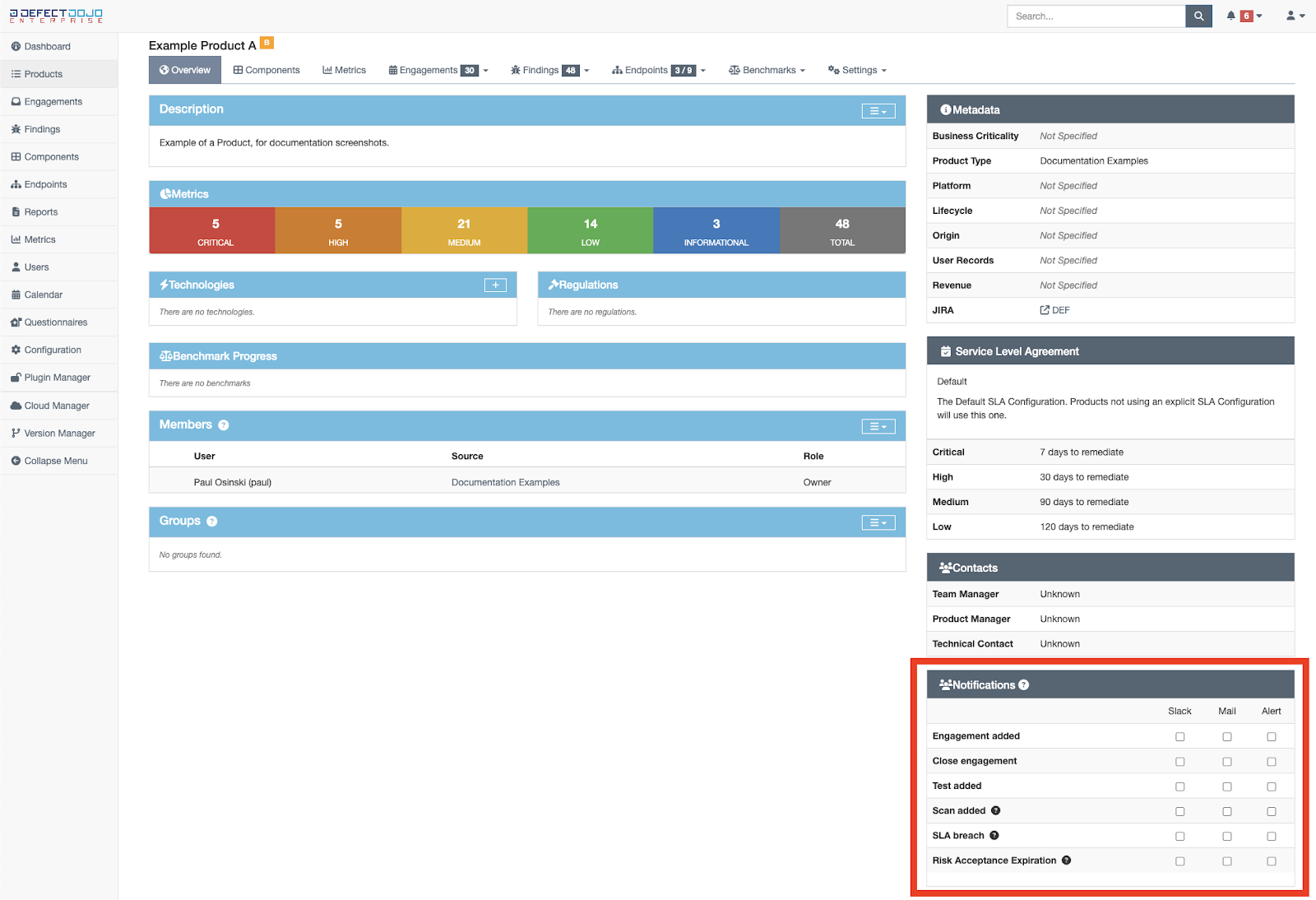
In the Pro UI, open the Asset, then choose Notifications from the ⚙️ gear menu in the page header (the same menu appears on each Asset row in the Asset lists). The dialog lists the events that can be followed for one Asset, with a column for each delivery method:
- Engagement Added and Engagement Closed
- Test Added and Scan Added
- SLA Breach and SLA Breach (Combined)
- Risk Acceptance Expiring
- Finding Risk Accepted, Threat Intel Escalation and AI Component Discovered: the Pro events that are sent about one Asset
Tick a box to receive that event over that method, then Submit. The box under a method’s name ticks or clears it for every event. Opening the dialog changes nothing: an Asset starts with every event off until settings are submitted for it. Other Pro events (connector health, work assignments, review requests and the like) are sent to named people or are not about one Asset, so they are set on Personal Notifications only.
In the Classic UI, this configuration is changed from the Notifications section on the Asset page: e.g. your-instance.defectdojo.com/product/{id}.
From here, you can set whether you want to receive 🔔 Alert, Mail or Slack notifications for actions taken on this particular Asset. These notifications apply in addition to your Personal Notifications and any system-wide notifications you are already receiving, and they stop if you lose access to the Asset.
Microsoft Teams cannot send personal notifications of any kind, so Teams notifications cannot be chosen from this menu.
Personal email notifications will always be sent to the email associated with your DefectDojo login. To set up a personal Slack account to receive notifications, see our Guide.